
Employee Relocation
People and their records change after they're hired: a branch gets restructured and someone's whole department moves, an employee needs a raise or a new job title, a passport gets renewed, or a project needs a handful of people working somewhere else for a few weeks. Nama splits these into distinct tools rather than one giant "edit employee" screen, because each of them has a different footprint — one of them even reallocates historical accounting balances, and none of the others do.
Employee Relocate
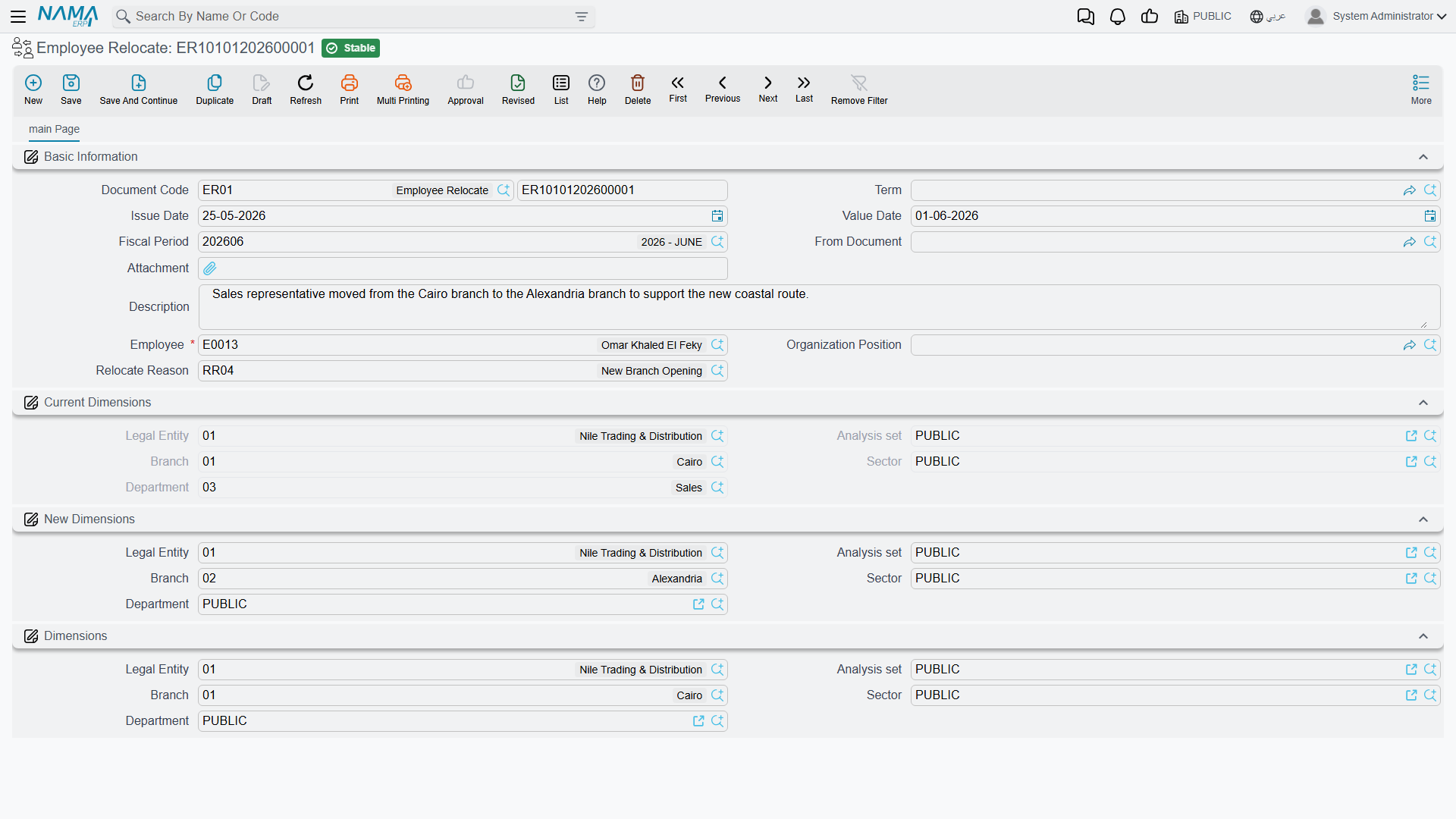
Found at Human Resources > Recruitment > Employee Relocate, an Employee Relocate document is a permanent move of one employee from one organisational placement to another — a different branch, department, sector, or analysis set.
| Field | Purpose |
|---|---|
| Employee | Who is being relocated. |
| Organization Position | The org-chart position the move applies to. |
| Relocate Reason | Why the move is happening. |
| Current Dimensions — Legal Entity / Branch / Department / Sector / Analysis Set | The employee's placement as it stands today (read from their own record). |
| New Dimensions — Legal Entity / Branch / Department / Sector / Analysis Set | Where the employee is moving to. |
A relocate cannot cross legal entities
The Legal Entity under New Dimensions must match the employee's current one — Nama blocks saving otherwise. Moving someone to a different legal entity is a different kind of transaction (a new employment relationship, for accounting and legal purposes), not a relocation.
How it's processed / what it posts
Committing an Employee Relocate document does two things at once:
- It immediately updates the employee's own master record so their branch, department, sector, and analysis set become the New Dimensions.
- It looks back through the employee's accounting history for any balance-sheet account (not income-statement accounts like expenses or revenue) whose debit and credit don't net to zero under the old dimension combination — typically an accrued or provisioned balance carried against that employee — and posts a reallocating journal entry that debits one dimension combination and credits the other, so the balance follows the employee to their new placement instead of being silently split across two locations.
A Without Accounting Effect switch on the document term can turn off step 2 for organisations that don't want relocation to touch the ledger at all; step 1 (updating the employee's own record) always happens regardless.
Employee Relocate Request
Employee Relocate Request, at the same Human Resources > Recruitment menu group, is the standard optional approval layer described in HR Requests, Documents & Aggregated Documents: the same Employee/Reason/Dimensions fields, plus the Initial/Accepted/Rejected/Processed approval state. Once accepted, generate the real Employee Relocate document from it.
Update Employee Info
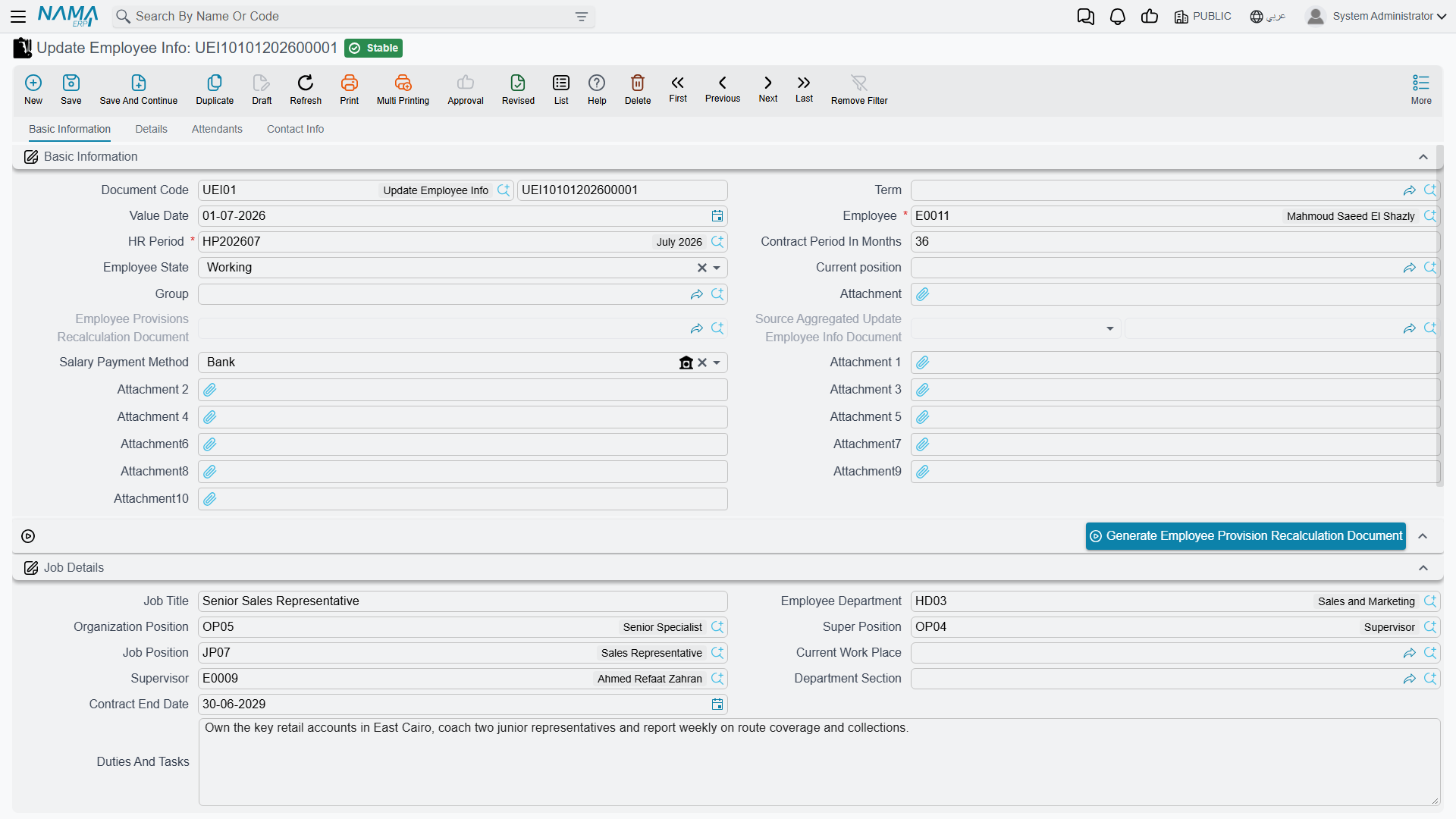
Found at Payroll > Main > Update Employee Info, this document is the general-purpose way to change almost anything about an existing employee at a specific point in time: job title and position, salary component values, personal and official documents (bank details, passport, residency, work license, social and health insurance, entry visa), contract dates, and the employee's own working state.
Basic Information:
| Field | Purpose |
|---|---|
| Employee | Who this change applies to. |
| HR Period / Value Date | Which payroll period the change lands in, and the exact day it takes effect. |
| Employee State | Records a state change — Working, Resigned, Dismissed, Pension, Suspended, and more — effective from Value Date. |
| Commencement Date / Contract End Date / Contract Period In Months | Employment-term dates. |
| Group | The employee group this person belongs to. |
| Salary Payment Method | How the employee is paid. |
Job Details:
| Field | Purpose |
|---|---|
| Job Title / Employee Department / Organization Position / Super Position / Job Position / Supervisor | Where the role sits in the org chart, mirroring the same fields on a job offer. |
| Current Work Place | The physical work location. |
| Department Section | A finer-grained grouping under the department. |
| Duties And Tasks | A description of the role. |
An Element Lines grid (مفردات رواتب) lists the employee's salary components with both their new Salary Component Value and their Old Salary Component Value side by side per line, rolling up into read-only Total Previous Salary and Total Salary figures — so the change in pay is visible as one number before it's saved. A Vacation Lines grid lets entitlement (assigned days, the balance range, days-of-year basis) be adjusted the same way. Further pages carry the employee's personal contact details, bank/IBAN information, official documents (passport, residency, work license, SSN, social insurance, health insurance, entry visa), and — with Copy Attendants / Copy Qualifications switches — the option to resync attendants and qualifications from elsewhere onto the employee's own record.
Why this document is what splits a salary calculation
Update Employee Info is exactly the mechanism behind the salary engine's warning that "a mid-period information change splits the calculation into segments." Because its Value Date can fall on any day inside an HR period — not only the first day — a raise, a transfer, or any other change recorded here takes effect from that exact date. When the period's salary sheet runs afterwards, it finds the employee's component lines dated in two segments (the old values up to the day before, the new values from Value Date onward) and calculates each segment separately. If a component's total looks off for that month, this document — and its Value Date — is the first place to check.
The Generate Employee Provision Recalculation Document button on the main page creates the matching provisions recalculation document so end-of-service accruals stay in step with the new component values.
Aggregated Update Employee Info
Found at Payroll > Main > Aggregated Update Employee Info, this is the batch version for applying the same info change to many employees at once — a cost-of-living adjustment across a whole department, for example. List the employees in the Employee Info grid and click Collect Data (تجميع البيانات) to load each one's current information into the grid, and their current salary components and vacation entitlements into the Element Lines and Vacation Lines grids, one row per employee per line. Edit those rows to the new values, with an Element Update Type / Vacation Update Type choice of Add And Update (add new lines and update matching ones) or Replace (replace the employee's existing lines outright). Each collected employee line spawns its own ordinary Update Employee Info document underneath — as with any aggregated document, work in the batch, not in the singles it produces.
Work Place Update
Found at Human Resources > Main > Work Place Update, this is a lighter, narrower tool than either of the above: it changes only where an employee is physically working, for a bounded date range, without touching anything else on their record — useful for a temporary project assignment or a short-term posting to another site.
| Field | Purpose |
|---|---|
| Current Work Place / From Date / To Date (header) | Defaults applied to every line that doesn't set its own. |
| Employee (per line) | Who is being temporarily reassigned. |
| Work Place / Previous Work Place (per line) | The new location, and the one it's replacing (captured automatically). |
| From Date / To Date (per line) | The window this particular line's reassignment covers. |
A date-gated effect
The new work place only takes hold on lines whose From/To window includes the current date at the moment the document is committed. If a line's window starts in the future, resave the document once that date arrives (or use a from-document/scheduling process) to make the reassignment actually stick on the employee's record.
Actions on this screen
On Update Employee Info:
- Generate Employee Provision Recalculation Document — opens a new, unsaved Employee Provisions Recalculation Document for the same employee and HR period, with the provisions already calculated, for you to review and save. The update must be saved first.
On Aggregated Update Employee Info (the same button sits on every tab):
- Collect Data — for each employee already listed in the Employee Info grid, loads their current information and rebuilds the Element Lines and Vacation Lines grids from their current salary components and vacation entitlements. It does not find employees for you; list them first.
Employee Relocate, Employee Relocate Request and Work Place Update have no buttons of their own.
Messages you may see
| Message | Why | What to do |
|---|---|---|
| Can not Relocate Employee To Diffrent Legal Entity {0} — «لايمكن نقل الموظف الى شركة أخري {0}» | The Legal Entity under New Dimensions differs from the employee's current one; a relocation only moves branch, department, sector and analysis set. | Keep the same legal entity. A genuine move between legal entities is a new employment relationship, not a relocation. |
| Can not modify this document another document created after it — «لايمكن تعديل هذا المستند تم عمل مستد بتاريخ بعده» | Another relocation on or after this document's value date exists for the employee, or their record has already been updated after that date. | Work on the latest document affecting the employee; cancel it first if this earlier one really has to change. |
| {0} Has No Job Offer — «ليس له عرض وظيفى {0}» | An Update Employee Info document names an employee who has no committed job offer at all, so there is no starting package for the change to amend. | Create the employee's job offer first — it is the record the update document amends. |
| Value date {0} is before value date {1} of job offer {2} — «التاريخ الفعلي {0} يسبق التاريخ الفعلي {1} للعرض الوظيفي {2}» | The change is dated before the employee's own job offer takes effect. | Move the value date to a day on or after the job offer's value date. |
| Document {0} was created in the same date {1} — «{1} السند {0} تم إنشاؤه في نفس التاريخ» | Another committed Update Employee Info for this employee already carries the same value date, and HR Configuration's Allow More Than One Update Employee Info Doc For Same Emp In Same Day is switched off. | Fold the change into the existing document, use a different value date, or have that configuration option enabled. |
| You can not update vacations balance for the employee {0} for type {1} because he has a vacation {2} overlapping with current document value date {3} — «لا يمكن تحديث رصيد أجازات الموظف {0} من النوع {1} لان له مستند اجازة {2} متداخل مع التاريخ الفعلي {3} للمستند الحالي» | A vacation lines change would restate a balance the employee is already drawing on: an existing leave document straddles this document's value date. Only applies when HR Configuration's Consider Multiple Update Documents Balance Changes Within Year is on and balances are not calculated from the start date. | Date the change outside the leave that is already booked, or amend that leave document first. |
| Legal entity can not be PUBLIC — «لا يمكن أن تكون الشركة عام» | The target information block on an Update Employee Info leaves the Legal Entity at the shared public value instead of naming a real company. | Pick the employee's own legal entity. |
| The employee {0} is repeated — «الموظف {0} مكرر» | On an Aggregated Update Employee Info the same employee was collected twice into the Employee Info grid. | Delete the duplicate line; each employee spawns one update document. |
| You can not add the employee {0} to element lines, because he is not found in the employee info lines — «لا يمكن إضافة الموظف {0} إلى سطور مفردات الراتب، لأنه غير موجود في سطور معلومات الموظف» | A salary-component line on the batch names an employee who is not among the collected employees. | Collect that employee into the Employee Info grid first, or leave the component line's employee empty so it applies to everyone in the batch. |
| You can not add the employee {0} to vacation lines, because he is not found in the employee info lines — «لا يمكن إضافة الموظف {0} إلى سطور الأجازات، لأنه غير موجود في سطور معلومات الموظف» | Same rule on the vacation lines grid. | Add the employee to the batch, or clear the employee on that vacation line. |
| You must fill update employee info doc book and term in term {0} — «يجب ملء دفتر وتوجيه سند تحديث بيانات الموظف في التوجيه {0}» | The batch is trying to spawn the individual Update Employee Info documents, but its own document term does not say which book and term to create them with. | Fill the generated document's book and term on the aggregated document's term, then save again. |
Related pages
- How Salary Is Calculated — why a mid-period Update Employee Info splits the month's calculation into segments.
- Employee HR Information — the record whose component lines and details these documents update.
- HR Requests, Documents & Aggregated Documents — the request/document/aggregated pattern behind Employee Relocate Request and Aggregated Update Employee Info.
- HR Provisions — the end-of-service recalculation an info change can trigger automatically.