
Job Order Execution
A job order says what the workshop promised to do. It says nothing about what actually happened on the floor — who picked the car up, when the compressor job started, whether the technician was still on it at closing time. That is what the Job Order Execution document records: a time sheet for the shop, one row per task, with a real start and a real finish stamped by the person doing the work.
You will find it at Service Center → Documents → Production Review.
Required licence
srvcenter
The menu says something else
The document's own title is تنفيذ أمر الشغل — Job Order Execution, and that is what this documentation calls it. The English menu entry currently reads Production Review, so that is the line to look for while you are finding your way to the screen.
The one thing to understand before you start clocking
Every reader arrives at this screen expecting that the hours it captures end up on the customer's bill. They do not.
The clock on this document measures wall-clock time — the plain difference between the start stamp and the finish stamp. The customer, meanwhile, is billed for the standard hours held in the task catalogue and copied onto the job order when the task was chosen. Nothing anywhere in the module turns a measured minute into money.
Al-Sahra Motors' job order SCJO-2026-0417 makes the point in two numbers. The five tasks carry 6.5 standard hours between them, which is what the invoices are built from. Turki Al-Shammari, who did all five, was clocked on execution document SCPE-2026-0774 for this:
| Task | From | To | Net time |
|---|---|---|---|
TSK-OIL Engine oil and filter change | 3 Mar 09:00 | 3 Mar 10:05 | 1:05 |
TSK-BRK Front brake pad replacement | 3 Mar 10:15 | 3 Mar 11:50 | 1:35 |
TSK-AC A/C compressor replacement | 4 Mar 08:30 | 4 Mar 12:10 | 3:40 |
TSK-ALN Wheel alignment | 4 Mar 13:00 | 4 Mar 13:35 | 0:35 |
TSK-WSH Vehicle wash and valet | 4 Mar 13:40 | 4 Mar 14:05 | 0:25 |
| Total time | 7:20 |
Seven hours twenty measured; six and a half billed. Neither figure moves the other. What the execution document does drive is status — which tasks are finished, therefore which job orders are finished, therefore what the closing document is allowed to pull in — and that is reason enough to keep it accurate.
Three tabs, three jobs
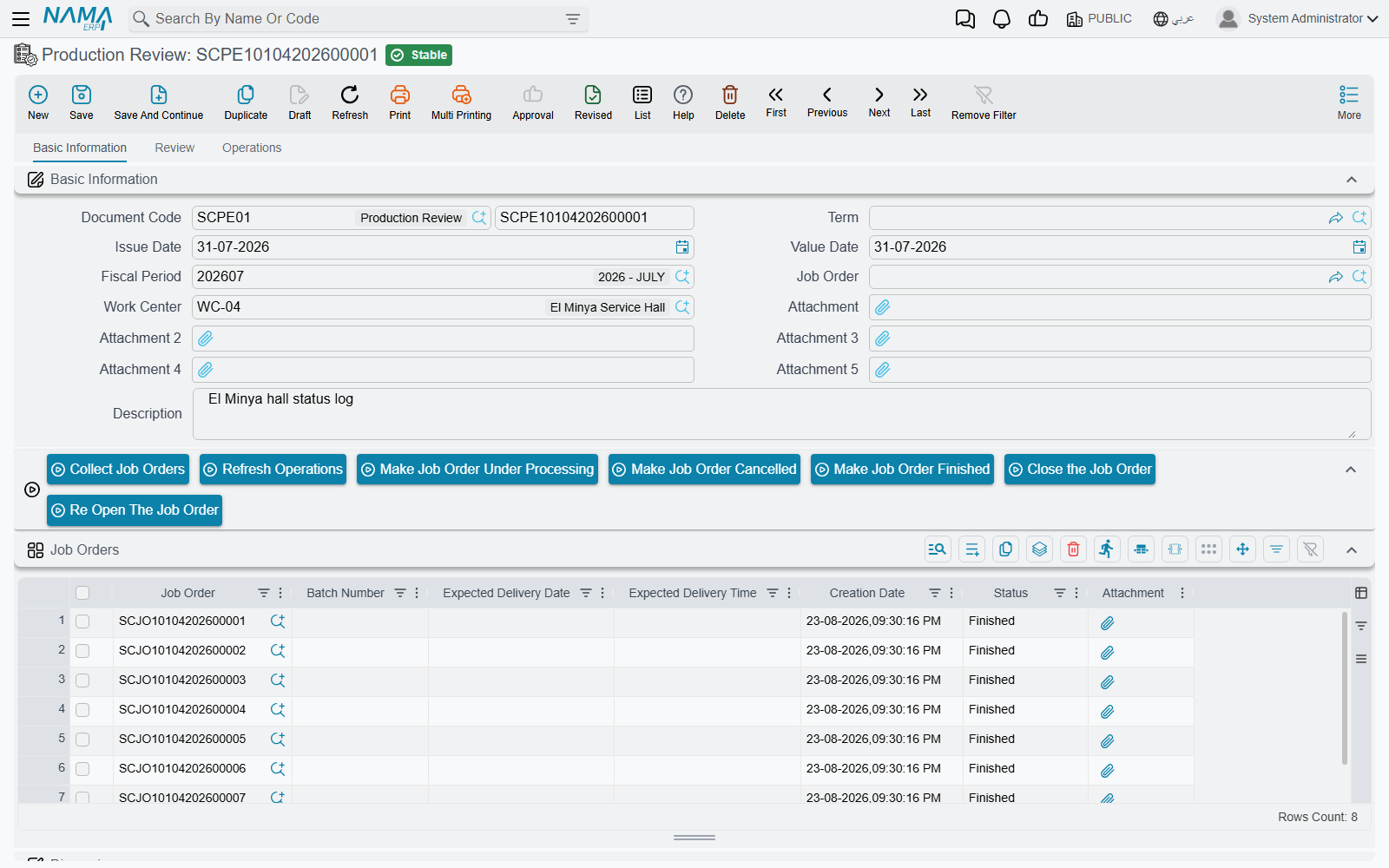
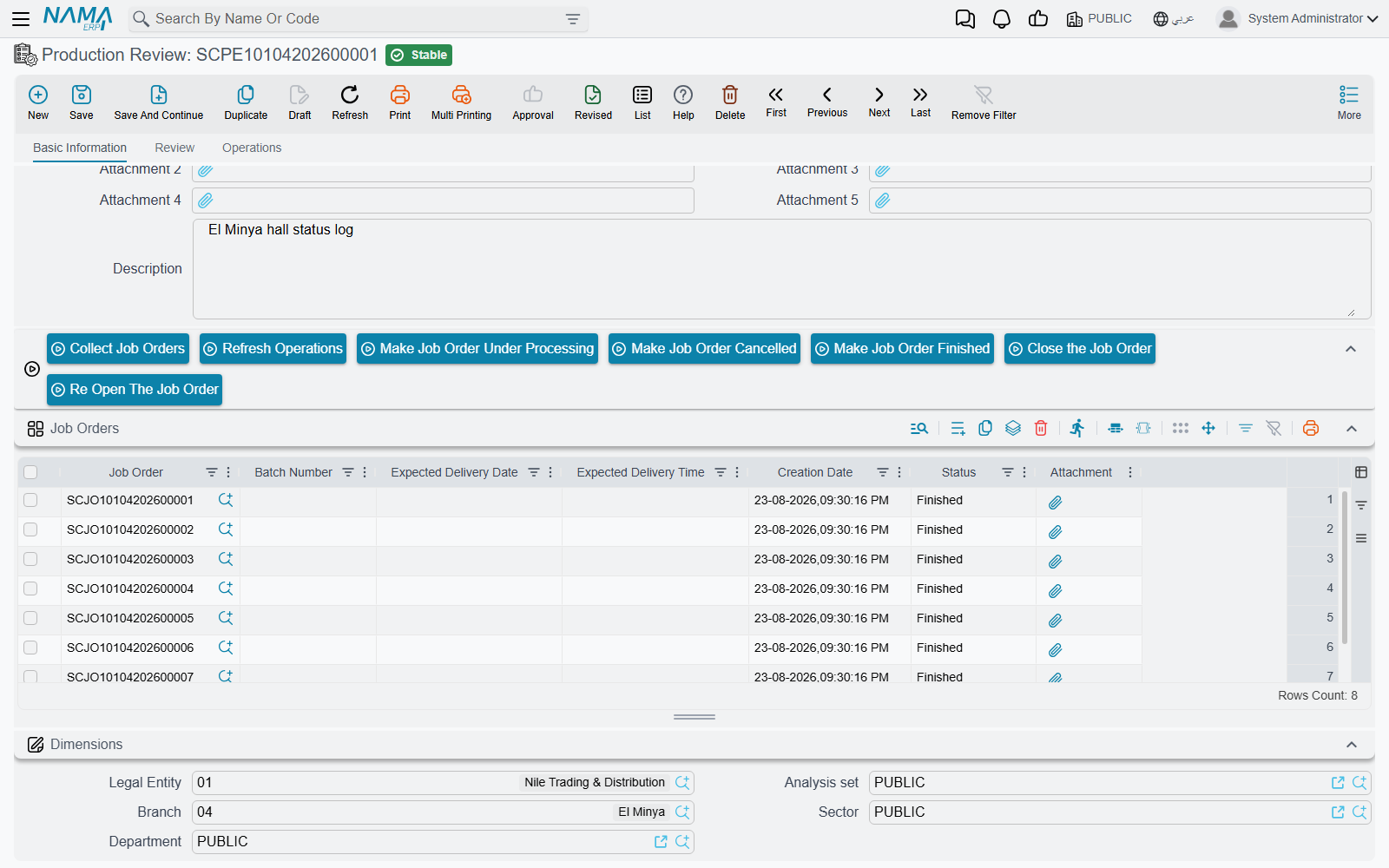
Basic Information carries the header — document book and code, issue and value dates, fiscal period, the job order and the work centre (صالة الإنتاج), attachments and remarks — and one grid, Job Orders (أوامر الشغل).
That grid is not a selection list. It is the status log: each row is one status transition of one job order, with its own creation date, and the job order's current status is derived by replaying the rows in date order. Add a row with status Finished and the order is finished; add a later row with Under Processing and it is back in the shop.
Review (المتابعة) is the fine-grained tab, where one grid row is one task worked by one technician: the task, the resource used, up to five technicians, from date/time, to date/time, the computed net time, the status and remarks. Above the grid sit المهمه الحالية / Current Operation, الفني الحالي / Current Technician, المهمه التالية / Next Operation, الفني التالي / Next Technician and a Unified Technician field.
Two fields to read carefully
The two fields the English screen calls Current Operation and Next Operation pick from the task list, not from services — the Arabic labels read المهمه (task).
Unified Technician is not a default. Fill it and, on save, it overwrites the technician on every line of the document. Use it when one person genuinely did everything, as Turki did on SCJO-2026-0417; leave it empty as soon as two people share the work.
Operations (العمليات) is the coarse tab. Here you clock a whole service (خدمة) rather than its individual tasks, and the system splits the elapsed time across that service's tasks in proportion to their standard hours.
Working the floor
A normal day at WC-MECH runs like this.
- Open a new execution document, choose the work centre, and press تجميع أوامر الشغل / Collect Job Orders. Every job order of that work centre that is Under Processing or Not Started is loaded into the Job Orders grid, with one detail row per order. Both grids are replaced, so collect on a fresh document.
- Select the row for the task about to start and press بدء المهمة للسطر الحالي / Start Current Line Task. The start date and time are stamped with now and the line goes to Under Processing. If the order had no status row yet, one is added at Under Processing.
- When the technician downs tools, select the same row and press إنهاء المهمة السطر الحالي / Finish Current Line Task. The finish stamp is now, the line goes to Finished, and the net time appears in the ساعات العمل columns — as a decimal and as
hh:mm. - Repeat per task. إنهاء أمر شغل / Finish Job Order is the shortcut at the end of a car: it marks the header job order's rows in both grids finished, stamping now on anything still open. With the header's Job Order left empty it does this to every order on the document.
- When the car is done, إغلق أمر الشغل / Close the Job Order generates the job order closing document straight from here, using the closing book and term set on this document's own term. إعاده فتح أمر الشغل / Re Open The Job Order deletes that closing again. Save the execution document before pressing either.
The three change status buttons — Under Processing, Cancelled, Finished — each append one row to the Job Orders grid, for the job order in the header, with that status and the current moment as its creation date. They are how you correct a status log that has drifted.
Collect Job Orders loads only orders that are Under Processing or Not Started, whatever you answer to its Include Postponed Orders question. An order you have suspended with a pending operation document is therefore not loaded: resume it first, then collect.
Rules the document enforces
No technician may be in two places at once. If two lines share a technician and their from/to intervals overlap — whether both lines are on this document or one of them is on another execution document for the same dates — the save is refused, naming the interval:
There is time overlapping between this line and another line time interval from {0} to {1} — «هناك تداخل في الوقت بين هذا السطر وسطر اخر يبدا من {0} الي {1}»
This is the module's one genuine integrity check on recorded time, and it is worth the discipline it imposes. A workshop whose technicians genuinely work two jobs side by side ticks Allow Time Overlap on the Job Order Execution term, and the check is skipped for documents of that term.
Only work that was planned may be clocked. Every detail line's job order must appear in the Job Orders grid, and every detail line's task must exist on that job order's own operations grid. Either message means somebody is recording work the order does not contain, which is a conversation to have before it becomes an invoice.
Finished orders are protected. An order that is already Closed, or that already has a customer, insurance or warranty invoice, cannot appear on a new execution document at all.
Started lines freeze. Once a line has a from-date and a to-date, its service, resource and five technician columns can no longer be changed. If the module setting Can Not Edit Line Status Is Finished is switched on, a finished line is read-only in every column.
One further check is optional. Tick preventing more than one unfinished task per technician on this document's term and a save is refused when a technician would be left with two open tasks on the same day.
The Term field looks optional — on this document it is not
The document saves happily with توجيه المستند / Term left empty. But an empty term silently switches off the one-open-task-per-technician check and leaves the Close the Job Order button with no book and term to create the closing with. Always fill it.
Actions on this screen
Basic Information tab:
- Collect Job Orders (تجميع أوامر الشغل) — asks Include Postponed Orders, then replaces the Job Orders grid and the Review grid with the chosen work centre's orders that are Under Processing or Not Started. Without a work centre it refuses with Please Choose Work Center.
- Make Job Order Under Processing (جعل أمر الشغل تحت التنفيذ), Make Job Order Cancelled (جعل أمر الشغل ملغي) and Make Job Order Finished (جعل أمر الشغل منتهي) — each appends one status row for the header job order, stamped with the current moment.
- Close the Job Order (إغلق أمر الشغل) — creates and commits the job order closing for the header job order, on the closing book and term named on this document's term, then refreshes the screen. Save the document first.
- Re Open The Job Order (إعاده فتح أمر الشغل) — deletes the committed closing of the header job order, which takes the order out of Closed. Save the document first.
Review tab:
- Start Operation (بدأ خدمة) — moves the header job order one task forward. It finishes the lines of the task in Current Operation (stamping now where no end is recorded), adds the job order's lines for the task in Next Operation with the Next Technician, and then refills the current and next fields from the job order's task sequence.
- Finish Job Order (إنهاء أمر شغل) — finishes the header job order's rows in both grids, as in step 4 above.
- Start Current Line Task (بدء المهمة للسطر الحالي) and Finish Current Line Task (إنهاء المهمة السطر الحالي) — on the Details grid row; they stamp the start or finish on the selected line. A line that already has a start is refused with Operation Already Started, and one that already has a finish with Operation Already Finished.
Operations tab:
- Start Current Line Operation (بدء المهمة للسطر الحالي) and Finish Current Line Operation (إنهاء المهمة السطر الحالي) — on the Operation Details grid row; the same stamping for a whole service. Finishing a line that was never started is refused with Operation Has Not Started Yet.
Two ways to clock, and why you must not mix them
The Review tab and the Operations tab are alternatives, not companions.
Rows on the Operations tab destroy hand-typed Review lines
Whenever the Operations tab has any row at all, saving the document clears the Review grid and rebuilds it from the operation rows. Anything a technician typed by hand on the Review tab is gone, without a prompt and without a message.
Use one tab per document. Task-by-task clocking on the Review tab, or service-level clocking on the Operations tab — never both on the same document.
Clock one service per document on the Operations tab
When an operations row is exploded into task lines, the first task starts when the service started, the last ends when it ended, and the middle ones divide the elapsed time in proportion to their standard hours. Raise one execution document per service you clock this way.
Choosing the technician
By default the module hides from the technician lookups anybody who currently has an execution line with no finish stamp — a reasonable way of steering a foreman towards someone who is free. If you would rather see everybody, switch Do Not Show Technicians Who Have Open Task off in the Service Center settings.
What the document does — and does not — produce
It moves no stock and creates no accounting entry. There is no material line on it at all: parts are handled entirely by the spare parts documents.
What it writes is status: the job order's own task lines are stamped with the status of their execution lines, a job order status entry is recorded (which is what re-derives the header status), and a product status entry is added for the vehicle. The only document it can generate is the job order closing, and only when you press the button.
The attendance sheet
Service Center Attendance (حضور / انصراف مركز الخدمة) sits under Service Center → Documents → Service Center Attendance on the same srvcenter licence. It is the workshop's own register of who was on the floor and for how long — typically one document per day, filled by the foreman.
The header is an ordinary document header: book and code, issue date, value date, fiscal period, a description and the dimensions. A term is optional. The Details grid has one line per stint:
| Column | Arabic | What it holds |
|---|---|---|
| Employee | الموظف | Required. Any employee, picked from the HR employee file. |
| Time / From | الوقـت / من | Clock-in time. |
| Time / To | الوقـت / إلى | Clock-out time. |
| Total Time Value | اجمالى الوقت | Filled for you: the hours between the two times, as a decimal (08:00–16:30 gives 8.5). |
Every line belongs to the document's value date; there is no date column on the grid. So a technician who comes back after a break simply gets a second line on the same document.
Saving does nothing beyond storing the sheet. It produces no payroll attendance, no cost on any job order and no accounting entry, and no other screen reads it. Attendance that feeds payroll is captured in the HR module; the hours that count against a job are the ones clocked on the execution document above.
Enter a night shift as two lines
Both times on a line are read on the same day. Enter a shift that crosses midnight as two lines instead: 22:00–23:59 and 00:00–02:00.