
Service Center Settings
Almost everything that changes how this module behaves is configured per document book, on the document term. What is left over — the handful of decisions that have to be the same everywhere — lives on one settings screen, and this page walks through its options group by group.
Required licence
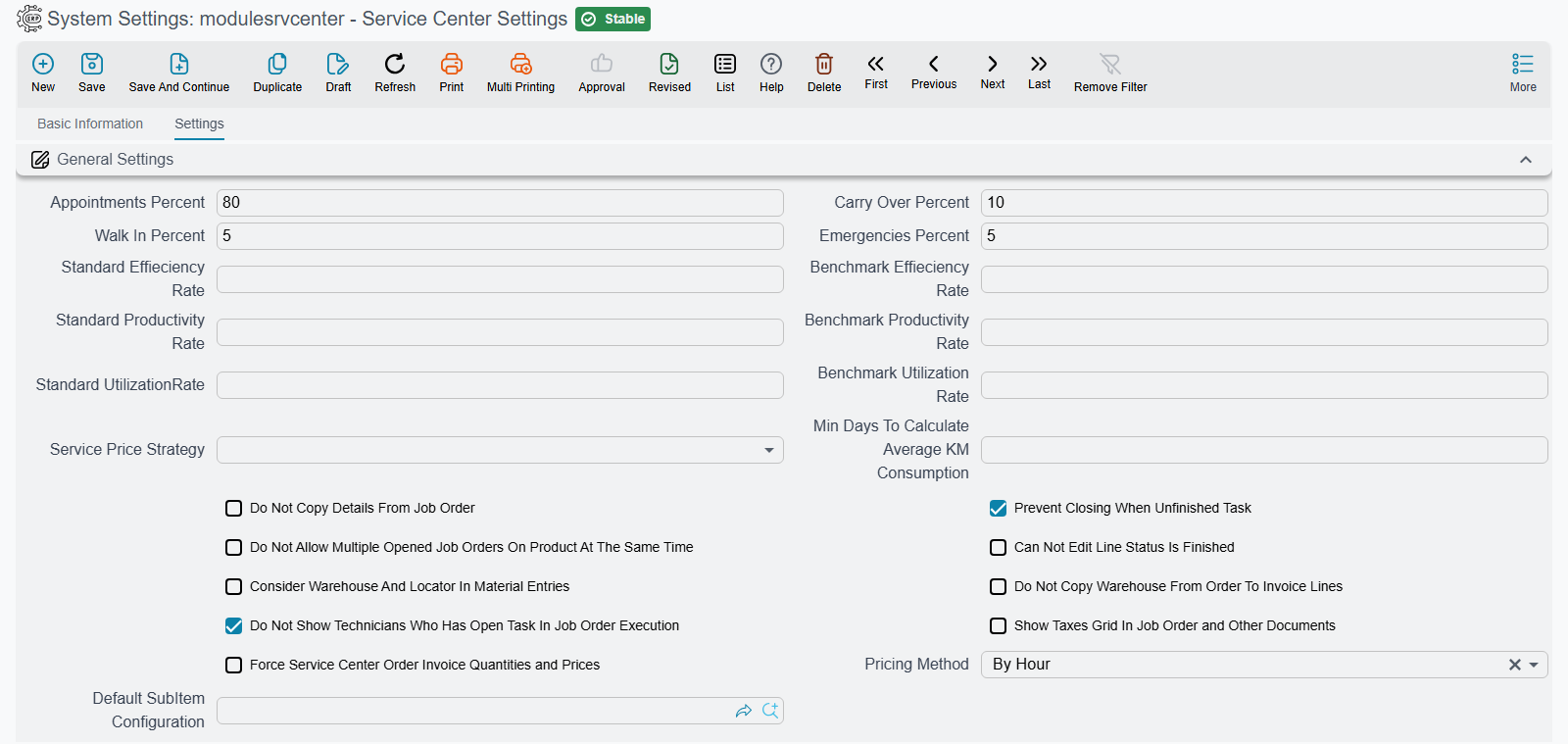
The settings screen belongs to the module as a whole. It has no entry in the Service Center menu (that menu's Settings folder holds the loading table, inspection and visit-type lists instead): open Administration → Settings → System Settings and pick the record named Service Center Settings. Which options are meaningful depends on which of the six licence codes you hold; the rental pricing method, for instance, matters only with srvcenter-rental-assets.
Save this screen once before using the module
Several parts of the module — closing a job order and recalculating prices among them — need this record to exist. Open it and save it once, even with every default untouched. This is a genuine prerequisite, not boilerplate.
One more thing before the tables. Keep one settings record for the whole database. If you need different behaviour per branch or per sector, get it from the document terms, not from here.
Capacity — How the Working Day Is Divided
These four percentages seed the capacity split that a loading table proposes when you create it, and the appointment share doubles as the fallback the booking check uses when no loading table covers the day.
| Option (Arabic / English) | Field id | Default | What it does |
|---|---|---|---|
| نسبة الحجز / Appointments Percent | value.appointmentsPercent | 80 % | The share of the day's hours reserved for booked appointments. This is the only bucket that is actually enforced when a service request is booked. |
| نسبة الطوارئ / Emergencies Percent | value.emergenciesPercent | 5 % | The share reserved for emergencies. Planning information. |
| Walk In Percent | value.walkInPercent | 5 % | The share reserved for walk-in customers. Planning information. |
| Carry Over Percent | value.carryOverPercent | 10 % | The share reserved for work carried over from previous days. Planning information. |
Al-Sahra Motors leaves these at 80 / 5 / 5 / 10, which turns the mechanical hall's forty available hours into 32 appointment hours a day.
The two English-only rows are not a mistake in this table: Walk In Percent and Carry Over Percent have no Arabic translation and display in raw English on the Arabic screen, sitting next to two neighbours that are translated properly. Look for the English words.
Pricing
| Option (Arabic / English) | Field id | Values | What it does |
|---|---|---|---|
| سياسة تسعير الخدمات / Service Price Strategy | value.servicePriceStrategy | Normal · MSRP | Decides whether a task's hourly rate and a service's total price come from the ordinary price columns or from the manufacturer's recommended price columns. Applied at the moment a price is pulled onto a document. |
| طريقة التسعير / Pricing Method | value.pricingMethod | By Hour (default) · By Day | Rental assets only. Whether a rental is charged by the hour or by the day. It changes the arithmetic and the screen layout of the rental documents, and it is one setting for the whole installation — not per asset, not per booking. |
Both are worth settling before the first document exists. Prices already written onto documents are not revisited when you flip the strategy, so a mid-life change leaves an installation with two generations of prices and no way to tell them apart. On the rental side, see Renting Out Assets.
Job Orders and Invoicing
| Option (Arabic / English) | Field id | Default | What it does |
|---|---|---|---|
| منع إغلاق أمر الشغل في حالة وجود مهام غير منتهية / Prevent Closing When Unfinished Task | value.preventClosingWUnfinishTask | On | Refuses a job order closing while any recorded task is still missing a start or end time. Leave it on unless you have a deliberate reason. |
| عدم السماح بفتح اكتر من أمر شغل للمنتج في نفس الوقت / Do Not Allow Multiple Opened Job Orders On Product At The Same Time | value.doNotAllowMultipleOpenedJobOrderOnProduct | Off | Refuses a second open job order for a vehicle that already has one. Useful in a busy shop where the same car can be booked in twice by two advisors. |
| الالتزام بأصناف وكميات وأسعار أمر الشغل في الفاتورة / Force Service Center Order Invoice Quantities and Prices | value.forceSrvCOrderInvoiceQtyAndPrices | Off | Locks the generated invoice to the job order's own items, quantities and prices, so nobody edits the invoice away from the job it came from. |
| عدم نسخ المخزن من سطور أمر الشغل الى الفاتورة / Do Not Copy Warehouse From Order To Invoice Lines | value.doNotCopyWarehouseFromOrderToInvoiceLines | Off | Stops the warehouse being carried from the job order's lines onto the generated invoice lines. Switch it on where invoicing and stock live in different stores. |
| إظهار الضرائب في أوامر الشغل ومستنداتها / Show Taxes Grid In Job Order and Other Documents | value.showTaxesGridInJobOrderAndOtherDocuments | Off | A pure layout switch: shows or hides the taxes grid on the job order and its related screens. |
| إعتبار المخزن و الموقع في جدول قطع الغيار النظامى / Consider Warehouse And Locator In Material Entries | value.considerWarehouseInMaterialEntries | Off | Makes the system's spare-parts ledger key on warehouse and locator as well as item, so the same part issued from two stores is tracked separately. |
The Execution Screen
| Option (Arabic / English) | Field id | Default | What it does |
|---|---|---|---|
| عدم نسخ السطور عند إختيار أمر الشغل / Do Not Copy Details From Job Order | value.doNotCopyDetailsFromJobOrder | Off | When on, picking a job order on the execution document does not pre-fill its task and material lines. Useful where technicians clock only part of an order. |
| لا يمكن التعديل في السطر الذى حالته منتهى / Can Not Edit Line Status Is Finished | value.canNotEditLineStatusIsFinished | Off | Makes every column of a finished execution line read-only, so a completed clocking cannot be quietly edited afterwards. |
| لا تظهر الفنيين المفتوح لهم مهمة في مستند تنفيذ أمر شغل / Do Not Show Technicians Who Has Open Task In Job Order Execution | value.doNotShowTechniciansWhoHasOpenTaskInJobOrderExecution | On | Filters technicians who already have an unfinished task out of the picker on the execution document. |
Vehicle History
| Option (Arabic / English) | Field id | What it does |
|---|---|---|
| أقل عدد من الأيام لحساب متوسط إستهلاك الكيلومتر / Min Days To Calculate Average KM Consumption | value.minDaysToCalcAvgKMConsump | The minimum number of days that must have elapsed between two odometer readings before the vehicle's average daily distance is recalculated. It stops a reading taken the morning after the last one from producing a wild average. See Odometer Readings and Service Intervals. |
Cars
| Option (Arabic / English) | Field id | What it does |
|---|---|---|
| إعدادات حالة الصنف الفرعي الإفتراضية / Default SubItem Configuration | value.defaultSubItemConfig | Supplies the status-filter rows that the car picker offers — and only when the item has no car status configuration of its own. |
What Default SubItem Configuration does not do
This option is read in exactly one place: the filter list on the car picker. It is commonly misread as a fallback that makes the car lifecycle work for items nobody configured. It is not.
Both the status engine and automatic car creation read the configuration attached to the item, and neither falls back to this setting — car creation refuses outright with a message saying the item has no car status configurations. Note also that the fallback is keyed on the item, not on the car.
So: every vehicle item still needs its own Car Status Configurations record. Setting a default here changes nothing about statuses or car creation. See Car Status Configurations.
What Is Not Here
Two absences worth stating, because both send people hunting.
There are no Service Center options on the Global Config screen. Everything module-wide is on the screen described above; everything else is on document terms.
And there is no per-feature licensing inside the module. The six licence codes in Service Center are the whole of the granularity available. Any screen that appears to enumerate finer-grained "features" for this module is not showing you Service Center features and should be ignored.
For everything configured per document book — invoice generation, gate-pass conditions, stock movement, accounting sides — go to Document Terms in Service Center.