
The Job Order
The job order (أمر شغل) is the centre of the module. Everything before it is preparation and everything after it is consequence. It is the document that says: this vehicle, this list of work, these parts, this workshop, this technician, and this division of the bill between the customer, the insurer, the warranty provider and ourselves.
It is worth being clear from the start about what a job order is not. It has no accounting effect — there is no journal entry anywhere on this document. It moves no stock — it is a demand document that plans which parts the job needs; the parts leave the store on separate spare-parts issue documents. What it does instead is hold the truth about the job while the job is happening, and feed everything downstream: the closing, the three invoices and the gate pass.
Menu: Service Center > Documents > Service Center Job Order (مركز خدمة > المستندات > أمر شغل).
Required licence
srvcenter. A document term is required, and in practice it is not optional: the customer, insurance and warranty invoice books and terms all live on it, and without them the job cannot be invoiced.
Opening the order
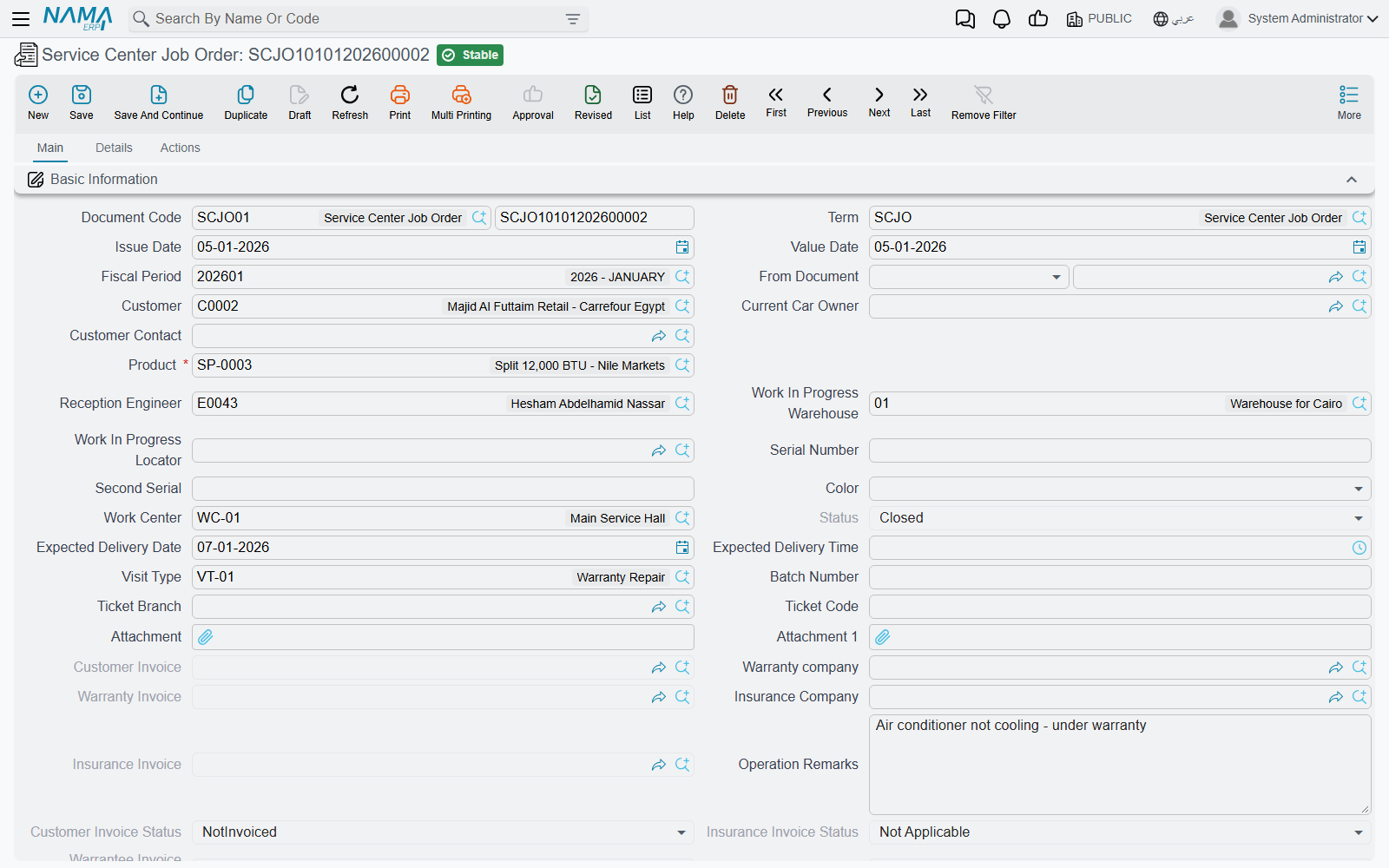
SCJO-2026-0417 is created on 3 March 2026 with its From Document pointing at the revised estimate SCJEU-2026-0119. The header and all three grids arrive filled in. The receptionist then adds what only she knows:
- Work centre (صالة الإنتاج)
WC-MECH, the Mechanical Hall. - Reception engineer
EMP-214. - The work-in-progress warehouse and locator
WH-WIP/WIP-01— where parts drawn for this job live until they are consumed. - Expected delivery 4 March 2026 at 16:00.
- The queue ticket the customer drew at reception,
A014at branchQSB-RUH.
Picking the vehicle in the Product (المنتج) field is what fills the rest: the customer becomes the vehicle's current owner, and the plate, chassis, engine, gear box, colour, brand, model, production year, insurance and warranty companies, insurance dates and the last odometer all arrive from the vehicle file.
The main page
| Group | Contents |
|---|---|
| Basic Information | Document code, term, issue and value dates, fiscal period, From Document, customer, current owner, customer contact, product, reception engineer, WIP warehouse and locator, serials, colour, work centre, status, expected delivery date and time, visit type, follow-up number, queue branch and ticket, two attachments, the three invoice references, warranty and insurance companies, operation remarks, the invoicing status fields, Ignore Recall Campaign Validation, remarks |
| Product details | The vehicle block: chassis, plate, engine, gear box, supplier code, accessories, last and current odometer with dates and their difference, recall campaign, insurance kilometre and dates, brand, model, production year, average daily mileage, service contract and status |
| Operations (العمليات) | The work — see below |
| Total (إجمالي السعر) | Materials total cost, tasks total cost, total cost |
| Expected Next Visit (الزيارة القادة — the Arabic caption is missing a letter; read it as الزيارة القادمة) | Date and type — typed here, but overwritten by the closing |
| Dimensions (المحددات) | Legal entity, analysis set, branch, sector, department |
A few of these are calculated and cannot be typed:
- Status is derived, never entered. It is recomputed from the status entries that other documents write. You cannot set a job order to Closed by choosing it in a list.
- The three invoice references and the invoicing-status fields are written by the invoice buttons.
- Service contract and contract status are refreshed from the vehicle file on every save.
- Current Odometer Date is disabled and always takes the document's value date.
Recording a reading taken on another day
Because Current Odometer Date follows the document date, a reading taken on a different day cannot be recorded here. Use a Kilo Metrage document for that.
The operations grid
One grid holds all the labour, and it works on a master-and-child pattern.
| Column | Arabic | Typed or calculated |
|---|---|---|
| Service | الخدمة | Typed — a service that bundles several tasks |
| Task | المهمة | Typed |
| Duration | المدة | Arrives from the task catalogue, editable |
| Count | عدد | Typed |
| Hour price | سعر الساعة | Arrives from the task catalogue, editable |
| Total | إجمالي السعر | Calculated = hour price × duration × count |
| Technician | الفني | Typed |
| Customer / Insurance / Warranty / Internal, % and value | العميل / التأمين / الضمان / الشركة | See Who Pays for What |
| Work centre | صالة الإنتاج | Defaults to the header's work centre |
| Status | الحالة | Calculated — starts at Not Started and is driven by the execution documents |
| Remarks | ملاحظات | Typed |
Master rows and child rows
A service is entered on its own row; choosing it explodes its tasks into child rows underneath. The rules are enforced on commit and they are strict:
- A row may carry a service or a task, never both.
- A service row must have child rows.
- A child row must not carry a service of its own.
- The same task may not appear twice on one job order.
Which level carries the money depends on how the service was set up in the catalogue: with per-line pricing the children are priced and the service row is zero; with total pricing the service row carries a single package price and the children are zeroed.
Where the labour price comes from
The price of labour is hour price × duration × count, and both the duration and the hour price arrive from the task catalogue when you pick a task — from the task's line for this vehicle's model if there is one, otherwise from the task's own average duration and price, with the work centre's hourly rate as the last resort.
Clocked time is never billed
The duration on this grid is the catalogue's standard time, and that is the number the customer pays for. The hours technicians actually clock on the shop floor are recorded, they drive each task line's status, and they are visible for review — but nothing in the module turns measured time into money.
On our example job the technicians spent 7 hours 20 minutes; the customer is billed for the catalogue's 6.5 hours. That is not a bug, it is the design: a fixed-price workshop.
The details page
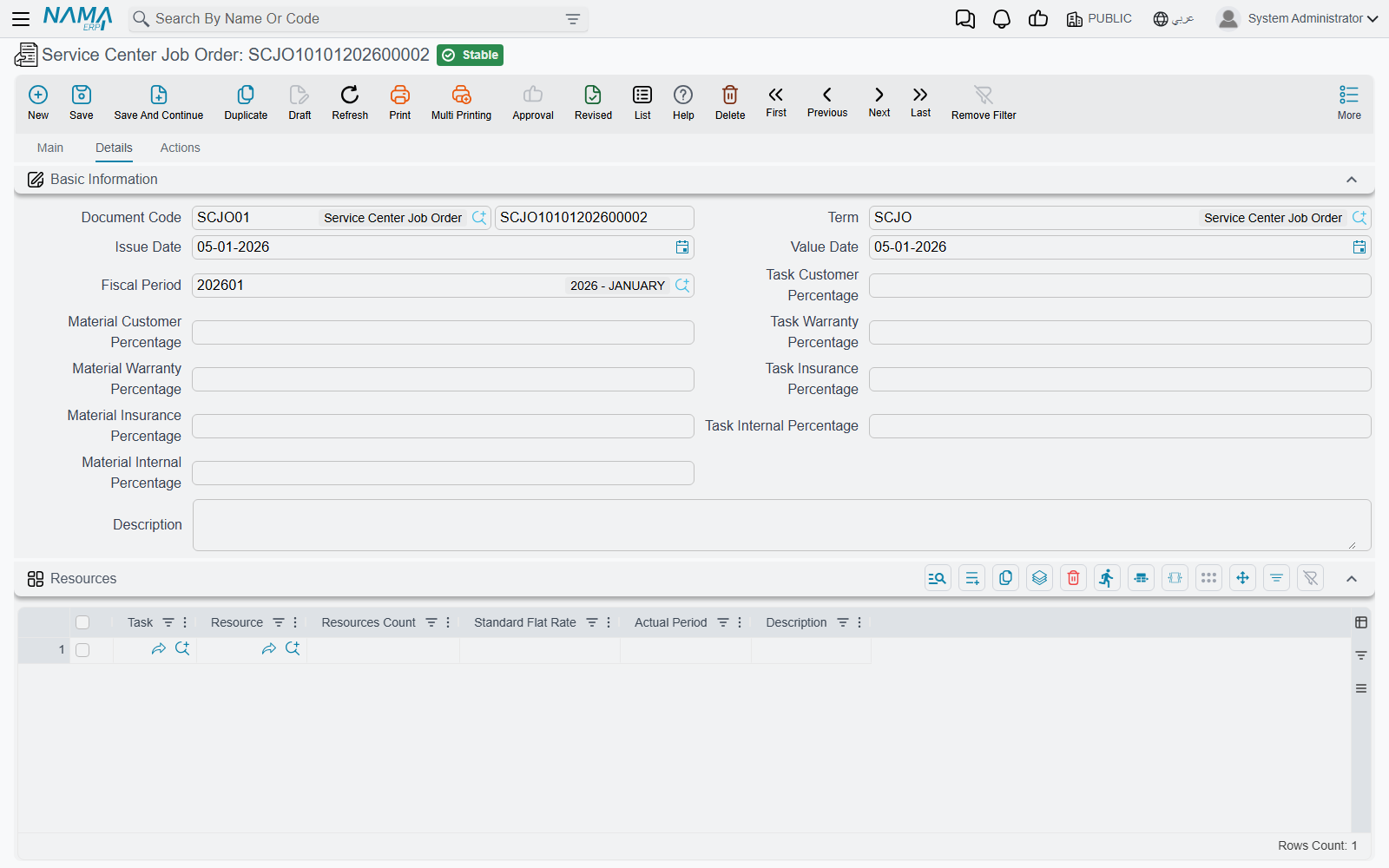
The eight header percentage fields
At the top of the Details page sit eight percentage fields — customer, insurance, warranty and internal, once for tasks and once for materials. They are bulk-apply widgets: type a number and it is stamped onto every line currently in that grid. They are not defaults, they are not policy, and they are not re-applied when you save. Full explanation on Who Pays for What.
Resources
Task, resource, count, planned period (the English label reads Standard Flat Rate), actual period, remarks. The actual period is written back by the execution documents, so the grid shows how long each machine was planned for and how long it was actually used.
Spare parts
Task, material, unit and quantity, issue type, unit price, price, the four payer percent-and-value pairs, Restrict In Issuing, warehouse, locator, remarks.
- Price is calculated as unit price × quantity.
- Unit price comes from the ordinary supply-chain sales price engine — the customer's price list for that item, that date and that quantity. There is no service-centre-specific pricing of parts, and no markup mechanism linking the selling price to the inventory cost.
- Restrict In Issuing (المطابقة في السحب) is forced from the document term on every save, so typing in the column achieves nothing. Set it on the term.
- As spare-parts issues consume the order, each line's satisfied and unsatisfied quantities are tracked in the ordinary way.
If the module setting Show Taxes Grid In Job Order And Other Documents is on, four tax percent-and-value pairs and a total-after-taxes column are appended to both grids.
One tax only on operation lines
On operation lines the second, third and fourth tax columns are filled with the first tax's value. A multi-tax setup does not work on labour lines — build your examples and your tax plans around a single tax.
The Actions page
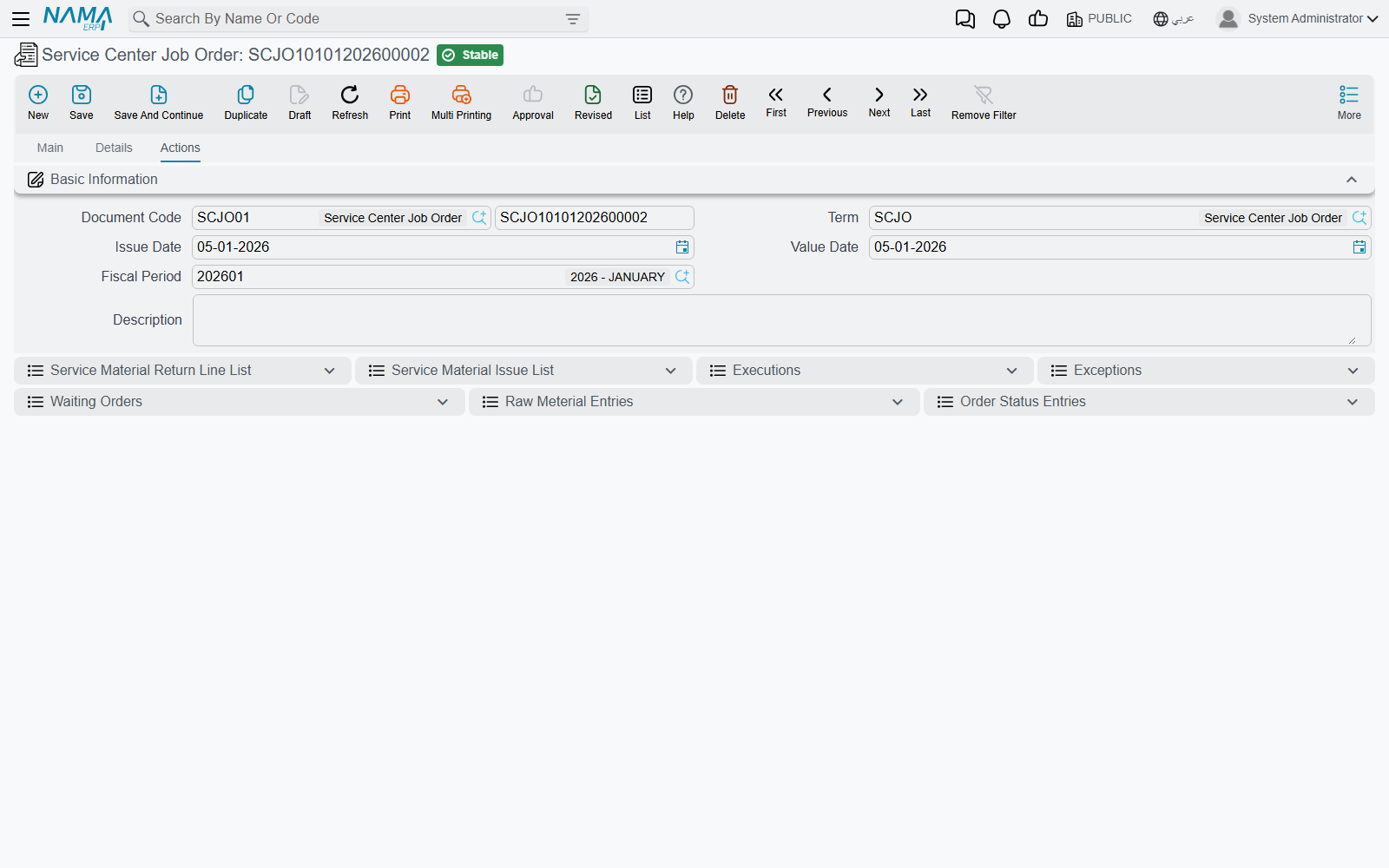
Read-only lists, useful for tracing a job after the fact: the spare-parts issues and returns raised against this order, the execution documents, exceptions, waiting orders, the parts ledger showing what was actually drawn, and the history of the order's own status changes.
Statuses and what they block
A job order moves through Not Started, Under Processing, Stopped, Pending, Cancelled, Finished, Closed. The status is never typed — it is derived from the entries other documents write, with one override: if any entry says Closed, the order is Closed.
| Status | What it means for you |
|---|---|
| Not Started | Freshly committed; nothing clocked yet |
| Under Processing | Work has been clocked against at least one task |
| Pending / Stopped | Suspended. A closing refuses these unless its term allows closing suspended orders |
| Finished | All work done, not yet closed |
| Closed | Written by the closing document. The order can no longer be edited at all |
| Cancelled | Abandoned; cannot be edited, cannot normally be closed |
Two consequences catch people out. First, once the order is Closed you cannot correct a price, a quantity or a split on it — you have to delete the closing first, and you can only do that while none of the three invoices exists. Second, the closing document's job-order picker deliberately hides orders that are already Closed.
What the job order refuses
On commit the document checks:
- Lines are complete. Every operation row must carry a task (unless it is a service row) and every spare-part row must carry a task — unless the term switches this off with the add tasks and materials from outside option.
- The master/child rules described above, including no repeated task.
- The odometer does not go backwards. If the document's odometer date is on or after the vehicle's, the reading entered here may not be lower than the vehicle's current odometer.
- The payer split adds up — the four percentages must total 100 and the four values must total the line price, on every priced line.
- One open job order per vehicle, if the module setting Do Not Allow Multiple Opened Job Orders On Product is on. A second order for the same vehicle is refused while an earlier one is neither Finished, Cancelled nor Closed.
- Recall campaigns. If the vehicle appears on an active recall campaign that is inside its validity window and has not yet been executed, the commit is refused. There are two ways past it: tick Ignore Recall Campaign Validation on the header, or name the campaign in the header's Recall Campaign field — which is what you do when this job order is the recall work.
A campaign value in the header switches the check off for every campaign
The recall check is skipped whenever the header carries any campaign value at all — not just the one you named. And once a job order has carried a campaign, that value is copied onto later job orders for the same vehicle, so a second, different safety recall on that vehicle will never produce a warning. If recalls matter to you, check the campaign lists directly rather than relying on the job order to stop you.
Actions on this screen
The main page carries two action blocks, and the More menu adds one action.
Invoices and Tasks (الفواتير والمهام):
- Create Customer Invoice (إنشاء فاتورة العميل), Create Insurance Invoice (إنشاء فاتورة التأمين) and Create Warranty Invoice (إنشاء فاتورة الضمان) — each builds the sales invoice for one payer's share and opens it. Save the job order first; each refuses with Status Must Be Closed until the order is Closed. What they build is covered on Invoicing a Job Order.
Resources and Spare Parts (الموارد وقطع الغيار):
- Collect Resources And Materials (تجميع الموارد والمواد الخام) — rebuilds the Resources and Spare Parts grids from the tasks already in the operations grid: each task's standard resources, and each task's standard spare parts that fit the vehicle's brand and model, priced through the sales price engine for this customer. The two grids are replaced, not added to, so a part typed in by hand before pressing it is gone afterwards. Spare parts come only when the Product field is filled.
More menu:
- Create Reservation Doc (إنشاء سند حجز) — opens a new, unsaved supply-chain reservation document whose From Document is this job order, with one line per row of the Spare Parts grid (item, quantity, remarks), so scarce parts are held for this job. Save the job order first. With an empty Spare Parts grid it refuses with: No Materials to be reserved — «لا يوجد قطع غيار ليتم حجزها»
Adding work in the middle of a job
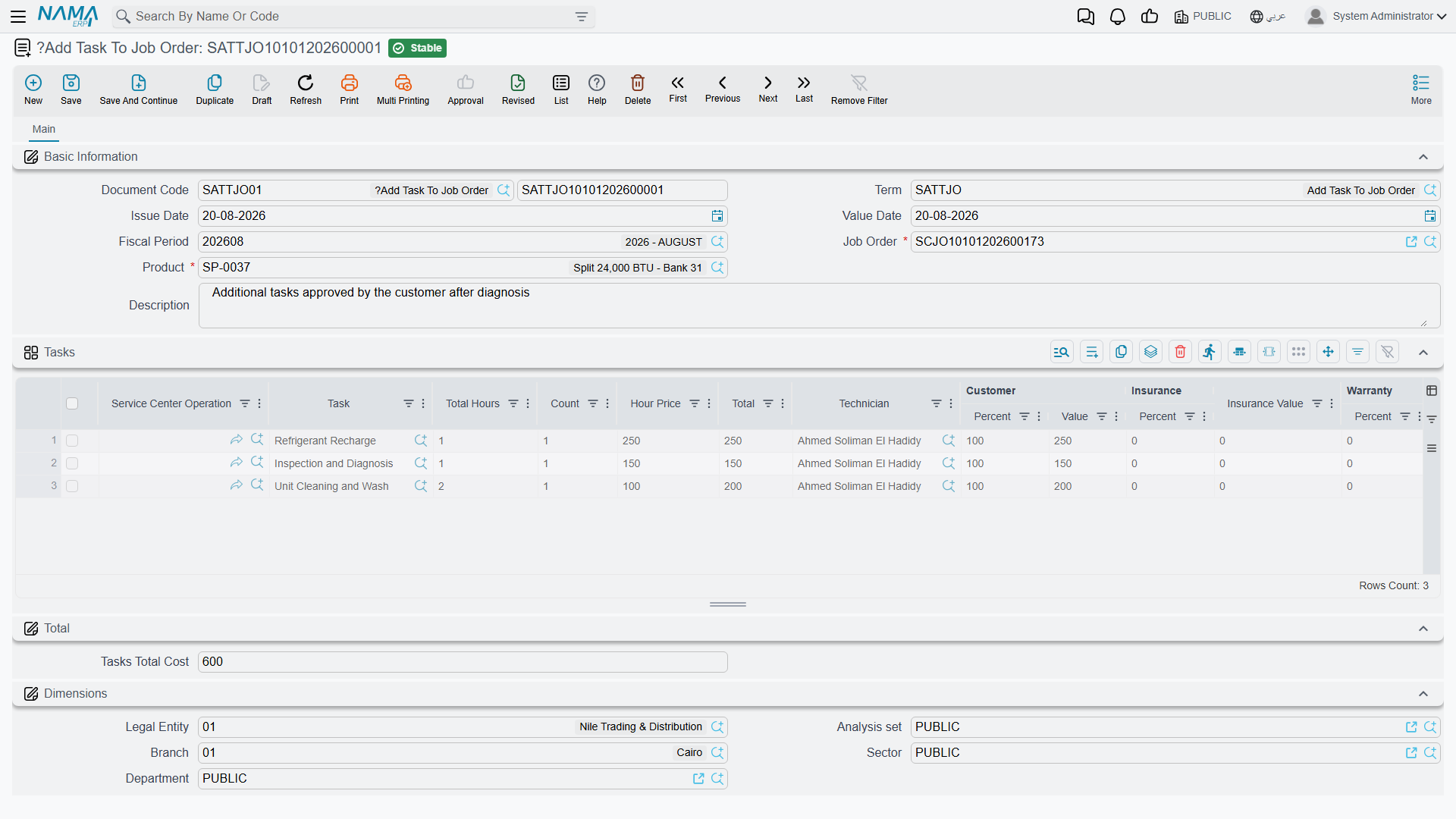
The customer rings at midday and approves an extra repair. There is a document for that — Add Task To Job Order (إضافة مهام الي أمر الشغل), menu Service Center > Documents > Add Task To Job Order — and it works only if the job order's term has the add tasks and materials from outside option ticked. It can add operations and tasks only; there is no way to add spare parts or resources with it, and it refuses a job order that is already Closed.
Add Task To Job Order rebuilds the whole operations grid
This document does not append. When it commits, it clears the job order's entire operations grid and rebuilds it from the add-task documents raised against that order — and nothing else. Every operation line typed directly on the job order is destroyed, silently, the first time an add-task document is committed.
The rule to follow is therefore all-or-nothing:
Once you use Add Task To Job Order on an order, every operation on that order must come from an add-task document. Anything typed on the order itself is lost.
In practice this means: decide before you open the job order. Either type all the work on the order and never touch this document, or open the order with no operations and add everything through add-task documents. Line statuses are preserved for tasks that already existed, and cancelling or deleting an add-task document rebuilds the grid again from the ones that remain.
The canonical example never uses this document.
What committing the job order actually does
No journal entry, no stock movement. What it does do:
- Pushes the current odometer reading onto the vehicle file.
- Records, for every task on the order, that this service was performed on this vehicle at this mileage — which is what makes kilometre-based maintenance intervals work next time.
- Marks a matching recall campaign line as executed and stamps the execution date and document.
- Closes the reception queue ticket named in the header.
- Adds a product status entry, if the term names one.
- Moves the source estimation, and the service request behind it, to Under Processing and stamps its own number onto them.
From here the work is recorded on the shop floor, and then the order is closed.