
The Fixed Asset Purchase Document
Everything before this document is paperwork. The Fixed Asset Purchase Document (سند شراء أصل ثابت) is where the money moves and where an asset record stops being an empty shell and starts being an asset: it puts the acquisition value on the asset, starts the depreciation clock, records the supplier's invoice, and creates the journal entry.
It is, in other words, the supplier invoice for a machine — with the difference that the debit does not go to an expense account chosen on the term. It goes to the asset's own cost account, taken from the asset record you point the line at. That single design decision explains most of what follows.
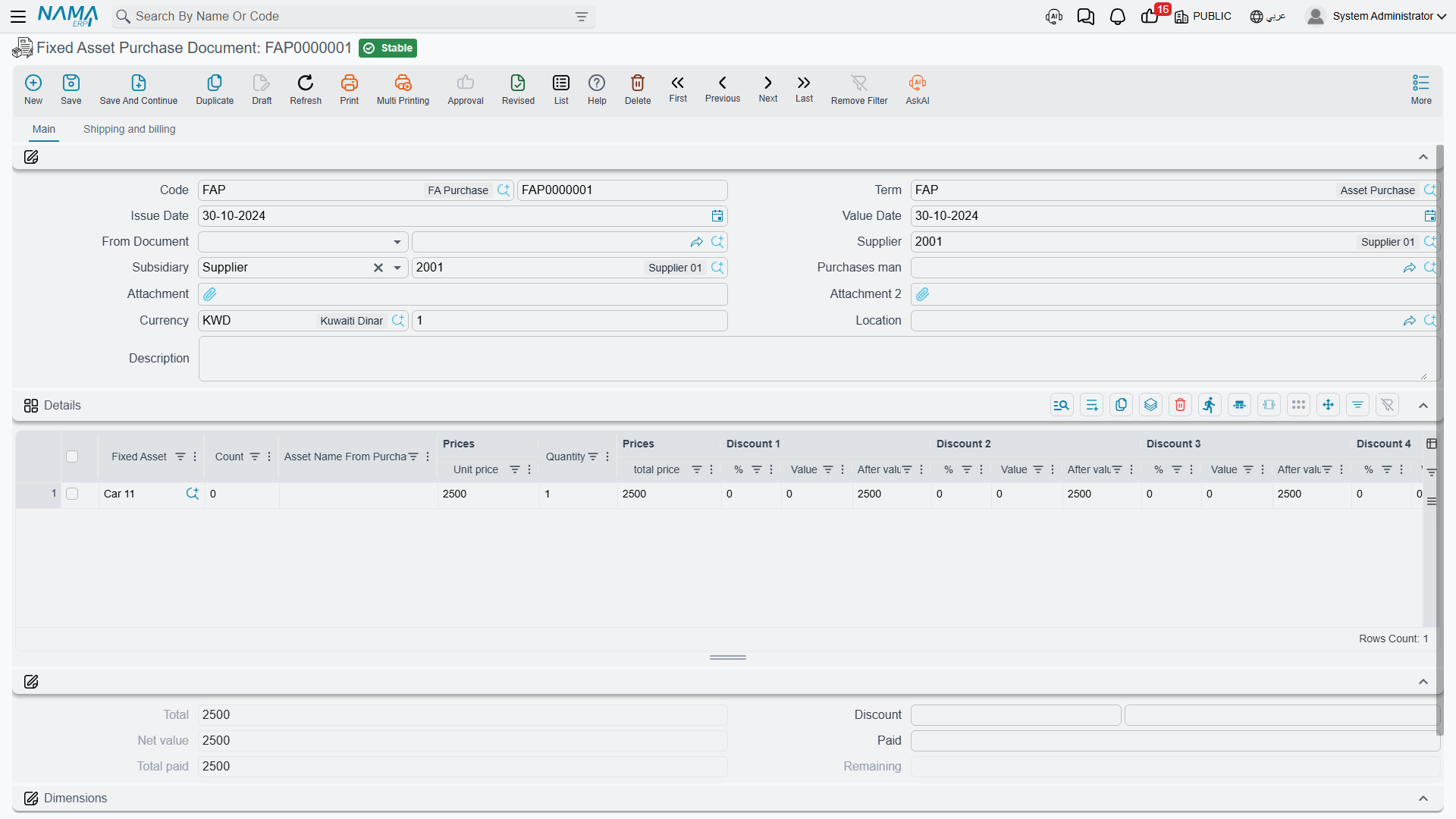
Menu: Assets > Documents > Fixed Asset Purchase Document (الأصول > المستندات > سند شراء أصل ثابت), licence fixedassets.
Where the asset record is born
Before walking the screen, settle this, because it decides how you configure the module.
Route 1 — the asset record exists first (the default)
Somebody creates the asset record beforehand: by hand on the Fixed Asset screen, or — for assets capitalised out of a finished contracting project — with the fixed asset creation document. The record carries a code, a name, a type, classifications and — through its type — its accounts. It sits in status Initial (إبتدائى) with no cost, no depreciation start date and no instalment.
On the purchase document you then pick that record in the line's Fixed Asset (الأصل الثابت) column. The picker deliberately offers only assets in Initial status, which is the system's way of saying: an asset can be purchased once. With this route the Fixed Asset column is mandatory — the document will not commit with an empty one.
This is the default behaviour and the one most installations keep, because coding, classifying and account-mapping an asset is a deliberate act that belongs on the master file, not in the middle of typing an invoice.
Route 2 — the purchase document creates the record
Switch Create Asset If Not Found (إنشاء الأصول إذا لم تكن موجودة) on in the document's term and the rule relaxes: a line may carry either a Fixed Asset or a Fixed Asset Type (نوع الأصل). Fill in the type and the asset record is created for you at the moment the document is committed — born in Initial status and immediately promoted, exactly as if you had created it by hand a minute earlier.
For that to produce a usable record the line needs somewhere to hold the asset's descriptive data, and those columns are hidden by default. Switch on the module setting Add Fixed Assets Creation Columns To Fixed Assets Opening And Purchase (إضافة أعمدة إنشاء الأصول إلى سندات الشراء و الإفتتاح) in the Fixed Assets configuration and the grid gains:
Fixed Asset Type, Asset Name (Arabic), Asset Name (English), Serial Number, Market Value, Classification 1 to 5 and Group.
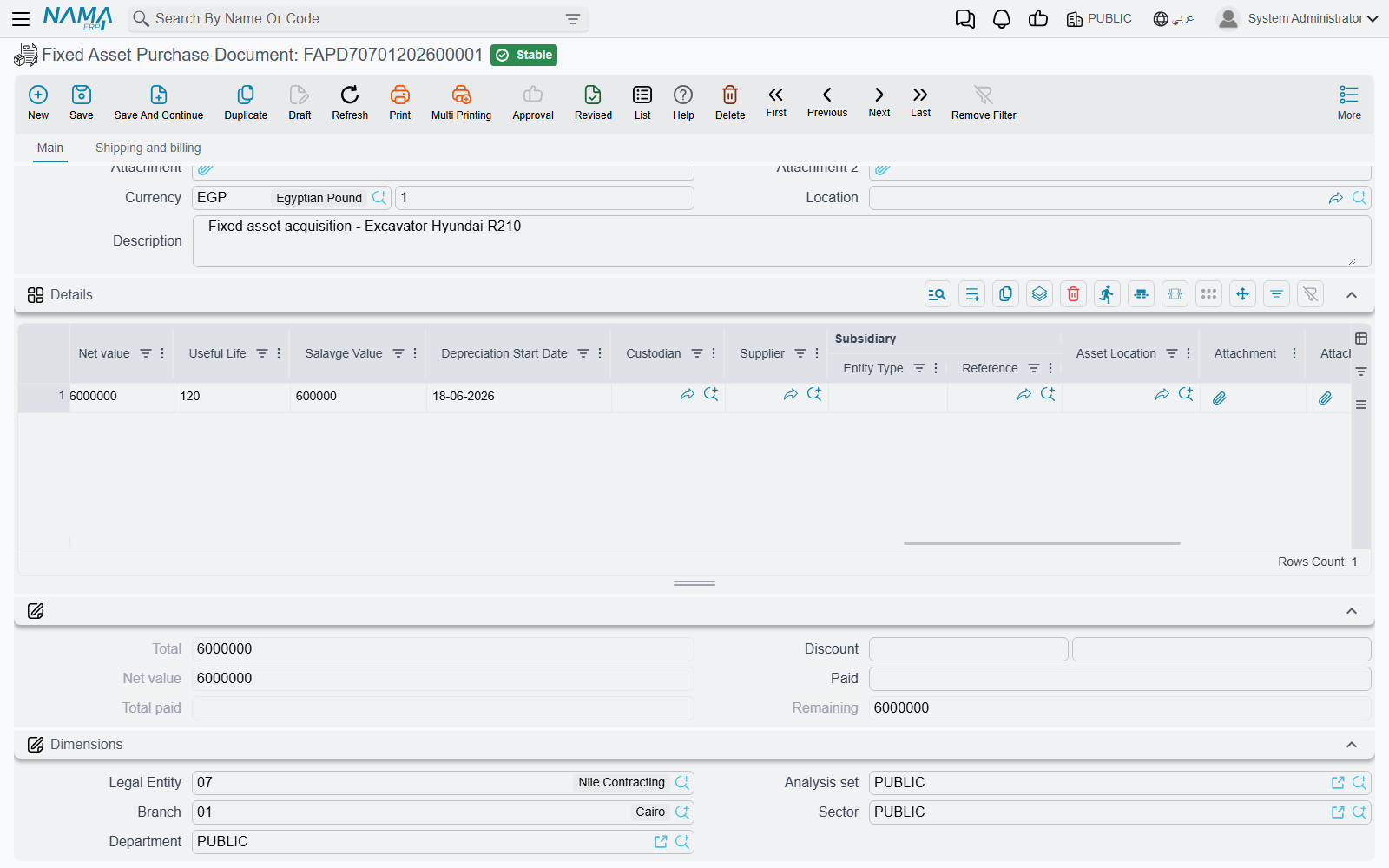
The new record takes its name, serial number, market value, custodian, location, type and classifications from those columns, and it takes its accounts, its countable flag, its car-asset and insurance flags and its "not depreciable" flag from the fixed asset type. Its code is allocated by the usual numbering rules.
Choose one route per term, not both
When Create Asset If Not Found is on, every line on the document is treated as describing an asset to be written — including a line that points at an asset record that already exists. That line's name, serial number, market value, custodian, location, type and classifications are rewritten from the line's own columns, which are usually empty.
Keep the option off on the terms you use for ordinary purchases of pre-created assets, and switch it on only for a dedicated term used with the creation columns. Two document terms, two clear purposes, no surprises.
The screen
The main page holds the invoice header:
| Field | Arabic label | Notes |
|---|---|---|
| Code (Book) | الكود (الدفتر) | Document book and serial number |
| Term | توجيه المستند | The accounting wiring — see acquisition terms |
| Issue Date / Value Date | تاريخ التحرير / التاريخ الفعلي | The value date is the acquisition date written onto the asset |
| From Document | بناءا على | The order, offer, initial receipt or request this invoice answers |
| Supplier | مورد | Who invoiced you |
| Subsidiary | الذمة | Defaults from the supplier; the party the credit side is booked against |
| Purchases man | مندوب المشتريات | Who bought it |
| Attachment, Attachment 2 | مرفق، مرفق 2 | The supplier's invoice scan |
| Currency, Currency Rate | العملة، المعدل | Defaulted from the supplier, with the rate fetched for the value date |
| Location | الموقع المخزني | The location the assets go to |
| Description | ملاحظات | Free text |
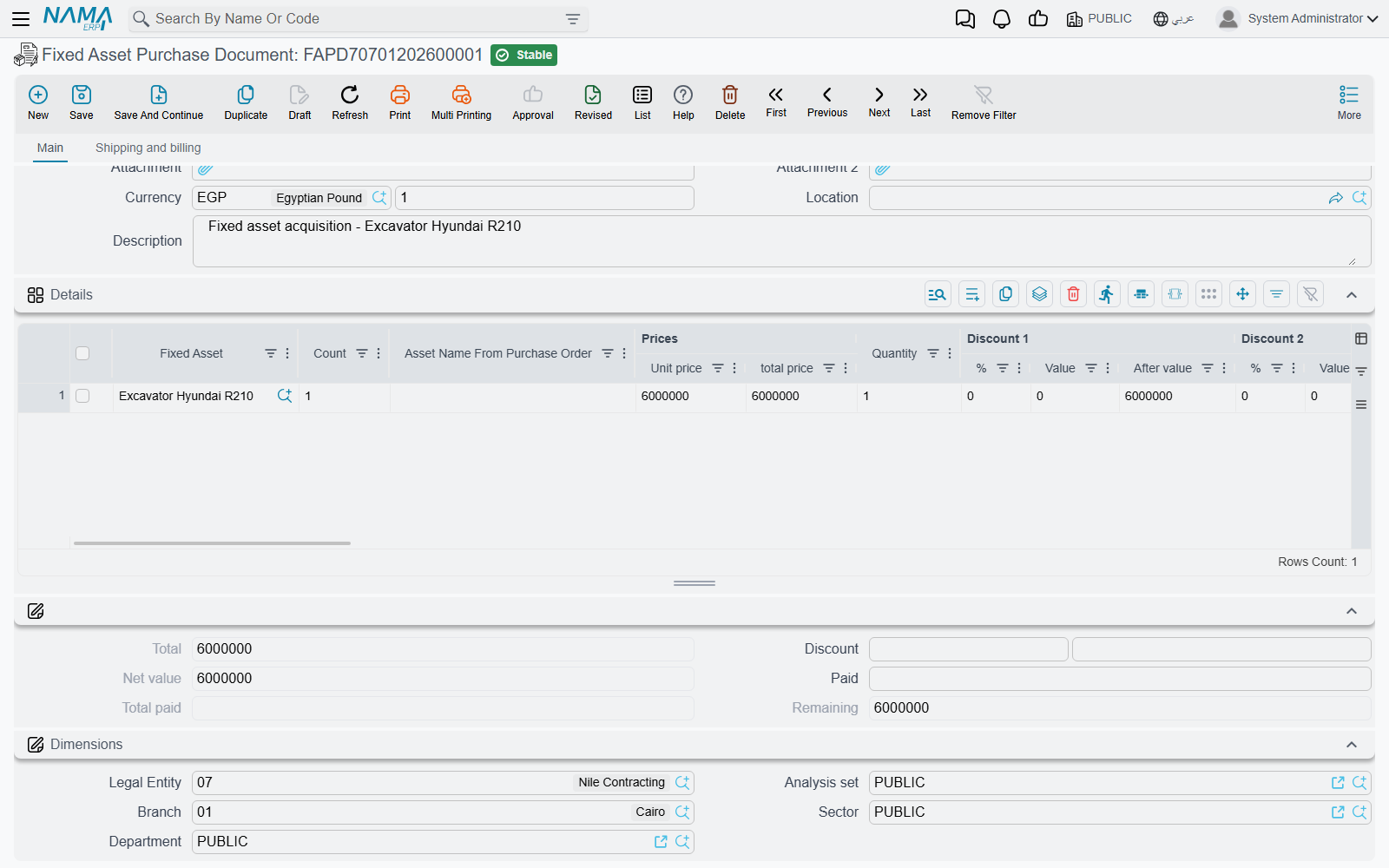
Then the Details grid, which is the heart of the document.
| Column | Arabic label | What it does |
|---|---|---|
| Fixed Asset | الأصل الثابت | The record being capitalised. Picker shows Initial assets only |
| Count | العدد | For countable assets — how many units this record represents |
| Asset Name From Purchase Order | اسم الاصل من أمر الشراء | Carried down from the order, so you can see what was ordered |
| Unit price, Quantity, total price | سعر الوحدة، الكمية، السعر الكلي | The price block |
| Discount 1 to 8, Taxes 1 to 4, Net value | خصم 1..8، الضرائب، الصافي | The usual invoice arithmetic |
| Useful Life | العمر الإفتراضي | In months; defaulted from the asset's type |
| Salvage Value | قيمة الأصل كخردة | The residual value; defaulted from the asset's type |
| Depreciation Start Date | تاريخ بداية الاهلاك | When the depreciation clock starts |
| Custodian | مسئول العهدة | The employee who will hold it |
| Supplier, Subsidiary | مورد، الذمة | Per-line overrides |
| Asset Location | موقع الأصل | Where this particular asset goes |
| Legal Entity, Branch, Analysis set, Department, Sector | الشركة، الفرع، المجموعة التحليلية، الإدارة، القطاع | The line's dimensions |
| Attachment, Attachment 2, Description | مرفق، مرفق 2، ملاحظات | Per-line notes |
Underneath sits the totals block — Total, Discount, Net, Paid, Total paid and Remaining — and the document's own dimensions. The price, discount, tax, net and total fields are computed for you and cannot be typed over; you drive them with unit price, quantity and discount percentages.
The second page, Shipping and billing (الشحن و الدفع), carries the shipping and billing addresses, the Payment Documents grid for advances already paid, a payment schedule template with its GeneratePayments (إنشاء الدفعات) action and the resulting instalment grid, and a partial money block. The Installment Payments action in the More menu opens the payment vouchers raised against those instalments.
What the screen fills in for you
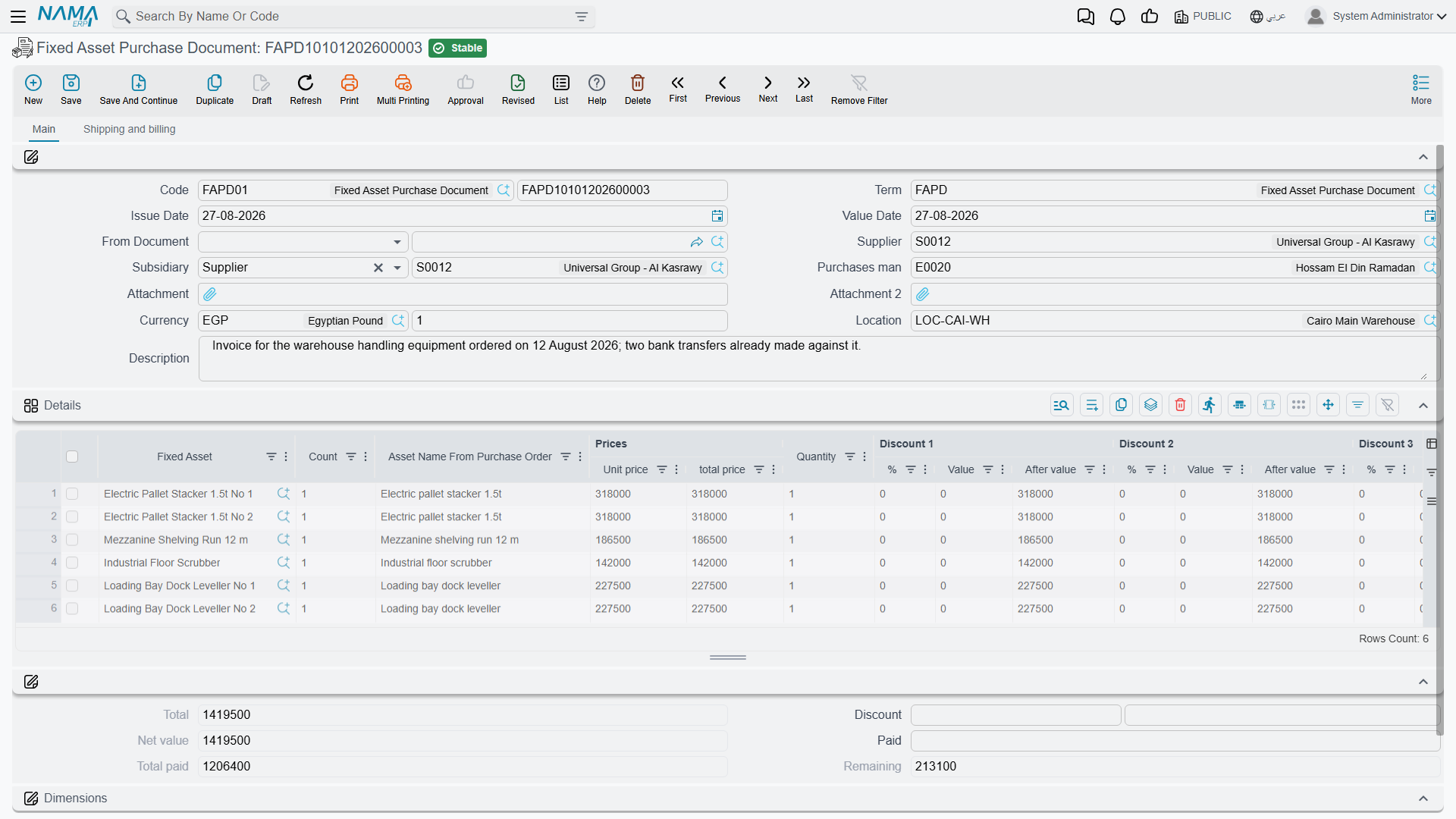
A great deal, which is why the document is quicker to type than it looks:
- picking the Supplier pulls in his default currency and fetches the exchange rate for the value date;
- picking a From Document copies the supplier and department, and — the important one — explodes each source line into one line per unit, each of quantity 1 at the source price, carrying the ordered name across. Three forklifts on an order become three purchase lines, because they will become three asset records;
- picking a Fixed Asset pulls Useful Life and Salvage Value from that asset's type, loads the tax percentages from the asset's and the header's tax plans, sets the Count to zero when the asset is not countable, and proposes a Depreciation Start Date of the day after the document's fiscal period ends — the natural "starts depreciating next period" default;
- picking a Fixed Asset Type (on route 2) pulls the type's default useful life and salvage value;
- clearing the Fixed Asset clears the fields that came with it;
- picking a Term copies its tax settings onto the header;
- the Count column only accepts input when the asset or type is marked countable.
You are free to overwrite the proposed depreciation start date — with one restriction: it may not be earlier than the document's value date for a depreciable asset. An asset that went into service the same day the invoice is dated is fine; one that supposedly started depreciating last month is not, and belongs on an opening document instead.
What has to be true before it will commit
The document checks a lot, and each check protects a number somebody will reconcile later:
- Every line for a depreciable asset needs a Depreciation Start Date, and it may not be before the document's value date.
- Every asset must be in Initial status, and the same asset may not appear on two lines.
- Depending on the route, either the Fixed Asset is required, or at least one of Fixed Asset and Fixed Asset Type is.
- Remaining life must be greater than zero for a depreciable asset, and the salvage value may not equal the price — an asset whose scrap value is its whole cost has nothing to depreciate. The salvage value must also be at least the Minimum Salvage Value set in the module configuration.
- A line may not be edited if the asset has already moved on — if a later entry exists against it (a depreciation run, a revaluation, an addition), the purchase behind it is frozen.
- The payment schedule must reconcile with the remaining amount, instalment codes must be valid, and the cash and remaining amounts must be consistent.
- If the term requires a counterparty, the supplier is mandatory.
Approval on creation, not on modification
The purchase document can be put behind an approval definition, but not one whose Use With Update flag is on. Approve the creation of an asset purchase; do not try to route its later edits through the same mechanism.
What commit does
Committing a purchase document is the busiest moment in the module. For each line it:
- writes the document's value date onto the asset as its purchase date, and links the asset back to this document;
- records the line's location as the asset's current location and opens a row in its location history;
- moves the asset from Initial to Running Depreciation — or to Not Depreciable if the asset is flagged as such;
- writes the line's cost as the asset's acquisition value, together with the useful life, the remaining life (which starts equal to the useful life), the salvage value and the depreciation start date;
- computes the asset's current instalment from those figures;
- writes the line's custodian onto the asset, if one was given;
- updates the asset-count register for countable assets;
- copies the line's dimensions onto the asset, if the term option Update Asset Dimensions From Invoice (تحديث محددات الأصل من الفاتورة) is on and nothing later has touched the asset;
- stamps this document onto the order or offer it came from, so that source can never be invoiced twice.
Then it sends the journal entry as a business request.
The entry
| Side | Account | Amount |
|---|---|---|
| Debit | the asset's own cost account, taken from the asset record | the line's net value |
| Debit | the tax accounts configured on the term | the tax on the lines |
| Credit | the supplier / subsidiary account configured on the term | the invoice total |
The debit deserves a sentence of its own. It is not chosen on the term — it always resolves from the fixed asset on the line, which is why the term screen offers you a credit side but no debit side. The dimensions on that debit line (sector, branch, department, analysis set) follow the four "affect accounts" switches in the module configuration: where a switch is on, the dimension is taken from the asset itself.
Discount, cash and additional-cost accounts have their own configurable sides on the term for the installations that need them.
Tax and the capitalised cost
By default the tax computed on a line is added to the value capitalised on the asset. Where the tax is recoverable and should not inflate the asset's cost, switch on the matching Prevent add tax option (منع إضافة ضريبة) — there is one per tax, both in the module configuration and on the document term, and either one is enough.
Cancelling or deleting
Cancelling a committed purchase document unwinds all of it: the acquisition value, the depreciation start date, the instalment, the purchase date, the location entry and the link to the document are all removed, the asset goes back to Initial, and the journal entry is reversed. That is exactly what you want when an invoice was entered against the wrong machine — but note that it is only possible while nothing later has touched the asset.
Al-Waha capitalises the CNC machine
Al-Waha Industries uses term FAPD-01: taxable at 15 %, Create Asset If Not Found off, the credit side pointing at the suppliers control account, the tax debit at VAT input, and the module's Prevent add tax 1 switched on so that recoverable VAT does not inflate asset costs.
The asset record MCH-0007 — CNC Cutting Machine already exists, type FAT-MCH — Machinery & Equipment, status Initial, classification 1 = Production Equipment.
Accounting raises purchase document FAPD-0031 on 1 January 2026 from purchase order FAPO-0009:
- the order line explodes into one line of quantity 1 at 240,000;
MCH-0007is picked; Useful Life 60 and Salvage Value 24,000 arrive from the type;- the proposed depreciation start date is 1 February 2026, but the machine was commissioned on 1 January, so it is typed back to 1 January 2026 — allowed, because it is not before the document's value date;
- the custodian is Khaled Al-Mutairi and the location
LOC-R2 — Riyadh Plant, Hall 2; - totals: 240,000 plus 15 % VAT of 36,000 = 276,000 owed to Gulf Machinery Trading.
On commit, MCH-0007 reads:
| Status | Running Depreciation |
| Purchase date | 1 January 2026 |
| Acquisition value | 240,000 |
| Useful life / remaining life | 60 / 60 periods |
| Salvage value | 24,000 |
| Depreciation start date | 1 January 2026 |
| Current instalment | (240,000 − 24,000) ÷ 60 = 3,600 |
| Location | LOC-R2 — Riyadh Plant, Hall 2 |
and the entry is:
| Debit | Credit | |
|---|---|---|
Machinery cost account (from MCH-0007) | 240,000 | |
| VAT input | 36,000 | |
| Suppliers control — Gulf Machinery Trading | 276,000 | |
| Total | 276,000 | 276,000 |
The first depreciation run for January 2026 takes 3,600. The rest of the machine's life — depreciation, the January 2027 upgrade, the transfer to another hall, the sale at the end of 2027 — is told on the depreciation and disposal pages.
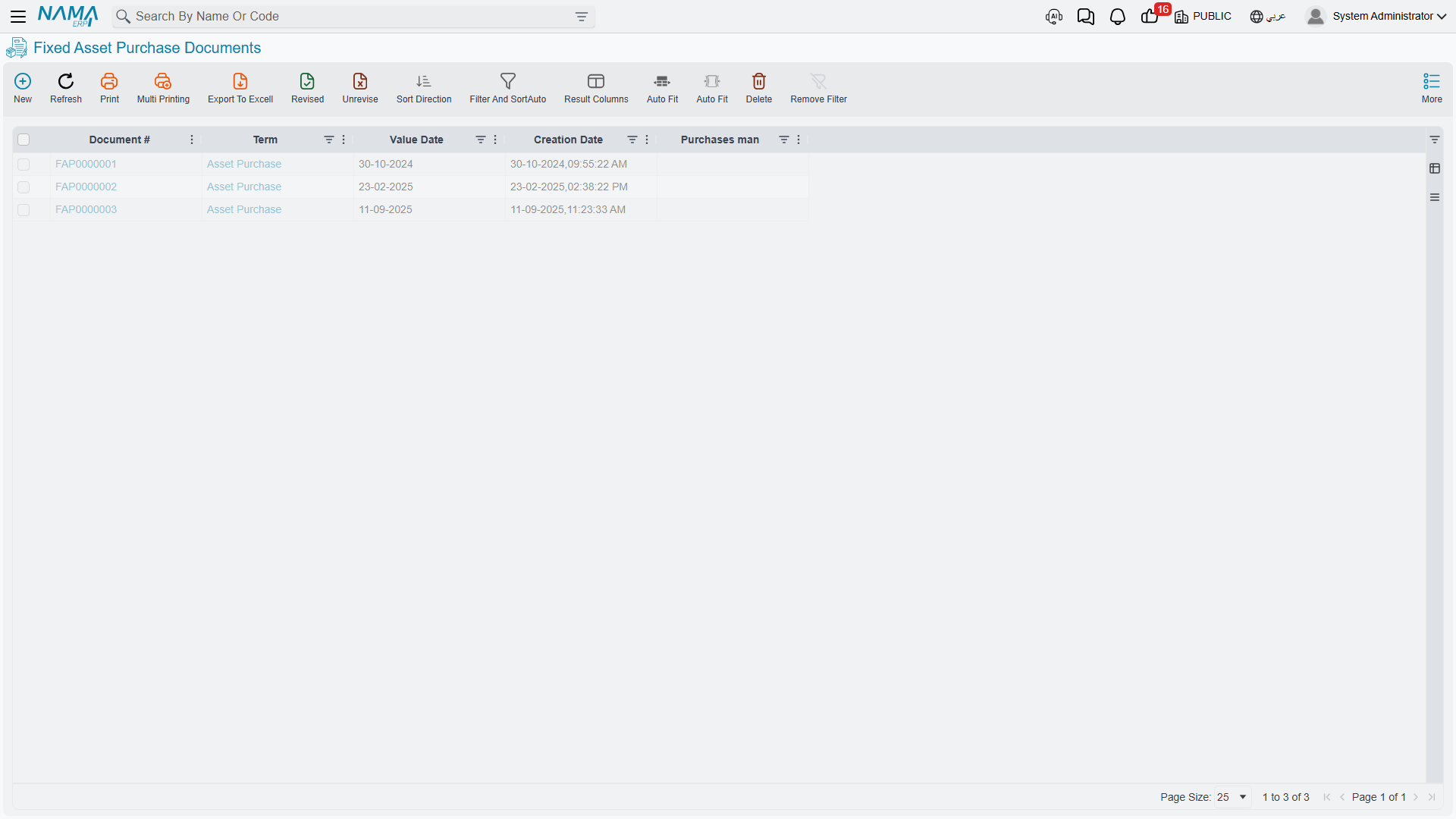
If the entry does not appear
The journal is created as a business request processed in the background. Open the Business Requests list view, filter for failures, select the rows and use More → Reprocess / Recommit. For bulk recovery there are also the fixed asset utilities.
Messages you may see
| Message | Why | What to do |
|---|---|---|
| Fixed asset and fixed asset type can not be empty — «لا يمكن ترك كل من الأصل الثابت و نوع الأصل فارغاً» | The term is set to create the asset when it is not found, and a line names neither an asset nor an asset type, so there is nothing to create the asset from. | Fill the asset on the line, or fill the asset type and let the document create the record. |
| The line that has fixed asset {0}, can not be edited because there are transactions after purchase date by document {1} — «السطر الذى به الأصل {0} لا يمكن تعديله لان هناك حركات عليه من المستند {1} بعد تاريخ الشراء» | You edited a line whose asset already carries a transaction dated after the purchase date. The message names the document that wrote it. | Reverse the named document, make the correction, and re-enter it. The purchase is the first event in the asset’s life and cannot be moved under a later one. |
| Error in fixed asset status {0}, current status is {1} and it has to be {2} — «خطأ في حالة الأصل {0} الحالة الحالية هى {1} ويجب أن تكون {2}» | A line names an asset that is not Initial — something already gave it a cost. | Use a different asset, or reverse whatever capitalised this one. A purchase document only accepts an initial asset. |