
Contracting Overview
A contracting company lives on two mirrored promises. It promises a project owner that it will build something for an agreed price, and it bills that owner month after month for the part of the work that is finished. At the same time it promises subcontractors that they will be paid for their slice of the same work, and they bill it month after month in exactly the same shape. The whole module is built around that mirror: one side earns money, the other side owes it, and both sides use the same documents, the same grids and the same arithmetic.
This page is the map. It explains the two sides, the one rule that governs everything else, the five menu groups, the two licences, and the order in which you would set the module up on a new installation.
One project runs through the whole documentation set, and it starts here:
Tower A (
PRJ-TWR-A) is a residential tower being built for Al-Fanar Development. Project contractPC-2026-001is worth 230,000: excavation, 1,000 m³ at 50; reinforced concrete, 60 m³ at 900; blockwork, 2,000 m² at 46; and plastering, 1,000 m² at 34. The owner withholds 10% retention on every payment and has paid a 46,000 advance that will be recovered gradually. The blockwork is subcontracted for 80,000 — the same 2,000 m², bought in at 40 against the 46 it is sold for.
Two Sides of the Same Wall
The two sides run in parallel, document for document:
| Step | What we bill the project owner | What we owe the subcontractor |
|---|---|---|
| Who we deal with | a customer | a subcontractor (مقاول باطن), optionally linked to a supplier record |
| The offer | Contracting Offer — the bid we submit | Subcontractor Offer — the tender we receive |
| The agreement | Project Contract | Subcontract |
| Amending it | Project Contract Update | Subcontract Update |
| Measuring the work | Project Execution | Subcontractor Execution |
| The money document | Project Extract (مستخلص) | Subcontractor Extract |
| Settled by | receipt vouchers | payment vouchers |
| Money moves | inwards — a receivable | outwards — a payable |
Because the two sides share almost all of their machinery, most of what you learn on the owner side transfers directly. The pages under The Subcontractor Cycle therefore concentrate on the differences rather than repeating the owner side.
There is one deduction that only exists on the subcontractor side, and it surprises everyone the first time: if you sell the subcontractor material out of your own store, that sale is charged back to him and appears as a deduction on his next extract. That is covered in Selling Material to a Subcontractor.
Contracts Book Nothing, Extracts Book Everything
This is the single fact that explains most of the questions people ask about the module.
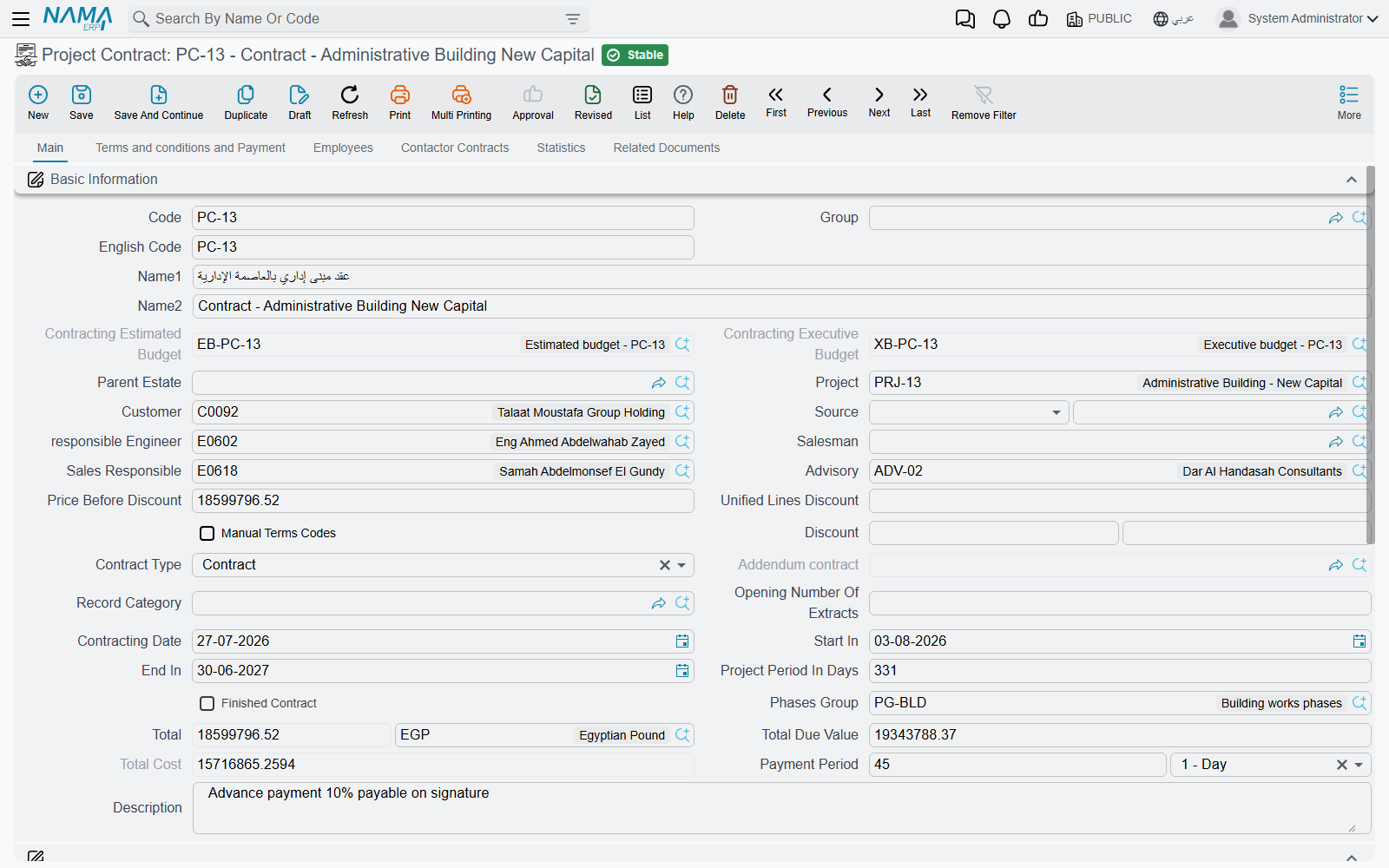
A project and a project contract are master files, not documents. They have a code, a name and a group; they have no document book, no value date and no document term (توجيه). Signing a 230,000 contract creates no journal entry, moves no stock and touches no receivable. The same is true of a subcontract, and of a subcontractor offer.
Money reaches the ledger only when an extract is issued. The extract is the certified payment application: it says how much of each contracted term is being billed this time, it applies retention, advance recovery and fines through its conditions grid, and it creates the journal entry. On the subcontractor side the mirror document does the same in the opposite direction. Within the contract chain — offer, contract, update, execution, extract — the extract is the only document with an accounting effect at all.
Documents outside that chain do create entries in their own right: fines, advance payments, material sold to a subcontractor, miscellaneous contracting invoices and the daily labour book each raise their own entry. But none of them is where the contract's revenue or the subcontractor's cost is recognised.
Two things follow from this, and both are worth internalising early:
- The accounts come from two places, not one. The revenue and cost accounts per line of work sit on the standard term master file. The accounts for taxes, discounts, retention groups and cost variance sit on the extract's document term. A blank document term means no journal entry is created — see Document Terms Basics.
- Processing happens in the background. Saving an extract creates a business request that is processed a moment later, which is why the save is instant. If processing fails, you retry it from the Business Requests list view: filter for failed requests, select the rows, then use the More menu → Reprocess / Recommit.
The full anatomy of the money document, with the 230,000 contract carried through two extracts, is in Project Extracts.
The Menu, Group by Group
Everything lives under Contracting (المقاولات), in five groups:
| Menu group | What you find there |
|---|---|
| Master Files | The vocabulary layer: contracting projects, subcontractors and their classifications, consultants, work areas, term categories, standard terms, conditions and condition groups, phases and phase groups, tasks, contracting units of measure, direct-cost items, price lists, fine reasons, tax extract terms and contract templates. Both budgets and the three employee-and-equipment screens are also filed here. |
| Project Contracting | The owner side: contracting offers, term sheets, assays, term analysis cards, the project contract and its update, project execution, the project extract, project fines, project advance payments, job orders, customer submittals and executive budget item requests. |
| Contractor Contracting | The subcontractor side: subcontractor offers, subcontracts and their updates, subcontractor execution, the subcontractor extract, subcontractor fines, advance and other payments, contracting purchase requests and orders, the daily labour book, the daily engineering diary, the equipment statement, measurement requests and the project delivery letter. |
| Costs | Where actual cost is captured: cost execution, budget execution, the project material stream (request, issue, return), the subcontractor material stream (request, issue, return) and the miscellaneous contracting trio (request, order, invoice). |
| Quality | The site inspection records: checklists, test reports, ITPs and registers, pre- and post-concrete inspections, material receipt inspection, activity inspection requests, flushing and pressure tests. |
When the menu group does not match the job
A handful of screens sit somewhere you would not look for them, so it is worth knowing the real click-path before you go hunting:
- Both budgets — estimated and executive — are under Contracting > Master Files, not under a budgeting group. See Estimated Budgets.
- Employee and Equipment Project Allocation, Employee and Equipment Project Cost Distribution and the Employee and Equipment Issue Invoice are documents, but they too are under Contracting > Master Files. See Employees, Equipment and Their Costs.
- The Daily Labour Book, the Daily Engineering Diary and the Equipment Statement are under Contracting > Contractor Contracting, although they record the company's own site cost. See Daily Labour and Site Diary.
- Measurement Requests and the Project Delivery Letter are owner-facing but are also filed under Contracting > Contractor Contracting. See Measurements, Submittals and Handover.
- The Fixed Asset Creation Document, which capitalises a finished project into an asset, is reached from Assets > Master Files — but it needs the Contracting licence. See Employees, Equipment and Their Costs.
Two Licences
The module ships as one base licence plus one sub-module licence. Quote the codes exactly:
| Licence code | What it unlocks |
|---|---|
contracting | The module proper — 67 of its 77 screens: projects and contracts, both extract chains, budgets, the material and purchasing streams, labour and equipment cost, price lists, templates and every master file. |
contracting-qc | 10 of the quality screens: ITP and ITP Register, MRR Register, Material Receipt, Activity Inspection Request, pre- and post-concrete inspection, cleaning and flushing, underground piping checks and the hydrostatic fire-system test. |
The split inside the Quality group is not clean, and it is the one licence subtlety worth remembering: the Finishing Works Checklist, the Digging and Backfilling Checklist and the Test Report sit in the same menu group but need only the plain contracting licence. Details in Site Quality Control.
A missing licence does not grey a screen out — the screen simply is not in the menu, and neither is its document term.
Where to Start on a New Installation
Setting the module up in the wrong order is the commonest way to get stuck, because a contract cannot be typed until the terms it bills against exist, and an extract cannot create its journal entry until its accounts exist. This is the order that works.
Settle the vocabulary first. Contracting units of measure, term categories, work areas, fine reasons and direct-cost items. These are small screens you fill once — see Units, Tasks and Other Lookups and Phases and Work Areas.
Build the standard-term catalogue, with its accounts. A term (بند) is a priced line of work — "excavation, m³, 50 per m³" — and it is the unit in which the whole module sells, measures, bills and costs. Every standard term carries the debit and credit accounts that its share of an extract is recorded on, so this step is what makes the extract able to create a journal entry at all. This is the most important setup page in the module: Standard Terms.
Define the conditions. Retention, advance recovery, penalties and bonuses are not fields on the contract — each is a condition, a self-contained rule with its own value formula and its own accounts. Bundle the ones you use together into a conditions group so nobody re-keys them per contract. See Contract Conditions.
Create the document terms. At minimum, one for the project extract and one for the subcontractor extract. Without them the money documents save but create no journal entry. See Extract Document Terms.
Review the module settings once. There is a single settings record for the whole database, and a few of its switches change the arithmetic of every extract you will ever raise. Read Contracting Configuration before the first live contract, not after.
Now the work itself: project → contract → execution → extract.
- Create the project (Tower A) — the container everything hangs off: Contracting Projects.
- Create the project contract (230,000) and get its terms onto it. Terms arrive either from a contract template or from an assay — there is no "copy terms" button: Project Contracts.
- Optionally record execution — how much of each term was actually done this period: Project Execution.
- Raise the extract, apply the conditions, and let it be processed: Project Extracts.
Mirror it on the subcontractor side once the owner side is working: The Subcontractor Cycle.
Then plug in cost. Material issues, labour, equipment allocations and miscellaneous spend all attach to the same term codes and build the project's actual cost: How Project Cost Is Built.
Estimating and tendering are optional
Offers, assays, term sheets and budgets are genuinely optional. A project contract can exist with no offer, no assay and no budget at all. Add them when the business needs them — a tender-heavy contractor will use all four, a company doing negotiated work may use none. Start at Contracting Offers.
Where the Numbers Meet
Once Tower A is running, three numbers per term line answer almost every management question, and they sit side by side on the contract's Terms grid:
| Number | Where it comes from |
|---|---|
| Contract value — the total price of the term | typed on the contract, or brought in from an assay or template |
| Planned cost — what we expected the term to cost | typed on the contract, or built up on a term analysis card |
| Actual cost — what it has cost so far | accumulated automatically from every cost document that names the term |
Actual cost is re-totalled the moment any cost document is processed, so the comparison is always current. Where each figure comes from, and the three other screens that show cost against value, are in How Project Cost Is Built.