
Screen, Keyboard & Device Settings
A register in a supermarket and a register in a café should not look the same. The supermarket wants a big item grid with barcode, unit and expiry columns; the café wants large favourite buttons and table buttons. This page covers the settings records that shape what the cashier sees and types: screen layouts, the waiter's phone, keyboard shortcuts, the customer pole display, default values, required fields, phone country codes and which payment methods appear. All of them live under Point of sale → Settings.
How a register finds its settings
Most of these records are attached: you create one or more, then pick one on the Register or on POS Settings. A record picked on the register wins for that register; otherwise the one on POS Settings applies to every register. A few are attached to the register only, and two apply everywhere without being attached at all.
| Settings record | Arabic name on screen | Where it is picked |
|---|---|---|
| Pos UI Settings | إعدادات واجهة نقاط البيع الجديده | Register, else POS Settings (else the built-in layout) |
| Pos Mobile UI Settings | إعدادات واجهة نقاط البيع للموبايل | Register, else POS Settings |
| Nama POS Shortcuts | اختصارات نقطة البيع | Register, else POS Settings |
| POS Customer Phone Country Codes | أكواد الدول لأرقام عملاء نقاط البيع | Register, else POS Settings |
| Nama POS Payment Methods Settings | إعدادات طرق دفع نقاط البيع | Register, else POS Settings |
| Pos Defaults Template | قالب قيم افتراضيه لنقاط البيع | Register only (Default Values Template) |
| Pos Pole Display Specs | خصائص ال Pole Display لنقاط البيع | Register only |
| Pos Required Fields | الحقول المطلوبه لنقاط البيع | Not attached — every record applies to every register |
| Payment From Pos Settings | إعدادات دفع من خلال نقاط البيع | Not attached — applies to server documents |
Like every setting, a change reaches a register with its next data sync (How POS Data Syncs with the Server).
Screen layout: Pos UI Settings
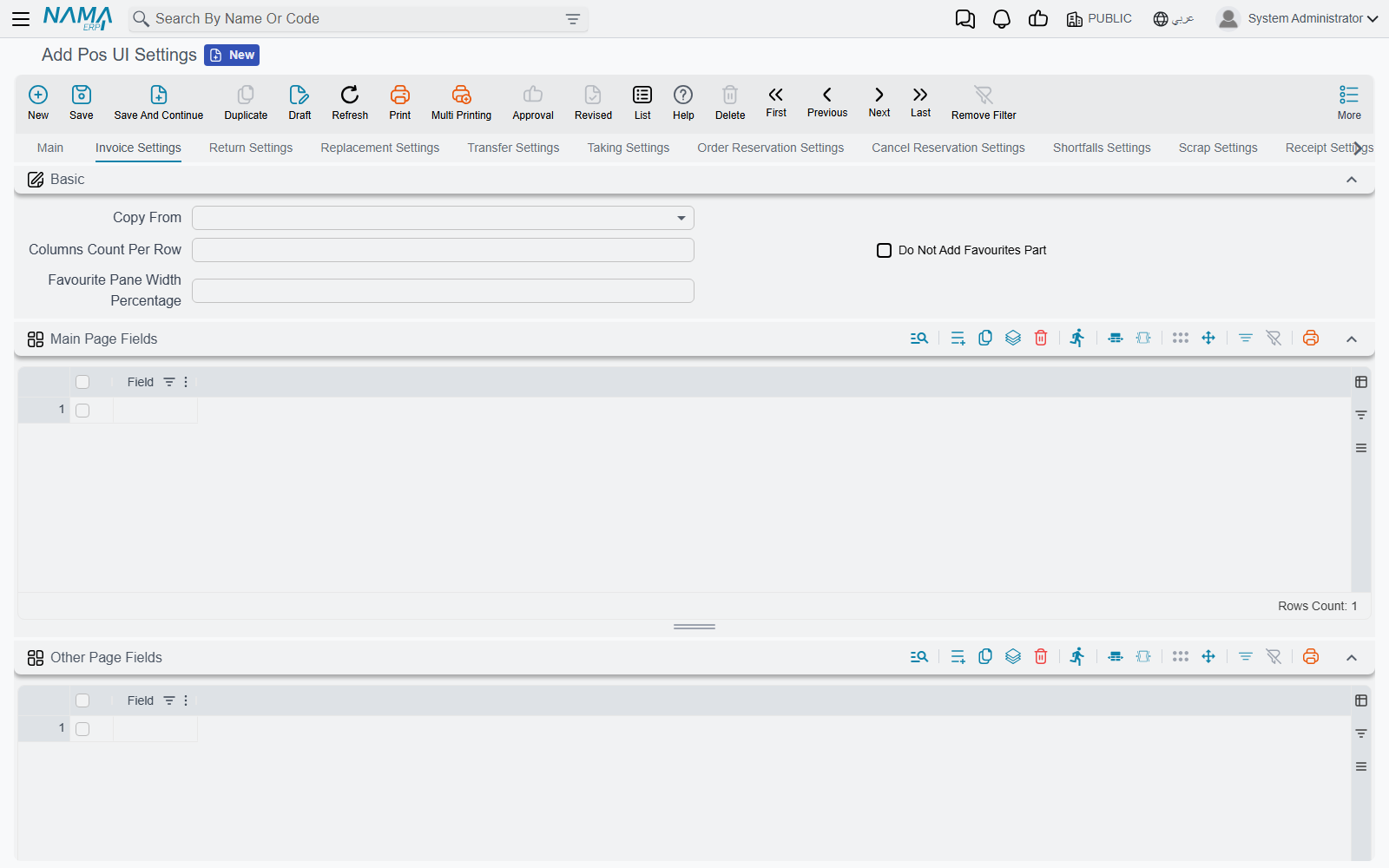
Pos UI Settings is the big one. Its first page holds switches for the whole register, then one page per screen.
Main page. Switches that add or remove parts of the sales screen — for example Add Item Code Column In Sales Table (إضافة عمود كود الصنف في جدول المبيعات), Add UOM Column to Sales Grid, Add Color And Size, Add Production And Expiry Dates To Sales, Add Discount1 Fields … Add Discount8 Fields, Add Tax 1 Fields, Add Warehouse And Locator, Add Currency Rate Field; sizes for favourite-item and table buttons (Favourite Items Count Per Line, Tables Buttons Per Row, Table Button Height); Full Screen Search Dialogs and Full Screen Payment Dialogs; Totals Pane Color; and Jasper Fonts for printed forms. The Sales Line Buttons group (زرائر سطور المبيعات) hides the small buttons on each sales line: duplicate, remove, increase quantity, decrease quantity and depreciate.
One page per screen — Invoice Settings, Return Settings, Replacement Settings, Transfer Settings, Taking Settings, Order Reservation Settings, Cancel Reservation Settings, Shortfalls Settings, Scrap Settings and Receipt Settings. Each has:
- Columns Count Per Row (عدد الأعمده في الصف الواحد), Do Not Add Favourites Part and Favourite Pane Width Percentage — how the header is laid out and whether the favourites panel shows;
- Main Page Fields (حقول الصفحة الرئيسيه) — the header fields shown on the screen itself;
- Other Page Fields (حقول الشاشة الفرعيه) — fields moved to the secondary page;
- Sales Grid Fields (حقول جدول المبيعات) — the columns of the item grid, in order, each with a Width Size;
- Copy From (نسخ من) — pick another screen and, on save, this page's fields are replaced by that screen's. A page you leave completely empty copies the invoice page automatically.
Other Screens sets the fields of the customer dialog (Customer Fields, each optionally required) and of the payment and receipt screens. POS Search Dialogue Columns Settings chooses the columns, filters, page size and sort order of each search dialog. POS Favourite Procedures lists the menu actions to pin as favourites.
Customer Display Window (نافذة العميل) defines what the customer-facing second screen shows — header fields, line columns and footer fields per document type. The Default Settings button (الإعدادات الافتراضية) fills the three grids with a ready set for invoices, returns and replacements, which you can then trim.
For column widths in particular, see also Nama POS — Technical Points of Use Guide.
The waiter's phone: Pos Mobile UI Settings
Controls the Captain Order app (see Tables, Reservations & Captain Order). Switches remove buttons from the app — Do Not Add Pay Button, Do Not Add Save Button, Do Not Add Send Button, Do Not Add Add-Item Button, Do Not Add Edit Item Button, Do Not Add Delete Button, Do Not Add Favourite Items Button — so, for example, waiters can send orders to the kitchen but cannot take payment. Header Fields lists the order header fields shown on the phone, each with a Display Method (Code And Name or Name Only) and a Field Size (Whole Line or Half Line); Line Fields lists the fields shown per item.
Keyboard: Nama POS Shortcuts
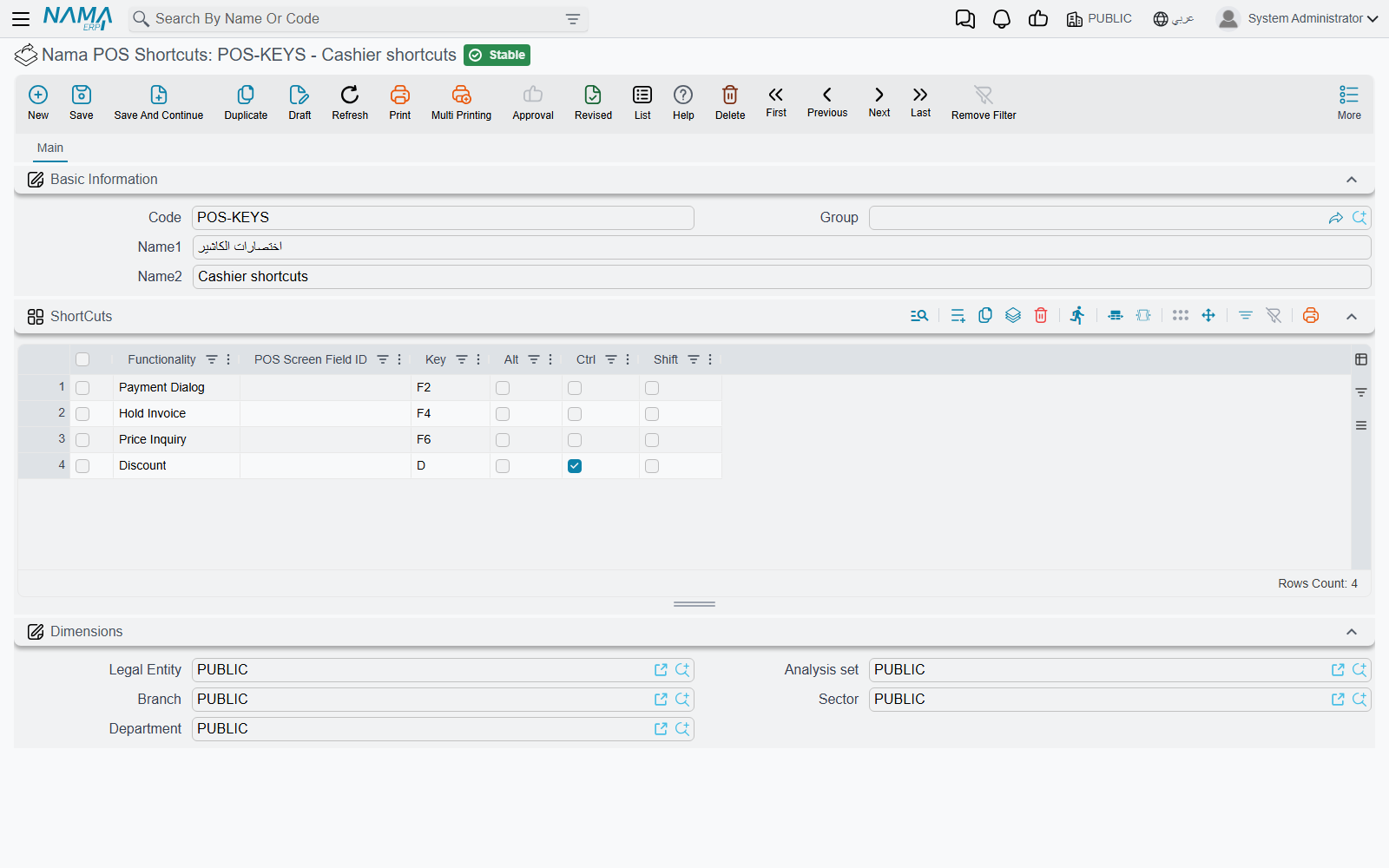
Each line binds a key combination either to a Functionality (الإجراء) — new sale, hold invoice, price inquiry, lock screen, reprint and about fifty more — or to a POS Screen Field ID, which jumps the cursor to that header field. Pick the Key (F1–F12, letters, arrows, Enter, Esc …) and tick Ctrl, Alt and/or Shift.
The record is checked when saved: a line needs a functionality or a field (not both), a key, and Ctrl or Alt with any letter; and no two lines may use the same combination. The register's built-in shortcuts are listed in Getting Started at the Register.
The customer pole display: Pos Pole Display Specs
Chooses how the register talks to the pole display — Communication Type (CommPort or Printer) and Printer Name Or Port Number — and the text templates shown when idle, when a line is added or deleted, for the total and for the change. Pick the record in the register's Pos Pole Display Specs field. The template syntax is documented in Nama POS — Technical Points of Use Guide.
Pre-filled values: Pos Defaults Template
Each line says: for documents of For Type (sales invoice, return, replacement, stock receipt, transfer request, stock taking, reservation, cancel reservation, payment, receipt), set header Field to this Reference, Text or Date Value. A register with this template in its Default Values Template field opens every new document of that type with the values already filled — say, the "Walk-in" customer on invoices, or a fixed document category on pay-outs.
Making fields mandatory: Pos Required Fields
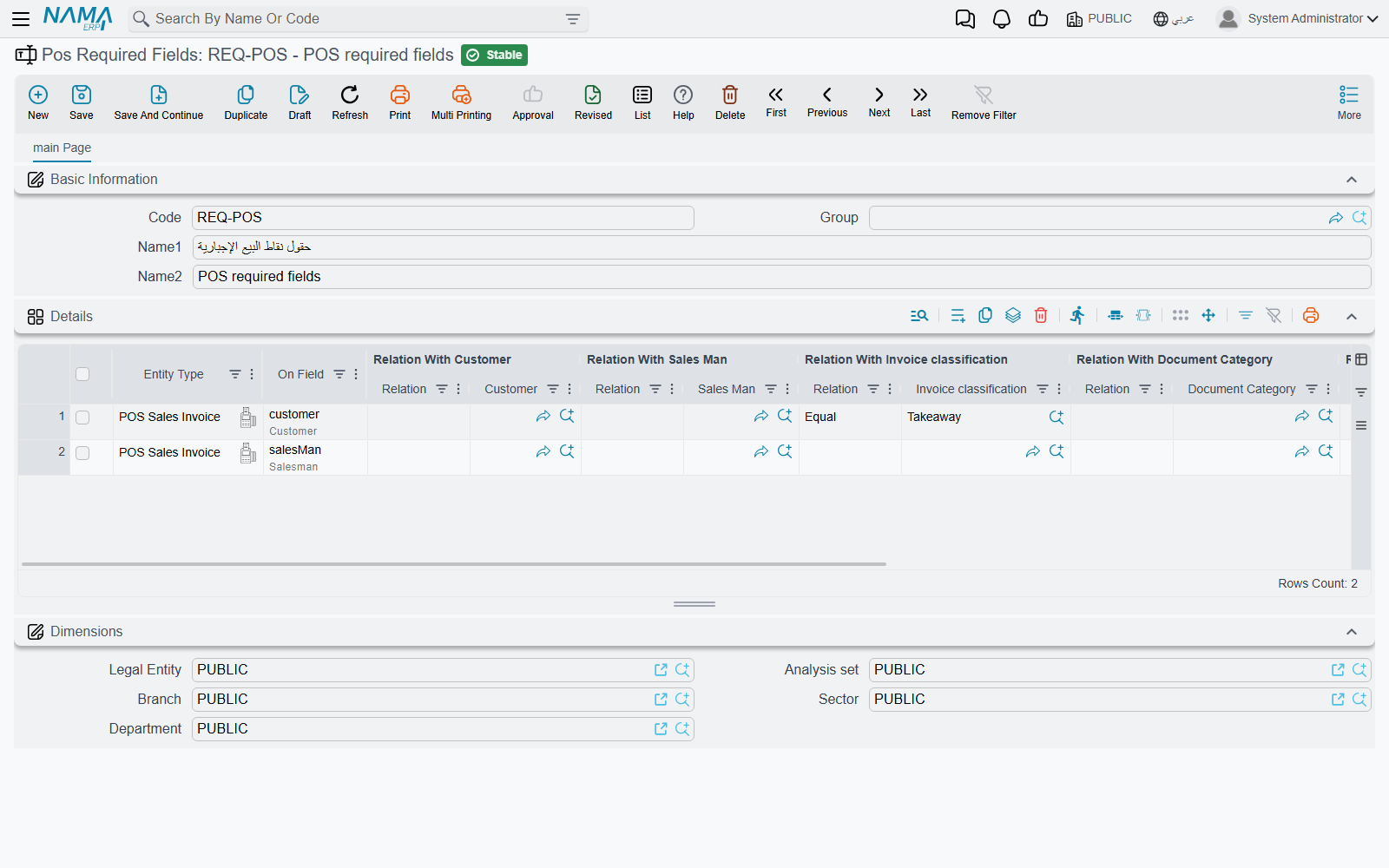
Each line names a document type and a field (On Field) and a Field Type: Required (إجبارى) or Must Be Empty (يجب تركه فارغا). The rule can be made conditional on the customer, salesman, invoice classification, record category, warehouse and locator: for each, choose a relation — Equal, Not Equal, Empty (بدون) or Without Relation — and the value to compare with. Do Not Apply On Hold (عدم التطبيق مع التعليق) lets the cashier hold the document without the field.
Example. "Salesman is required on POS sales invoices whose invoice classification is Delivery": document type POS Sales Invoice, field Salesman, Field Type Required, relation with classification Equal, classification Delivery.
Every Pos Required Fields record reaches every register; there is nothing to attach. When the rule fails, the register names the field and refuses to save.
Customer phone numbers: POS Customer Phone Country Codes
A list of Country Code lines with Arabic and English names, offered to the cashier when entering a new customer's phone number — useful in a tourist area where customers come from several countries.
Which payment methods appear: Nama POS Payment Methods Settings
Each line names a Payment Method and the conditions under which it is hidden from the payment screen: a Record Category, an Invoice Classification and/or a Customer (a customer, customer category or customer class). When every condition filled on a line matches the current document, that method is not offered. Lines with no condition at all are ignored.
Example. Hide "Credit (on account)" for the "Walk-in" customer class, so only known customers can buy on account.
Paying server documents at the register: Payment From Pos Settings
This one works the other way round: it lets a cashier collect payment for documents created on the server — for example a service invoice — from the register's payment or receipt screen. Each line chooses the server documents (Entity Type or Entity Type List, optionally narrowed by Document Book, Document Term and Criteria), the field holding the amount due (Payment Source Field), a Description Template, and Payment Not Receipt (صرف وليس قبض) for documents the store pays out rather than collects. Every matching document saved on the server then becomes available to pick at the register.
If part of a document has already been paid at the register, its amount cannot be lowered below what was paid: value of {0} cannot be less than paid amount from pos is {1} (shown in English on Arabic screens too).
Messages you may see
| Message | Why | What to do |
|---|---|---|
| You must select key — «يجب اختيار مفتاح» | A shortcut line has no key. | Pick the key. |
| You must use Ctrl/Alt with alphabetic letters — «يجب استخدام Ctrl/Alt مع الحروف الأبجدية» | A letter key was chosen without Ctrl or Alt. | Tick Ctrl or Alt. |
| Shortcut in line {0} repeated in line {1} — «الاختصار في سطر رقم {0} متكرر في سطر رقم {1}» | Two lines use the same combination. | Change one of them. |
| You must select functionality or field ID | A shortcut line has neither a functionality nor a field. | Choose one. |
| You must select functionality or field ID, Not both | A shortcut line has both. | Keep one. |
| value of {0} cannot be less than paid amount from pos is {1} | A server document's amount was lowered below what the register already collected for it. Shown in English on Arabic screens too. | Keep the amount at or above what was paid. |