
Setting Up a Register
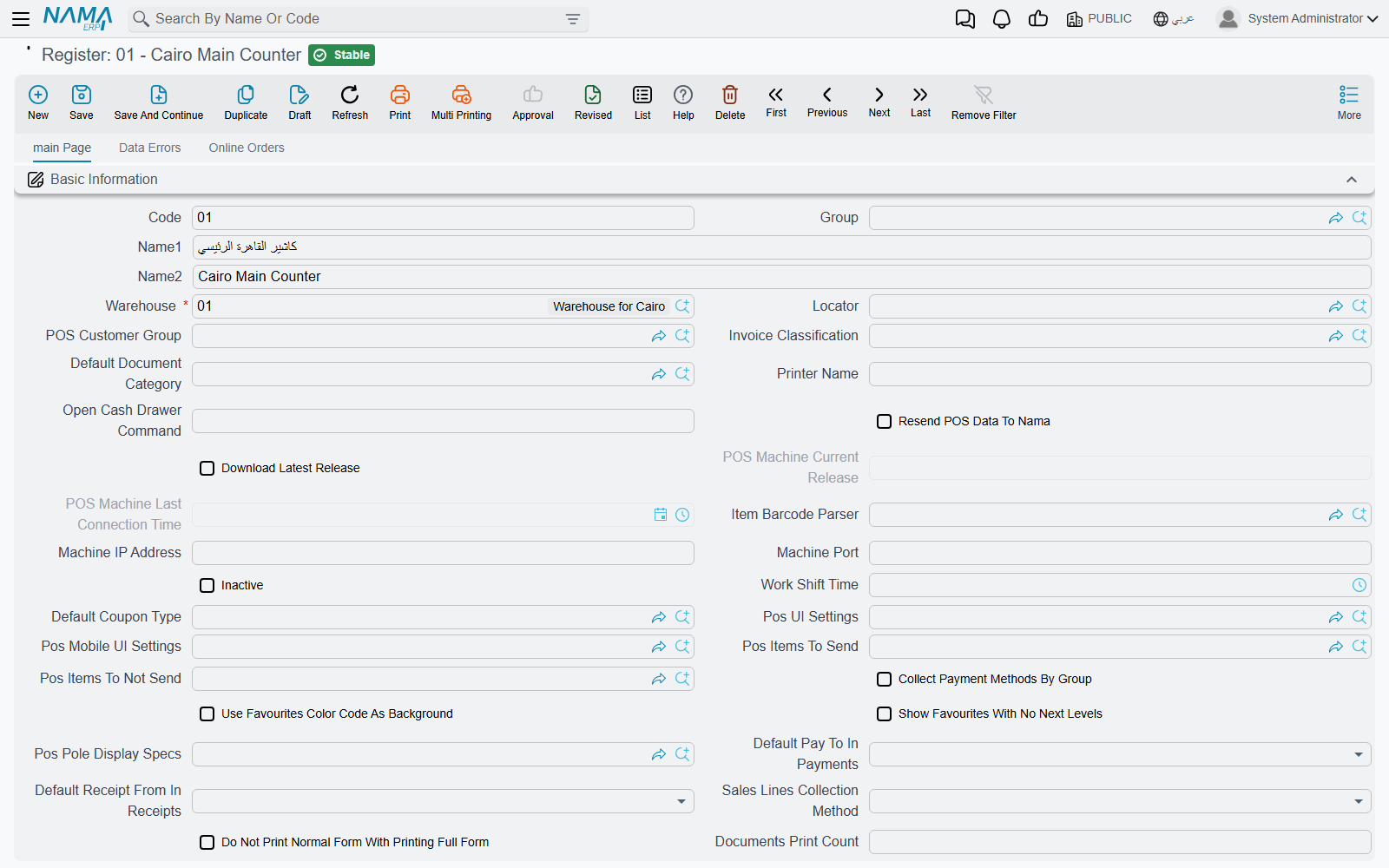
Every machine that runs Nama POS is described on the server by one Register record (ماكينة). The machine's own settings dialog only says which register it is (its Machine code, see Installing a New Register); everything else — the warehouse it sells from, the payment methods it accepts, the terms its documents are processed with, how it prints — lives on this record and reaches the machine with the data sync. This page walks through the screen, group by group.
Open it from Point of sale → Register → Register.
Register record vs POS Settings
Most of what a register needs can be set in two places: once for the company on POS Settings (Point of sale → Settings → POS Settings), and per machine on the register. The rule is simple: the register's value wins when it is filled; otherwise the POS Settings value applies. This holds for the term grids, the payment methods, the replacement conditions, the work shift time, the fixed favourites and the fraction-discount cap.
When you create a new register, its replacement conditions, currencies, payment methods, payment, sales and return term grids, and favourite items are pre-filled from POS Settings, so a new machine starts out like the others and you only change what is different.
The basics
| Field | Arabic on screen | What it is for |
|---|---|---|
| Warehouse | المخزن | Required. The warehouse the register sells from and receives into. |
| Locator | الموقع | The default locator inside that warehouse. |
| POS Customer Group | مجموعة عميل نقاط البيع | Customers created at the register are saved on the server in this group. It must be a customer group with no automatic coding — the register codes its own customers. |
| Invoice Classification | تصنيف الفاتورة | The classification a new invoice starts with. |
| Default Document Category | تصنيف المستند الأفتراضي | The record category a new document starts with. |
| Inactive | غير نشط | Switches the register off. An inactive register cannot sync, and does not count towards the licence. |
| Work Shift Time | وقت وردية العمل | When a shift is expected to end (see shift settings). |
| Register Logo / Register Login Title | لوجو الماكينة / عنوان الدخول للماكينه | The picture and title shown on the register's sign-in screen. |
| Available In Mobile Application | متاح للاستخدام في تطبيق الموبايل | Lets the Captain Order mobile app connect to this register. |
| Subordinate Register For Captain Order | ماكينة فرعية لكابتن أوردر | Marks the record as a sub-register used by Captain Order devices; these are counted against their own licence limit. |
| Call Center Mode / Read Orders From Call Center | وضع خدمة العملاء / قراءة الطلبات من مركز خدمة العملاء | The two ends of the call-center flow described in Tables, Reservations & Captain Order. A register can be one or the other, not both. |
| Stop Taxes | تعطيل الضرائب | The register calculates no taxes. |
The Dimensions group must carry a real legal entity — a register cannot be saved on the "general" one — and the Accounts group holds the register's own accounts and currency, used wherever a term takes an account "from the register".
Printing
| Field | Arabic on screen | What it is for |
|---|---|---|
| Printer Name | إسم الطابعه | The printer the register prints to. |
| Open Cash Drawer Command | أمر فتح الدرج | The command sent to open the cash drawer. |
| Documents Print Count | عدد مرات طباعه المستندات في كل أمر طباعه | How many copies each print produces. |
| Always Print Full Invoice | طباعة الفاتورة الكامله دائماً | The "print full invoice" box in the payment window starts ticked. |
| Do Not Print Normal Form With Printing Full Form | عدم طباعه النموذج العادي في حالة طباعه النموذج الكامل | When the full form is printed, the normal receipt is skipped. |
| Print Preparation Form With Payment / With Hold / With Payment Delay | طباعة فورمة تحضير الاوردر مع الدفع / مع تعليق الفاتوره / مع تأجيل الدفع | When the kitchen (preparation) slip prints. |
Charges added to an invoice
Service charge, delivery and minimum charge are set here or on POS Settings: Service Charge Item, Service Charge Percentage, Service Charge Calculated From, POS Service Charge Settings and the "add automatically" options; Delivery Item, Delivery Cost and their options; Pos Minimum Charge Settings, Minimum Charge Calculation Type and Minimum Charge Item. Each "add automatically…" option has three choices — yes, no, or inherit the POS Settings value.
Links to other settings screens
Several fields simply point at a settings record that is shared between registers: Pos UI Settings, Pos Mobile UI Settings, Pos Items To Send and Pos Items To Not Send, Pos Pole Display Specs, Item Barcode Parser, POS Item Quantity Update Configuration, Default Values Template, Saving Setting, Extra Filters, ShortCuts, Customer Phone Country Codes, Payment Methods Settings, Payment Terminal, Reward Points Configuration, and the discount coupon book and group. Each of those is a separate record with its own screen, so one set-up can serve many registers.
Keeping the machine in step
| Field | Arabic on screen | What it does |
|---|---|---|
| POS Machine Current Release / POS Machine Last Connection Time | رقم اصدار نقاط البيع الحالي / اخر وقت اتصال مع نقاط البيع | Filled by the machine: which version it runs and when it last talked to the server. The quickest health check for a register. |
| Resend POS Data To Nama | إعادة إرسال بيانات نقاط البيع الي نما | When the machine next receives the register record, it resets its retry counters and sends all its unsent documents again, then clears the box. |
| Download Latest Release | تحميل اخر اصدار | The machine downloads the latest version and starts the update without asking, then clears the box. |
| Sales Lines Screen Properties / Connection Properties | خصائص أعمدة المبيعات / خصائص الأتصال | Text you want written into the machine's own screen-settings and connection-settings files. |
| Send Properties To POS Register | ارسال الخصائص الي ماكينة نقاط البيع | The machine writes the two fields above into its files, then clears the box. |
| Read Properties From POS Register | قراءة الخصائص من ماكينة نقاط البيع | The machine uploads its current files into Screen Properties From Register and Connection Properties From Register, so you can read them without visiting the shop. |
| Remove Documents From POS After (In Days) | حذف المستندات من نقطة البيع بعد مرور (بالأيام) | Keeps the machine's local database small: documents already sent to the server and older than this are deleted from the machine. |
These flags act only when the machine receives the updated register record — a machine that is switched off acts on them the next time it syncs.
Replacement Conditions And Policy
Return Invoices With In (In days) and Replace WithIn (In Days) limit how old an invoice may be for a return or a replacement; Text Condition 1–5 are the policy lines printed for the customer. Empty values fall back to POS Settings. A cashier whose security profile has Allow Return After Allowed Period can still return an older invoice (see POS Security Profiles).
The grids
Books And Terms
One line per document type tells the server which Book and Term (توجيه المستند) to give the documents this register sends up. The book must be for the same document type and may not be a system book; the term is required (except for stock-taking details).
- Term In Case Of Error — for sales documents: if the server cannot save the document because of an insufficient-quantity failure, it saves it again with this term instead of leaving it in error. A typical use is a term that allows overdraft.
- Sub Type — only for POS Sales Invoice: Normal or Service. A Service line gives invoices made entirely of service items their own term.
Payment Methods and Currencies
Currencies lists the currencies the register accepts. Payment Methods lists the methods its payment window offers:
| Column | Arabic on screen | Meaning |
|---|---|---|
| Payment Method | طريقة الدفع | The method. Each may appear once. |
| Appearance order in Point Of Sale | ترتيب الظهور في برنامج نقاط البيع | Its position in the payment window. No two lines may share an order. |
| Cash Payment Method | طريقة الدفع النقدي | The method that counts as cash — for change, the drawer and the cash reset at shift close. Only one line may be ticked. |
| Default Payment Method | طريقة الدفع الافتراضية | The method the payment window starts on. |
| Show In Additional Methods | عرض في طرق الدفع الإضافية | Shows the method under the additional methods rather than among the main buttons. |
If the register has no payment methods of its own, the Payment Methods grid on POS Settings is used, including which one is the cash method.
Which term each document gets
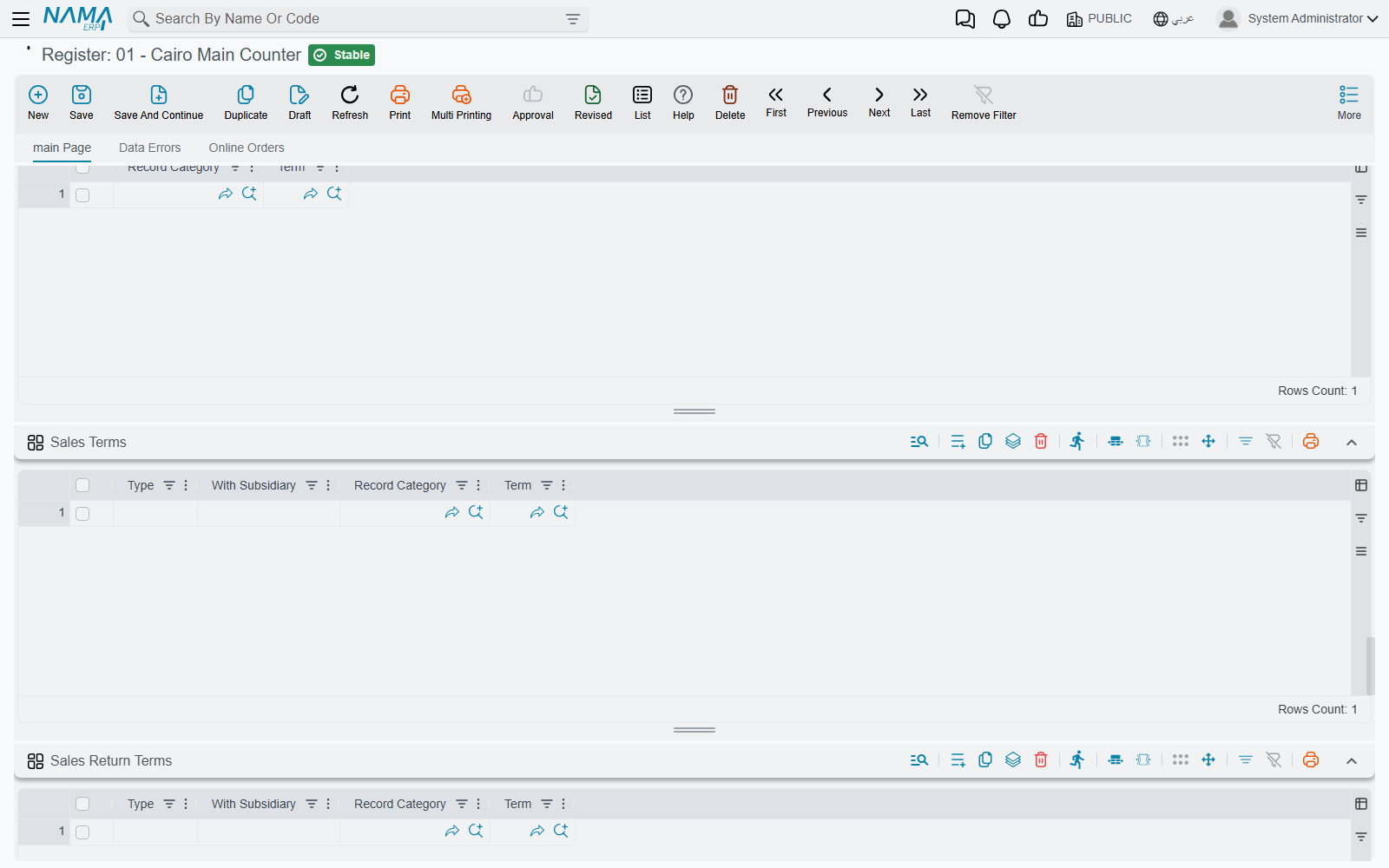
Four grids choose the term per situation, before the Books And Terms term is used as the fallback. Each is read from the register when it has lines, otherwise from POS Settings; the first matching line wins.
| Grid | Arabic on screen | A line matches when… |
|---|---|---|
| Sales Terms | توجيهات المبيعات | Type is Customer Required when the invoice has a customer (Customer Not Required when it does not), With Subsidiary matches whether the invoice carries a subsidiary (an on-account party), and the Record Category is empty or equals the invoice's. |
| Sales Return Terms | توجيهات المردودات | Type is Cash or To Credit Note as the refund was made, With Subsidiary matches, and the Record Category is empty or equal. |
| Payment Terms | توجيهات المصروفات | Type (From Register, From Current Employee, To Credit Note) matches the kind of payment, or the Record Category matches. |
| Receipt Terms | توجيهات المقبوضات | The Record Category is empty or equals the receipt's. |
So a chain can process cash sales to walk-in customers and on-account sales to companies with two different terms, without the cashier choosing anything.
Favourites
Favourite Items places items on up to five levels of favourite buttons; Fixed Favourite Items pins items or groups permanently on the sales screen (the register's list replaces POS Settings' list when it has lines); Favourite Documents adds toolbar buttons that open a document type with its own Arabic and English caption and record category.
Tables
When Use Tables is ticked on POS Settings, a Tables grid appears listing the POS Hall and Table records this register serves. Halls (Point of sale → Register → POS Hall) are simple code-and-name records; each Table (Point of sale → Register → Table) belongs to one hall. How the floor is used at the counter is described in Tables, Reservations & Captain Order.
Other grids
- Documents Coding Params and the Automatic Documents Coding button above it — see Numbering POS Documents.
- Taken Elements Per Shift — see shift settings.
- Allowed Users — when it has lines, only the users listed may sign in on this machine. Empty means anyone.
e-Receipt Configuration (Egypt)
For the Egyptian e-receipt system, each register is a registered POS device. The group holds the Electronic Tax Authority Configuration and the device's POS Serial Number, POS Client ID, POS Client Secret, POS OS Version, POS Model Framework and Syndicate License Number. After saving, press Activate e-Receipt POS (تفعيل نقطة البيع على بوابة الإيصال الإلكتروني) to register the device with the portal. The wider set-up is in Egyptian e-Invoice and e-Receipt.
The Data Errors and Online Orders tabs
Data Errors lists the documents from this register that the server could not save — type, code, value date, the time the error arrived and the failure message. From its More menu you can Delete Selected Errors once dealt with, or Refresh Errors. Refresh Errors (تحديث الأخطاء), also on the register's own More menu, removes error lines whose documents have since been saved successfully on a later attempt, and reports {0} error line(s) were removed. What to do with a document that keeps failing is covered in How POS Data Syncs with the Server.
Online Orders lists the call-center and online orders addressed to this register, with the customer, status and last update.
Actions on the register list
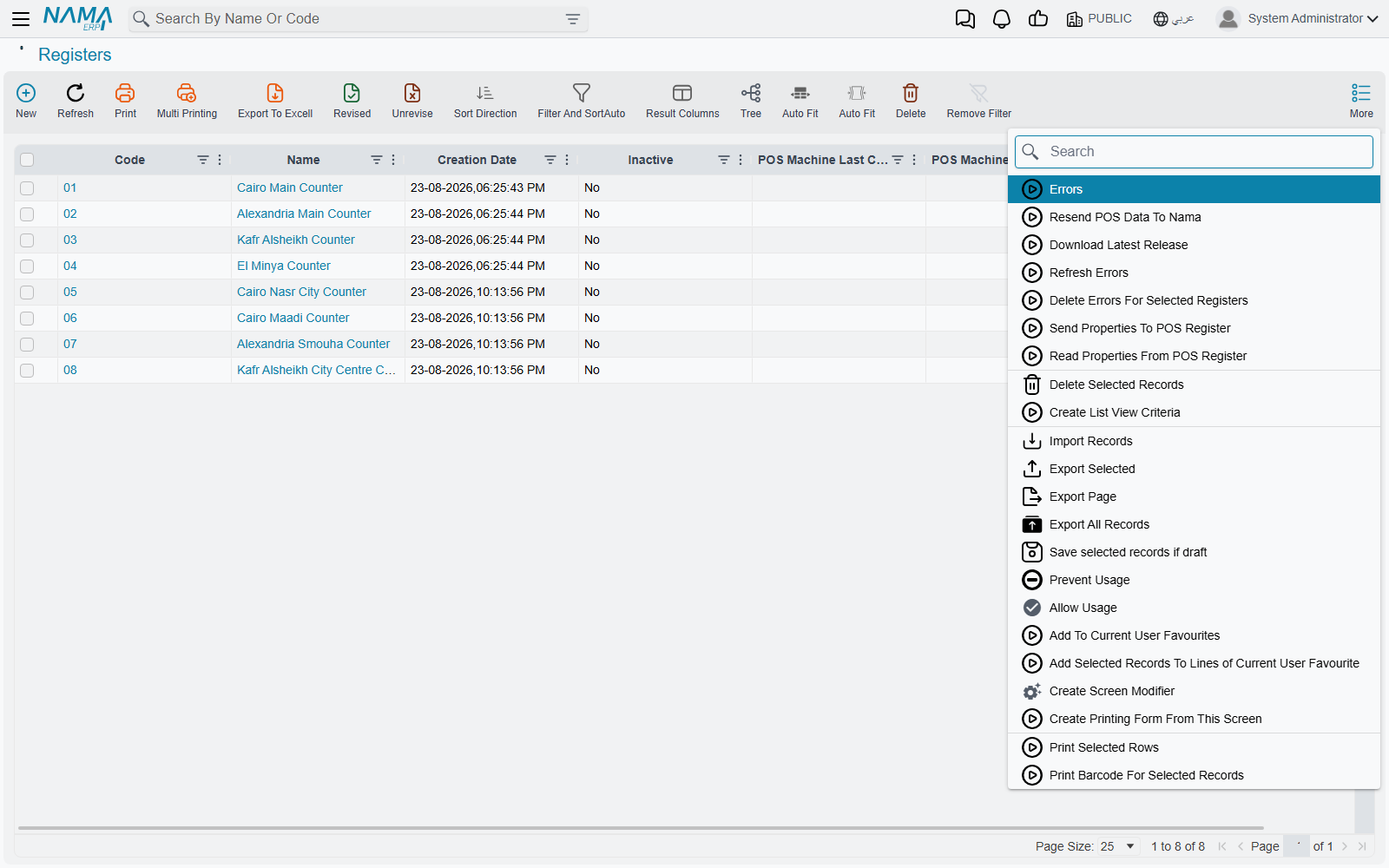
Select one or more registers in the list and use More:
| Action | Arabic on screen | What it does |
|---|---|---|
| Resend POS Data To Nama | إعادة إرسال بيانات نقاط البيع الي نما | Ticks the resend flag on every selected register (see above). |
| Download Latest Release | تحميل اخر اصدار | Ticks the update flag on every selected register. |
| Send Properties To POS Register | ارسال الخصائص الي ماكينة نقاط البيع | Ticks the send-properties flag. |
| Read Properties From POS Register | قراءة الخصائص من ماكينة نقاط البيع | Ticks the read-properties flag. |
| Refresh Errors | تحديث الأخطاء | Clears resolved error lines, for all registers. |
| Delete Errors For Selected Registers | حذف الاخطاء للماكينات المختاره | Deletes every error line of the selected registers. |
The list also shows Inactive, POS Machine Last Connection Time, POS Machine Current Release, Download Latest Release and Warehouse, so one glance at it shows which machines are behind or have stopped syncing.
Messages you may see
| Message | Why | What to do |
|---|---|---|
| Cannot save, available count of registers is {0} — «لا يمكن الحفظ , عدد الماكينات لا يمكن ان يتخطي {0}» | Saving this active register would exceed the number of registers the licence allows. | Make an unused register Inactive, or extend the licence. |
| Cannot save, available count of sub-registers is {0} — «لا يمكن الحفظ , عدد الماكينات الفرعية الخاصة بكابتن أوردر لا يمكن ان يتخطي {0}» | The same, for Captain Order sub-registers. | As above. |
| More than one cash method — «اكثر من طريقة دفع إفتراضيه» | Two payment-method lines are ticked Cash Payment Method. | Tick only one. |
| More than one method has the same order — «اكثر من طريقة دفع لهم نفس الترتيب» | Two lines share an Appearance order. | Give each a different number. |
| Repeated payment method — «طريقة دفع مكرره» | A payment method appears twice. | Remove the duplicate. |
| Can not be saved on null legal entity — «لا يمكن الحفظ علي الشركة عام» | No legal entity in the dimensions. | Choose the register's legal entity. |
| This group is not for customer — «هذه المجموعة ليست لعميل» | POS Customer Group is not a customer group. | Choose a customer group. |
| POS customer group must not have auto coding — «مجموعة عملاء نقاط البيع يجب الا يكون بها تكويد آلي» | The chosen group codes customers automatically. | Use a group without automatic coding. |
| Book {0} at line {1} is a system book — «الدفتر {0} فى السطر {1} نظامى» | A system book was chosen in Books And Terms. | Choose a normal book. |
| Book {0} is for the type {1}, while you selected type {2} on the line number {3} — «الدفتر {0} للنوع {1}، بينما النوع المختار {2} فى السطر {3}» | The book belongs to another document type. | Choose a book of the line's type. |
| Term {0} is for the type {1}, while you selected type {2} on the line number {3} — «التوجيه {0} للنوع {1}، بينما النوع المختار {2} فى السطر {3}» | The term belongs to another document type. | Choose a term of the line's type. |
| The entity type {0} at line {1} is repeated with line {2}, sub type is {3} — «النوع {0} فى السطر {1} مكرر للسطر {2}، للنوع الفرعى {3}» | Two Books And Terms lines for the same type and sub type. | Keep one. |
| Subtype must be Normal or empty for type {0} — «النوع الفرعى يجب أن يكون عادى أو فارغ للنوع {0}» | A sub type was set on a type other than the sales invoice. | Clear it. |
| The register {0} is inactive | A list action or a sync call was made for an inactive register. This message has no Arabic translation and appears in English on Arabic screens too. | Untick Inactive first, if the register is back in use. |
| User ({0}) can not access this register ({1}) — «المستخدم ({0}) لا يمكنه الدخول على هذه الماكينة ({1})» | Shown at the machine: the user is not in Allowed Users. | Add the user, or sign in on a machine they are allowed on. |
| Please Select Tax Payer Configuration — «من فضلك قم باختيار إعدادات مصلحة الضرائب» | Activate e-Receipt POS was pressed with no tax-authority configuration. | Fill Electronic Tax Authority Configuration and save first. |