
Receiving Stock
Inventory doesn't magically appear in your warehouse - it arrives through various means and for various reasons. Let's explore all the ways items come into the system within the Inventory sub-module, and how to record each scenario properly.
The Receipt Document: Your Inventory's Entry Point
At its core, the Stock Receipt (StockReceipt) is simple: it's the official record proving that "these items entered our warehouse at this time." But depending on the source and purpose, you'll use different kinds of receipt documents.
Think of them as different envelopes for different kinds of mail. A personal letter, a legal document, a parcel - all get delivered, but each needs different handling and tracking.
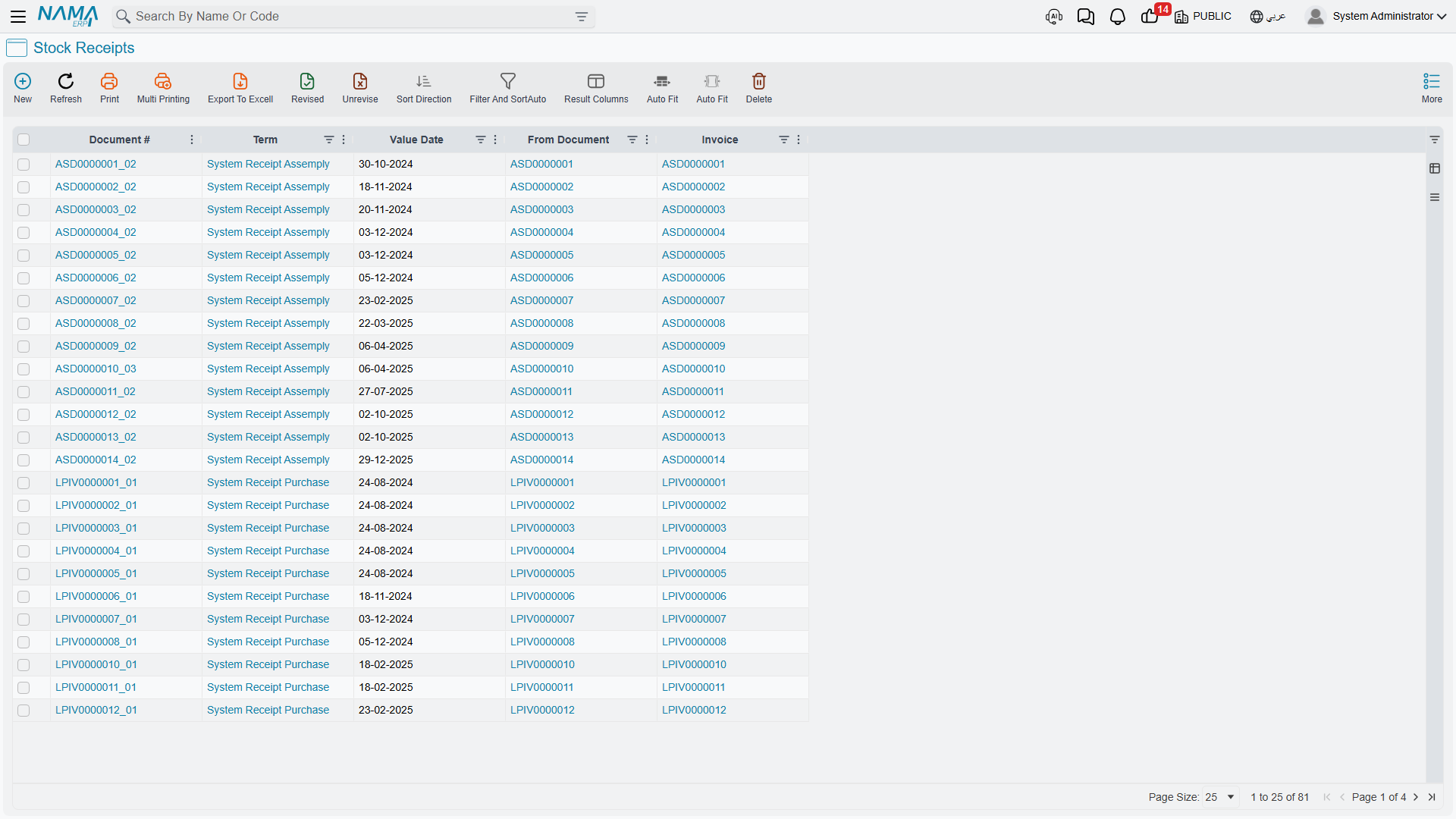
The General Stock Receipt: Your Primary Tool
The Stock Receipt is the general receiving tool within inventory. Use it when items enter stock from sources not directly tied to a supplier invoice (which has its own path in The Purchasing Journey).
When to Use It
Here are the common scenarios:
Internal returns The IT department borrowed 5 laptops for training and is now returning them. The stock receipt documents their return to available stock.
Discovered items During a physical count, you discovered 10 pieces not recorded in the system. Create a receipt to bring them into tracked inventory with a note explaining they were "found during stock taking."
Receiving as samples A supplier sent free samples. Receive them at zero cost to track them in inventory without a financial effect.
Receipts from production have their own documents
When receiving finished products, scrap, or materials returning from production, you use the Manufacturing module's documents (such as product delivery and scrap receipt), not the general stock receipt. See the Manufacturing module for those paths.
How It Works
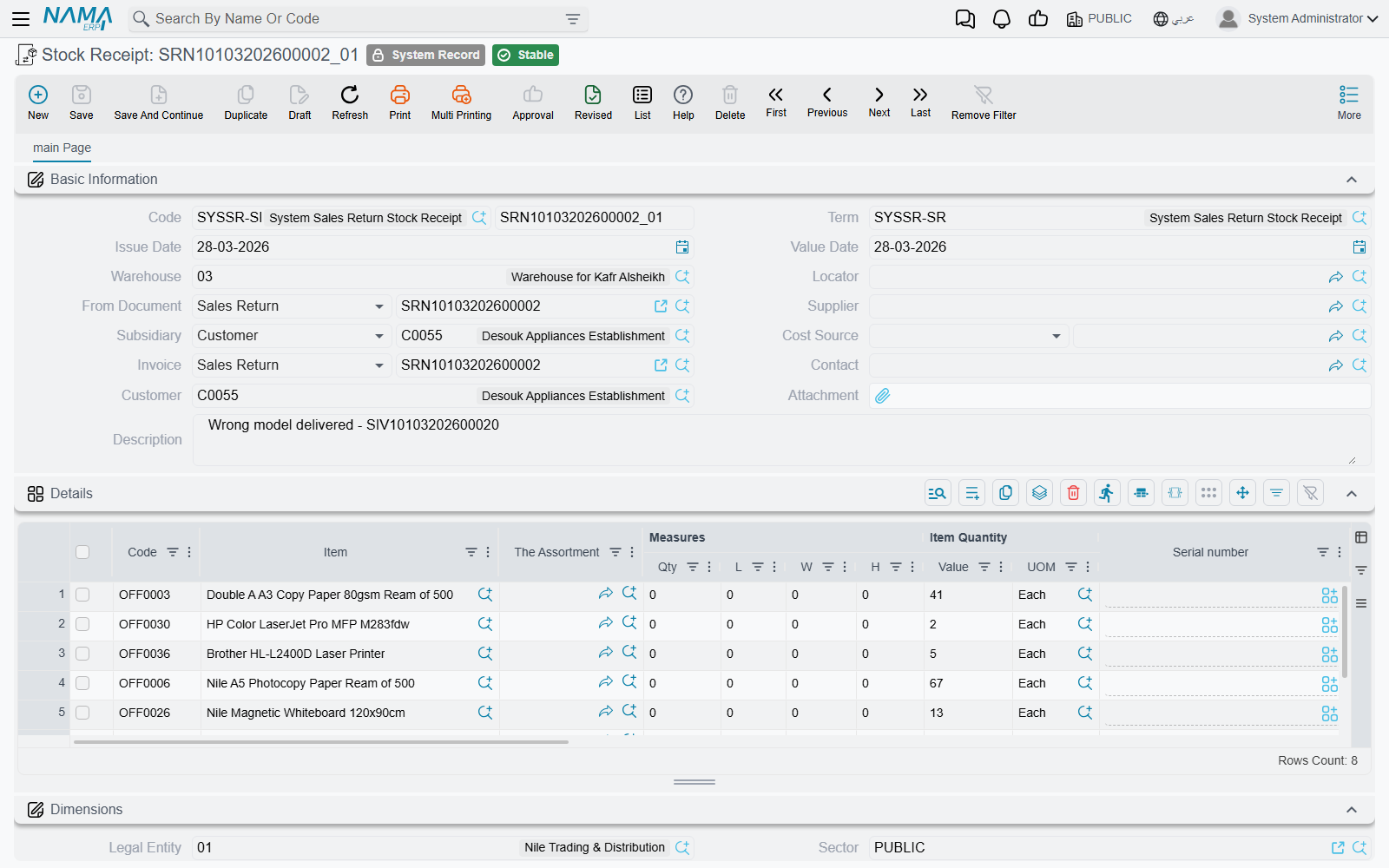
Every receipt document needs:
- Warehouse and locator: Where will these items be stored? The main warehouse? The defective goods area? A specific locator?
- Items and quantities: What's arriving and how much? State the unit of measure - is it 10 boxes or 240 bottles?
- Cost information: What are these items worth? Sometimes zero (samples), sometimes you specify it directly.
- Source information: Where did it come from? Use the reference fields to link documents together.
The system then:
- Increases the inventory quantity at the specified location
- Updates inventory value based on the adopted costing method
- Creates accounting entries (debiting inventory asset accounts)
- Records the movement history
- Updates available-quantity calculations
If items carry serial or batch numbers, you'll enter those details, and the system tracks each individual unit or batch from that moment on.
Stock Receipt Request (StockReceiptReq)
In organizations that separate who requests a receipt from who executes it, the Stock Receipt Request comes first: it documents the intent to receive (and the approval where required), then is converted to an actual stock receipt when the goods arrive.
Starting from Scratch: Opening Balances
When you first implement NaMa ERP, you already have inventory - you're not starting from zero. How do you bring existing stock into the system?
Initial Receipt (InitialReceipt)
The Initial Receipt is a special receipt type used during system implementation. It lets you enter existing inventory quantities, set their current values, establish opening balances, and create the initial accounting entries.
Think of it as a snapshot of your inventory on day zero of using NaMa ERP. After go-live, you won't use this document type again - it's meant for first-time setup only.
Go-live best practice:
- Perform a comprehensive physical count before go-live
- Value your inventory using your chosen costing method
- Create initial receipts for each item/location group
- Verify that total inventory value matches your accounting records
- Go live!
Opening Stock Document (OpeningStockDocument)
The Opening Stock Document is related to the previous one but slightly different - it's often system-generated and represents the official opening position for accounting purposes. You may not create it directly; the system generates it based on your initial receipts or migration data.
Receiving Damaged Goods (PurgeStockReceipt)
Not everything arrives in good condition. The Purge Stock Receipt is for receiving damaged, defective, or to-be-disposed items.
Why bother receiving items you'll dispose of? Because:
- Financial tracking: You need to know the value of damaged goods for insurance claims or supplier disputes
- Compliance: Regulated industries are required to track the disposal of certain materials
- Quality analysis: Understanding the defect rate in receipts helps you evaluate supplier quality
You receive these items into a special "purge" location, then create disposal documents later to remove them from inventory, so the documentation trail is complete.
Integration with Receipt Inspection
Many facilities don't receive items directly into normal stock - they go to an inspection area first.
Receipt Inspection (ReceiptInspection)
The Receipt Inspection document records arriving items for inspection, creating a two-step receiving process:
- Initial receipt into inspection: items arrive and are placed in an "under inspection" warehouse/location
- Final decision after inspection:
- Accept: move to normal stock
- Reject: create a return to the supplier or move to defective goods
- Partial accept: accept part of the quantity and reject the rest
This ensures only quality-approved items reach your available stock. More details in Quality Control.
Additional costs and revaluation
When you need to distribute freight or customs charges across a receipt, or adjust inventory value without changing quantity, those are separate documents (additional cost and cost revaluation) covered in Inventory Costing & Revaluation. For bulk materials weighed on a scale, see Weight Scale.
Handling Corrections and Cancellations
Mistakes happen. You created a receipt and then realized it was wrong. What now?
Stock Receipt Cancellation (StockReceiptCancellation)
The Stock Receipt Cancellation document reverses a previously-saved receipt.
Important: This is not a deletion! The original receipt stays in the system with its history. The cancellation creates an equal, opposite movement that returns inventory to what it was before.
Why does this matter?
- Audit trail: anyone can see the original receipt, why it was cancelled, and when
- Accounting integrity: the cancellation creates correct reversing accounting entries
- The past can't be changed: you can't pretend the original movement never happened - you can only cancel its effect going forward
Use cancellation when wrong quantities were entered, items were received into the wrong location, or the receipt was created by mistake (the goods never actually arrived).
The Receipt Document Lifecycle
Understanding a receipt document's journey helps you use the system effectively:
- Creation: Someone creates the receipt document. At this stage it's a draft - nothing has happened yet.
- Data entry: Items and quantities, storage destination, cost, source information, and serial/batch numbers if any.
- Review (optional): Depending on your organization's controls, receipts may require approval before saving.
- Saving the document: When saved (not as a draft), inventory quantities and accounting entries update immediately.
- Historical record: The receipt becomes a permanent part of the item's history.
Draft vs. Saved
- Save as draft: the document is stored with no effect on inventory or accounting. Use it for preparation and review.
- Save (not draft): the document updates inventory, accounting, and all related accounts immediately.
- Any future edits to saved documents update the system immediately - no separate confirmation step needed.
Tips for Accurate Receiving
Best Practices
Count everything: Don't assume the shipping note is correct. Do a physical count for every receipt.
Use line receiving when it fits: If 100 pieces arrive, you don't need 100 separate documents - one document with a line for quantity 100 is enough.
Record receipt time, not document-editing time: Enter receipts as soon as goods arrive. Inventory accuracy depends on immediate recording.
Use locators consistently: Set clear naming conventions for locators. Inconsistent location codes lead to "lost" inventory.
Serial number discipline: If items require serial numbers, record them accurately on receipt. Recovering serials months later is nearly impossible.
Link source documents: Always link receipts to their source. This traceability is invaluable when investigating discrepancies.
Frequently Asked Questions
Q: We received 100 pieces but only 95 are good. How do we record this?
A: Two options: (1) receive all 100, then immediately issue 5 to a defective location, or (2) receive 95 into normal stock and 5 into a defective location within a single receipt document. The choice depends on whether you want to show the full received quantity matching the supplier's paperwork.
Q: What do we do if we received items at the wrong cost?
A: If you saved as a draft, correct the cost before final save. If the document was saved permanently, you can create a cost revaluation document, cancel and re-receive, or accept it and let subsequent receipts average out the cost.
Messages you may see
| Message | Why | What to do |
|---|---|---|
| {0} can have more than one shipment, So cost source field must have the shipment instead — «{0} يمكن أن يحتوي على أكثر من شحنة ولذلك حقل مصدر التكلفة يجب أن يحتوي على الشحنة بدلاً من الإعتماد المستندي» | The receipt takes its cost from a letter of credit that is marked as carrying more than one shipment, so the credit as a whole cannot say what this delivery cost. | Point Cost Source at the particular shipment of that credit rather than at the credit itself. |
| Must make Quality Control Doc For This Item — «لابد من عمل مستند تحكم جودة لهذا الصنف» | The receipt was generated from an Initial Receipt, the item on the flagged line carries a quality check list, and no quality control document has been recorded against that initial receipt for it yet. | Record the quality control document for that item against the initial receipt first, then save the receipt. |
| Quantity of Item {0} not sufficient — «كمية الصنف {0} غير كافية» | A receipt standing behind a sales return is bringing back more of the item than the original sales issue still has unreturned — earlier returns have already consumed part of it. | Check how much of that invoice line was already returned, and receive no more than the remainder. |
| The document {0} supplier is {1}, while the invoice supplier is {2} — «المورد بالمستند {0} هو {1} بينما المورد بالفاتورة هو {2}» | The receipt names a supplier, and the purchase invoice it was generated from names a different one. | Make the two agree, or clear the supplier on the receipt and let the invoice decide it. |
| The document {0} customer is {1}, while the invoice customer is {2} — «العميل بالمستند {0} هو {1} بينما العميل بالفاتورة هو {2}» | The receipt names a customer, and the sales return it was generated from names a different one. | Make the two agree, or clear the customer on the receipt. |
| Quantity must equals the sum of {0} and {1} — «الكمية يجب أن تساوى مجموع {0} و {1}» | On a Receipt Inspection line the accepted and rejected quantities do not add up to the line quantity. The message names the two fields, so it tells you whether it is the main unit or the second unit that is out. | Split the whole line quantity between accepted and rejected, in the unit the message names. |
| Uom in line {0} is not the same as in receipt stock — «الوحدة في السطر رقم {0} لاتطابق الوحدة في سند التوريد المخزني» | A Stock Receipt Cancellation line is measured in a different unit from the receipt line it cancels. | Use the same unit as the original receipt line; cancellation does not convert between units. |
| Quantity {0} is greater than available cancelled quantity {1} in line number {2} — «الكمية {0} لايمكن أن تكون أكبر من الكمية المتاحة {1} في السطر رقم {2}» | The cancellation asks for more than what is left of the receipt line after earlier cancellations. The message gives both numbers. | Cancel the remaining quantity the message names, or less. |
| Item {0} in line number {1} is not found in stock receipt {2} — «الصنف {0} في السطر رقم {1} غير موجود في التوريد المخزني {2}» | A cancellation line does not correspond to any line of the receipt it points at — usually because the receipt was edited after the cancellation was built. | Regenerate the cancellation from the receipt so the lines are linked again. |
| Period must not be Normal — «لا يمكن إنشاء المستند في فترة عادية» | An Opening Stock Document falls in an ordinary fiscal period, and its term does not allow that — opening balances are expected in an opening period. | Move the document into the opening period, or switch Allow Normal Periods on in its term. |
Next Steps
Now that you understand how items enter your inventory, learn about:
- Issuing Stock - how items leave your warehouse
- Moving Stock Between Warehouses - transfers and movement between locations
- Inventory Costing & Revaluation - additional costs and value adjustments
- The Purchasing Journey - the full purchase process that often ends in receipts