
Sales and Purchase Operations Documents
Eight small screens sit around the trading cycle, each doing exactly one job: parking a shortage the salesman just hit, swapping goods under approval, releasing a reservation, moving a batch of customers to another salesman, restating a purchase order's status, capping what a customer may buy, and re-pricing purchases after a discount is agreed. None of them is a big document like an invoice, and none of them is where a beginner starts — which is why they are also the ones support gets asked about.
The question a reader always has in front of these screens is the same: why would I use this instead of just opening the record and editing it? The answer is usually one of three things. Either the field is not really yours to type (a purchase order's status, a reserved quantity), or the change has to be made to fifty records at once, or somebody will later need to know who made the change and when. A document gives you a number, a date, a book, an approval path and an audit trail; a direct edit gives you none of that.
| Screen | Where it lives | What it does |
|---|---|---|
| Customers Requests Shortage Document | Sales → Documents → Customers Requests Shortage Document | Collects sales lines that could not be filled, and turns them into a purchase order |
| Sales Replacement Request | Sales → Documents → Sales Replacement Request | The approval stage before an actual goods swap |
| Reservation Cancellation Document | Inventory → Reservation Documents → Reservation Cancellation Document | Releases part of a reservation without touching the order |
| Sales Man Update Document | Sales → Documents → Sales Man Update Document | Moves customers to another salesman or representative |
| Purchase Order Status Change | Purchases → Documents → Purchase Order Status Change | Sets the status of one or more purchase orders |
| Limit Sales Qty | Sales → Prices And Offers → Limit Sales Qty | Caps, or blocks, how much of an item a customer may buy |
| Discount Update | Purchases → Documents → Discount Update | Applies a retroactive supplier discount to named purchase documents |
| Discounts Recalculation | Purchases → Documents → Discounts Recalculation | Re-runs pricing on a batch of purchase documents |
Around the sales cycle
These three all attach to a sales document that already exists. They are the "and then what happened" screens: the order could not be filled, the customer wants a different item, or the stock that was held for them is no longer needed.
The Customers Requests Shortage Document
A salesman is on the phone. The customer wants twelve of an item and there are four. The four get invoiced; the eight that do not exist are the interesting part — that is real, named, dated demand, and in most companies it evaporates the moment the call ends.
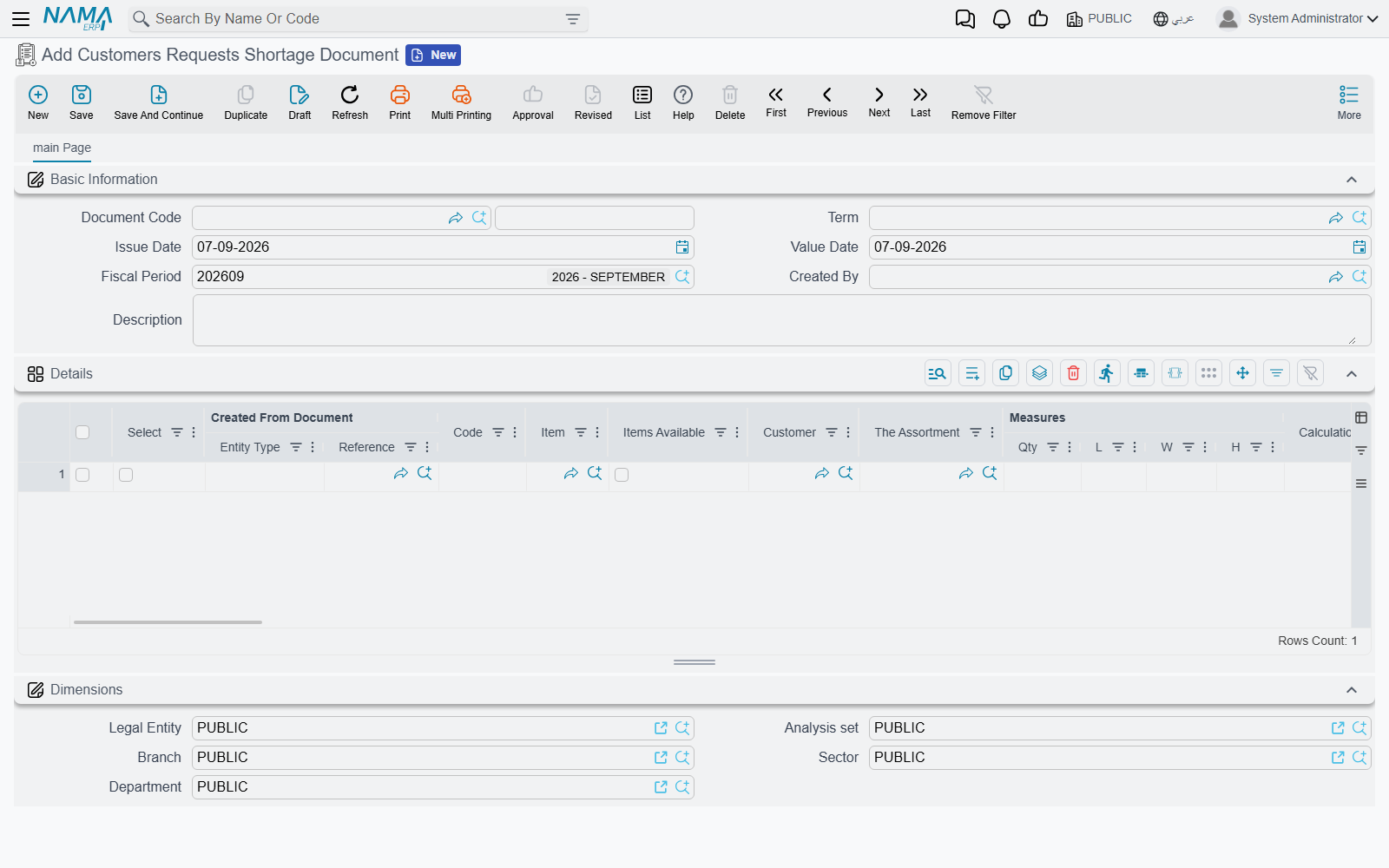
The shortage document is where it goes instead. You do not normally create one from the menu. On the Sales Invoice, the More menu carries Add Current Line To Shortage Document (several Service Center sales screens carry it too). You select the line that could not be filled, press it, and the line — item, quantity, customer, prices, and a Created From Document pointer back to the invoice — is appended to a shortage document.
Which shortage document it is appended to is the clever part, and it is configured on the sales document's Term, in a group called Shortage Doc Creation Method:
| Setting | What it controls |
|---|---|
| Customers Requests Shortage Book | The book the shortage document is created in |
| Customers Requests Shortage Term | The term it is created with |
| Suggest Customers Requests Shortages | How an existing shortage document is looked up before a new one is created |
The last one takes Date Only, User Only or Date And User. With Date And User, each user's shortages for the day land on one document; with Date Only, everybody's do. If a matching document is found the line is added to it, otherwise a new one is created and stamped with the current user in Created By.
All three settings are required
If the book, the term, or the lookup method is missing from the term, Add Current Line To Shortage Document refuses with a message rather than silently doing nothing. This is the usual reason the button "does not work" on a customer's site.
The document itself is a plain worklist. Purchasing opens it, ticks the Select column on the lines it wants to source, and runs Create Purchase Order For Selected Lines Only from the More menu. That builds a Purchase Order from the ticked lines only, carrying the shortage document's warehouse and value date, and opens it. The Items Available tick is a marker for the buyer's own use — a way of flagging lines that have since been covered.
So the "why not just create the purchase order" answer is timing: the salesman captures the demand while the customer is still on the line, without knowing or caring who the supplier will be, and a day's worth of those calls arrives at purchasing as one list.
The Sales Replacement Request
The Sales Replacement does a swap in one move: the medium comes back, the large goes out, and the difference in price is settled. That works when the replacement item is on the shelf and nobody needs to approve anything.
When it is not that simple — the replacement has to be ordered, the swap is a warranty claim that a supervisor must sign off, or the customer is paying part of the difference now and part later — the Sales Replacement Request is the stage before it. It has the same shape as the replacement itself: negative quantity lines are what comes back, positive quantity lines are what goes out, plus a billing page with payment lines, an instalment schedule, and a standard-terms page.
It shares its term configuration with the Sales Replacement, so the same two rules apply to both:
- Must Have Sales And Return Lines — the document is rejected unless it carries at least one negative line and at least one positive line, so a "replacement" cannot quietly become a one-way return.
- Prevent Save If Replaced Item Not Exist In From Doc — an item being returned must appear on the document the request was built from.
If the term's configuration names a debit or a credit account, the request creates its accounting effect on processing, which is what lets you take money against it before the goods move. Its More menu adds Generate Receipt Voucher and Collect Receipt Vouchers for exactly that.
When the actual Sales Replacement is later generated from the request, the request's lines come across with it, and the check that a replaced line must be negative is relaxed for the lines that came from the request — the request has already established what is going in which direction.
The Reservation Cancellation Document
A sales order reserved 100 units. The customer has cut the order to 60. Forty units are being held for a promise that no longer exists, and they are invisible to everybody else trying to sell them. The reservation system explains how the hold got there; this document is how you let part of it go.
You do not type it from scratch. You generate it from the document holding the reservation, so that From Document points back at it and the grid arrives already filled: one line per reserved line, with the quantity pre-filled from what is actually reserved. You then enter the Canceled Quantity you want to release on each line and save. If the term has Remove Line With From Document If Reserved Quantity Is Zero switched on, lines that have nothing left reserved are dropped during generation instead of sitting there at zero.
On processing, the system does not stop at the document you generated from. Its term carries Re-commit Upper Document Of Type, which names a document type; the system follows the From Document chain upwards until it reaches a document of that type, matches each cancellation line to the corresponding line up there, reduces that line's reserved quantity by the cancelled quantity, and re-saves it. That is why the reserved quantity moves on the sales order rather than on the intermediate delivery document — you tell it how far up to go.
It refuses to release more than is still undelivered
If the target line's remaining delivered quantity is less than the quantity you are cancelling, the save fails and names both the document and the two quantities. You cannot release stock that has effectively already gone out.
Cancelling the cancellation document reverses it: the reserved quantity goes back up. That reversibility is the whole reason not to simply edit the order — the order still says what the customer asked for, and the release of stock is a separate, dated, undoable act.
Changing a record that is already live
The next two documents exist because somebody needs to change a field on records that are already in use, and the change is worth a number and a date.
The Sales Man Update Document
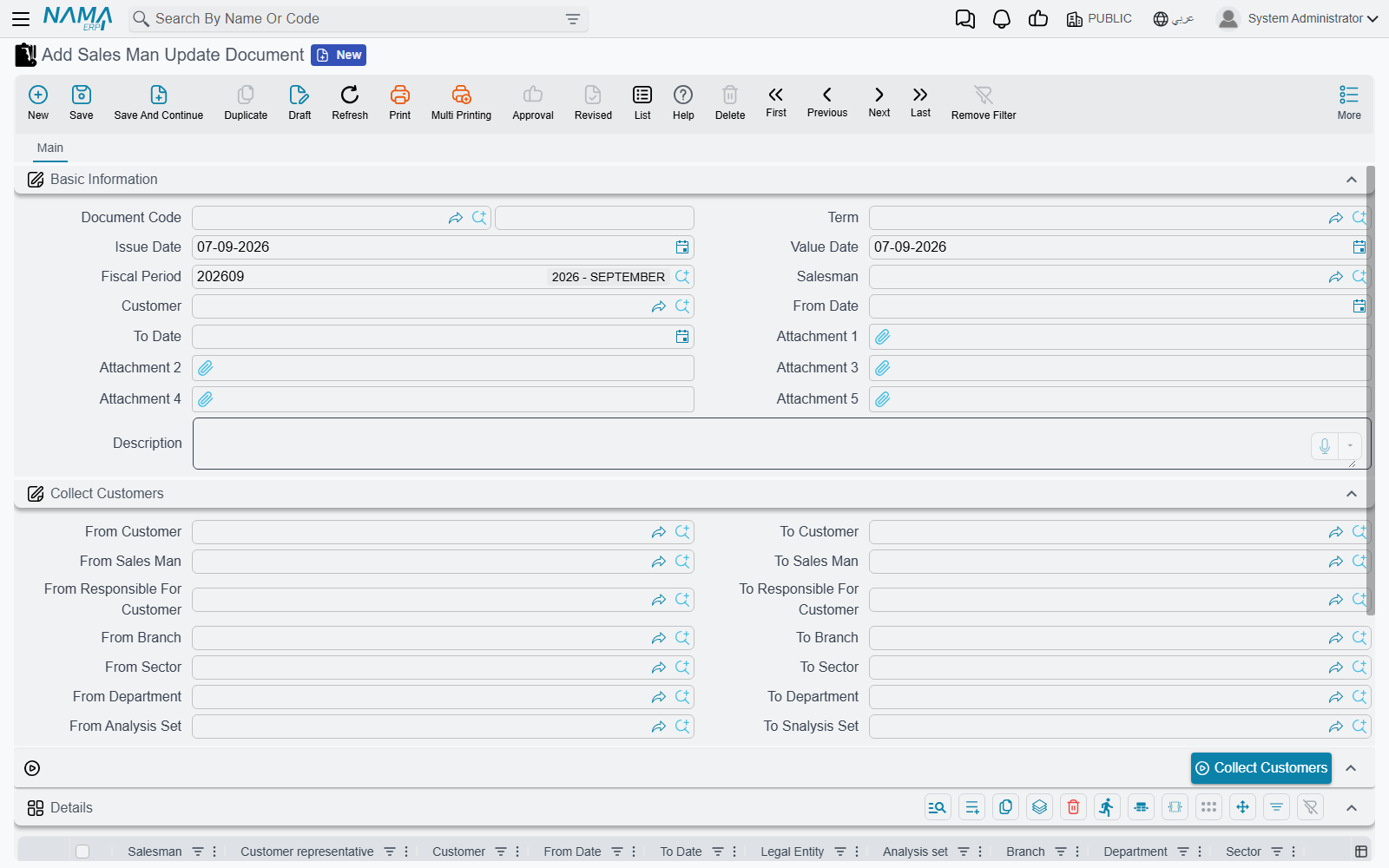
A salesman resigns. A territory is split between two people. A growing account is handed to a key-account manager. In every case the same two fields on the Customer file have to change — Salesman and Customer representative — across anything from three customers to three hundred.
The header carries the Salesman you are moving customers to, an optional single Customer, a From Date and a To Date, and five attachment slots for the memo that authorised the move. Underneath is a Collect Customers group of from/to ranges — customer, salesman, customer representative, branch, sector, department and analysis set — and the Collect Customers button fills the grid with every customer that falls inside them (compared by code). At least one range must be filled or the button refuses.
Leave the header Customer empty when you collect
On every save, the header values are pushed down onto every grid line: the header Salesman, From Date and To Date fill the lines, and a header Customer overwrites the customer on every line. That is convenient when the document is for one customer, and destructive right after Collect Customers — the two hundred customers you just collected would all be rewritten to that one. Fill the header customer, or collect a list; not both.
Each line must carry a Salesman or a Customer representative (or both), and its From Date cannot be after its To Date. The same check applies to the header dates.
On processing, the system walks the lines and, for each line whose From Date–To Date window contains today, writes the line's salesman and representative onto the customer. A line whose window has not opened yet, or has already closed, changes nothing. So the dates are not a schedule that the system will act on later — they are a guard that decides whether the line applies right now.
The Customer screen shows these lines back to you: its Statistics page carries a Sales Man Update Documents list of every update line that touched that customer, with the document, both employees and the date window. That history is the answer to "who moved this account, and when" — and it is the reason to do this with a document rather than by editing customers one at a time.
The Purchase Order Status Change
A purchase order carries a Status: Preliminary, Confirmed, Partial Supply, Full Supply or Canceled. Those words drive how the rest of the business reads the order, so the interesting question is not what they mean but who is allowed to change them and on what evidence.
This document is that mechanism. It needs no term. Its grid has four columns: the Purchase Order, the Old Status (filled in for you the moment you pick the order, so you can see what you are changing from), the New Status, and a Description for the reason.
On processing, the system does something more careful than simply writing the new status onto the order. For each order named, it gathers every non-cancelled status change document that mentions that order, sorts them by value date and then by creation date, and applies the status from the most recent one. Two consequences follow, and both are useful:
- Back-dating a correction works. If you discover that an order was confirmed on the 3rd, not the 10th, you can enter a document dated the 3rd and the order ends up with whatever the genuinely latest decision says — not with whatever was saved last.
- Cancelling a status change rolls the order back. Remove an order from the document, or cancel the document, and the status is recomputed from what remains: the order falls back to the status set by the previous document, or to no status at all if there is no other document.
Because processing recomputes the status from the documents, a status typed straight onto the purchase order is temporary — the next time any status change document for that order is processed or cancelled, the documents win.
Rules and prices that reach back
The last three change what the system calculates, rather than changing a document directly. Two of them reach back into purchase documents that are already saved.
Limit Sales Qty
Some things cannot be sold freely: a subsidised product with a monthly quota per customer, a controlled item, a promotional line where one customer must not take the whole allocation. Limit Sales Qty is the master file that expresses those caps, and the system enforces them for you when a sales invoice is saved.
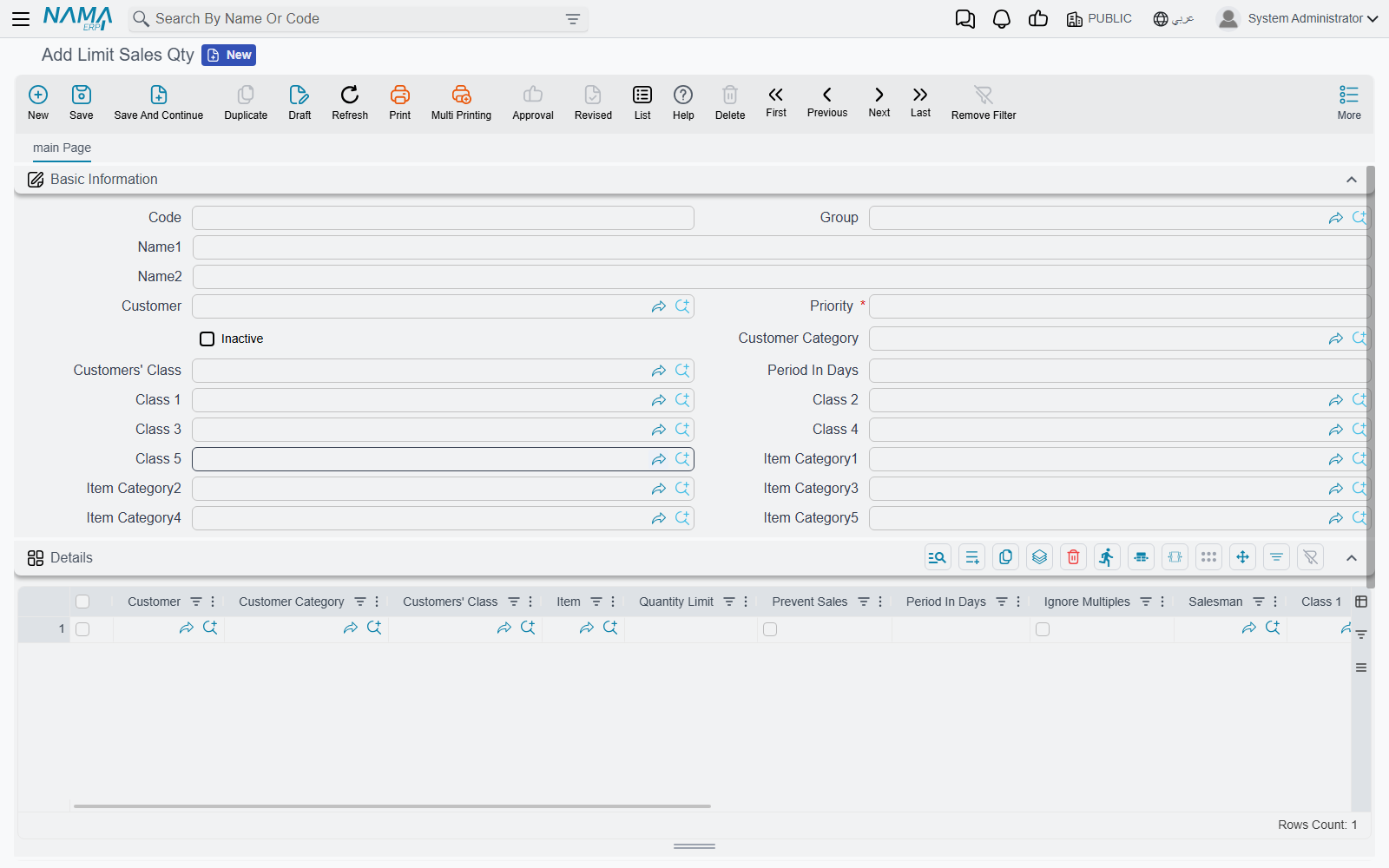
It is a master file, not a document — code, group, Arabic and English names — and its header is mostly a convenience. Anything you fill in the header (Customer, Customer Category, Customers' Class, Priority, Inactive, Period In Days, Class 1–Class 10, Item Category1–Item Category5) is pushed down onto every grid line that left that column empty. The rules themselves live in the Details grid.
Each detail line is one rule, and it has two halves:
| Half | Columns | Meaning of an empty column |
|---|---|---|
| Who it applies to | Customer, Customer Category, Customers' Class | Any customer |
| What it applies to | Item, Item Section, Class 1–Class 10, Item Category1–Item Category5 | Any item |
Then the line says what happens. Either it ticks Prevent Sales — this combination may not be sold at all — or it carries a Quantity Limit together with a Period In Days. The screen enforces the choice: a line with Prevent Sales must leave Quantity Limit empty, and a line without it must fill it. Two lines describing the same combination are rejected as duplicates, naming both line numbers.
When a Sales Invoice is saved, the system takes each invoice line and looks for the first rule that matches it, in Priority order — lowest priority number first — across every Limit Sales Qty file that is not marked Inactive. Only that one rule applies; the rest are ignored. If it says Prevent Sales, the save fails naming the item. Otherwise the system totals the quantity of that item already invoiced to that customer across every rolling window of Period In Days that touches the invoice date, adds the quantity on the invoice being saved, and fails if any of those windows goes over the limit — telling you the item, the limit, the customer and the exact window that broke.
Period In Days must be filled for a quantity limit to do anything
The rolling window is built from Period In Days. Leave it empty (or zero) on a line that carries a Quantity Limit and no window is ever examined, so the limit is never enforced and no error is ever raised. Prevent Sales is unaffected — it is checked before the period logic.
Only committed sales invoices count towards the running total, plus the one you are saving. Quotations and orders do not consume the quota; the invoice does.
The second grid, Multiplied By Quantities, is the seasonal escape hatch. Each of its lines matches on Customer, Customer Category or Customers' Class and on a From Date–To Date window compared against the invoice date, and it multiplies the allowed quantity by Quantity Limit Multiplied By — so a customer normally capped at 10 a week can be given triple that for Ramadan without editing the rule. If the multiplier line also carries a Period In Days, that period replaces the rule's for the duration. A details line with Ignore Multiples ticked stays out of all this and keeps its plain limit.
To retire a set of rules, tick Inactive on the file rather than deleting it — inactive lines are skipped entirely when the rules are loaded.
The Discount Update
The quarter is closed, the purchase invoices are saved, and the supplier now grants 3% back on one brand across everything you bought from them since January. Editing those invoices by hand is not really an option: purchase discounts feed item cost, and cost feeds everything downstream.
Discount Update is a document (no term needed) that says "this discount, on these purchase documents". It has three parts.
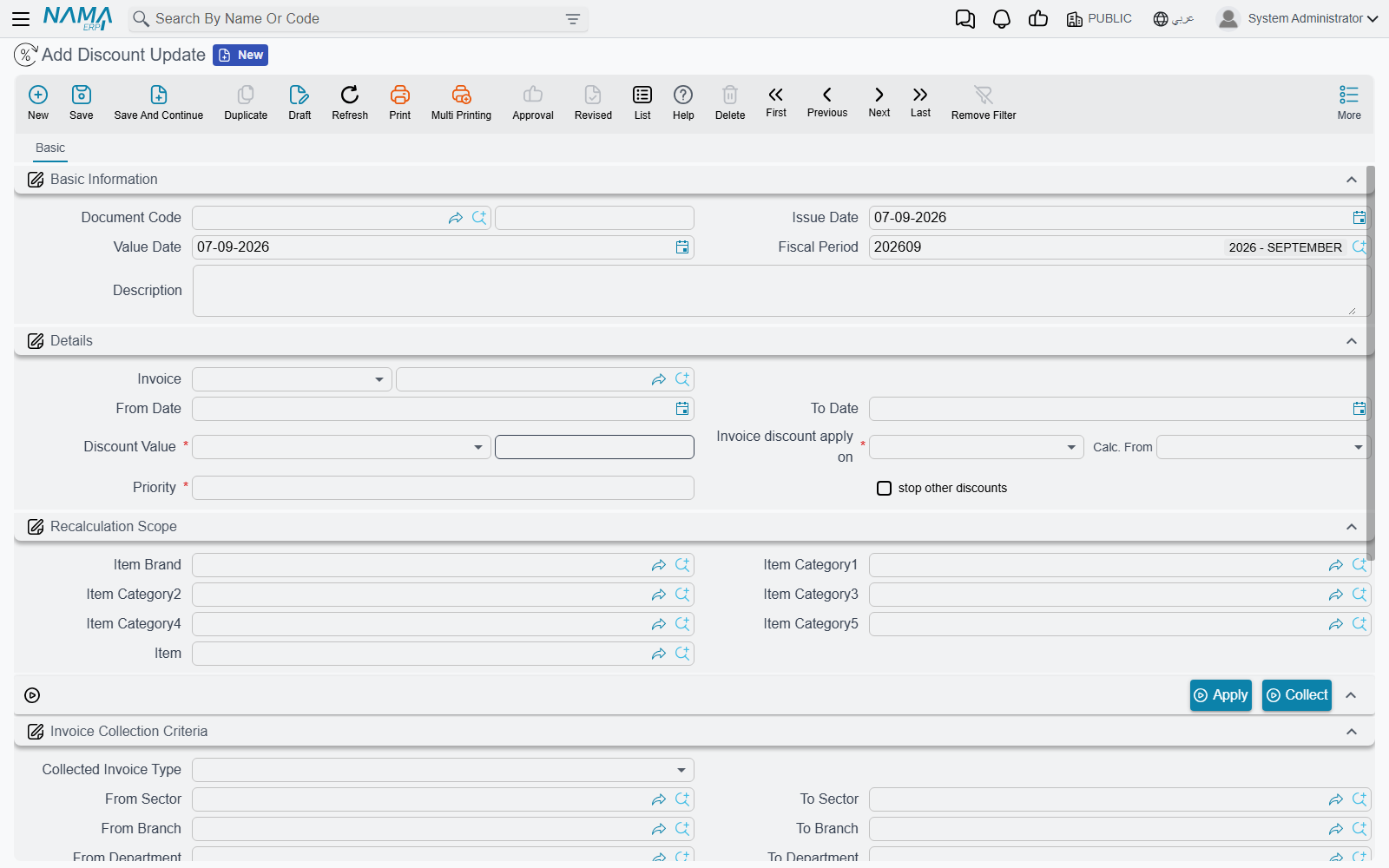
The discount sits in the Details group: a single Invoice reference (a Purchase Invoice or a Purchase Order), From Date and To Date for the period the discount is valid over, a Discount | Type of Value, Composite Percentage or Fixed Percentage with its Discount Value, and then the two fields that decide the arithmetic:
- Invoice discount apply on — which of the eight discount slots on the invoice line the discount lands in, Discount 1 through Discount 8.
- Calc. From — the base it is calculated from: Automatic, Total, Ref1 Price, or Net After Discount 1 through Net After Discount 7.
Two combinations are rejected on save, both for the same reason — you cannot calculate from a result that this discount is itself producing. Net After Discount 1 and Net After Discount 2 cannot land in Discount 1, and Net After Discount 2 must land in Discount 3.
Alongside those sit Priority, which orders this discount against the other discounts the pricing engine finds, and stop other discounts, which ends the chain once this one has applied.
The scope is the Recalculation Scope group — Item Brand, Item Category1–Item Category5, Item. These narrow the discount to part of each document; leave them all empty and it reaches every line. (Picking an item clears the categories, since the two are alternatives.)
The documents are the Invoices grid. You can name one document in the header field, or fill the grid, or both. Invoice Collection Criteria plus the Collect button fill the grid for you: choose a Collected Invoice Type (Purchase Order or Purchase Invoice — required), then optionally narrow by sector, branch, department, analysis set and supplier ranges, and by a date range.
Collect only returns documents with Apply Discounts on
Both this screen and Discounts Recalculation only collect purchase documents whose pricing has Apply Discounts switched on, and the pricing engine only applies vendor discounts to those documents in the first place. An empty grid after Collect almost always means that option is off on the documents you were expecting.
Saving validates that every document named is a purchase document and has a supplier, and that at least one is named. It then records one discount entry per named document, tied to that document's identity. That tie is what separates this from a standing vendor discount: the same supplier's other invoices are untouched, because the entry only matches the documents you listed and the documents generated from them.
Saving alone does not change any prices, though. Apply does that — the document must be saved first — and it re-saves every affected purchase document so that the pricing engine picks the new discount up and item costs are recalculated. For a Purchase Order in the list, it also re-saves the purchase invoices that were generated from that order, so the discount reaches the invoices and not just the order.
Deleting the Discount Update reverses the whole thing: its discount entries are zeroed and the affected purchase invoices are re-saved, putting the prices back where they were. Recomputation, cascade and reversal together are the reason this is a document and not an edit.
The Discounts Recalculation Document
The sibling screen answers a different question. Nothing about this discount has changed — what changed is the data underneath it. A vendor discount file was corrected, a purchase price list was fixed, a category was reassigned, and a batch of purchase documents saved before the correction still carries the old numbers.
Discounts Recalculation (again, no term) simply re-runs pricing over a batch. Its Basic page asks for the Supplier, the Invoice Type (Purchase Order or Purchase Invoice), and a From Date–To Date range, and carries an Options group of four ticks that decide exactly how much of each line is allowed to move:
| Option | Effect |
|---|---|
| Update Price | Recompute the unit price |
| Update Normal Discount | Recompute the line's main discount |
| Update First Discount | Recompute discount 1 |
| Update Second Discount | Recompute discount 2 |
Its Details page carries the two buttons. Collect fills the grid from the supplier, the date range and the invoice type — subject to the same Apply Discounts requirement described above — and the grid's Invoice and Value Date columns are read-only, because they are the result of the search rather than something you type. Apply, on a saved document, re-saves each listed document with the scope you ticked, plus the purchase invoices generated from any purchase order in the list.
The reason to do this here rather than by opening each document and re-saving it is the scope: you can refresh the discounts without disturbing prices that were negotiated by hand, or refresh prices without touching discounts, and afterwards there is a numbered document saying which batch was re-run and when.
Which of the two do I want?
Use Discount Update when there is a new discount to introduce and attach to specific purchase documents. Use Discounts Recalculation when the discount rules are already correct and you only need already-saved documents to catch up with them. Both end with Apply, and both leave the purchase pricing engine to do the actual arithmetic.
Messages you may see
| Message | Why | What to do |
|---|---|---|
| You must fill sales man or responsible for customer — «يجب ملئ مندوب المبيعات أو المسئول عن العميل» | A Sales Man Update Document line names neither a salesman nor a person responsible for the customer, so the line would change nothing. | Fill one of the two on that line, or delete it. |
| Sale is prevented for the item {0} — «تم منع البيع للصنف {0}» | A saved Limit Sales Qty row matches the invoice line and has Prevent Sales ticked — the item is barred for that customer altogether, with no quantity to argue about. The refusal appears on the sales invoice, not on this screen. | Find the Limit Sales Qty row that matches the customer and the item, and either untick Prevent Sales or narrow the row's scope. |
| This item {0} has reached its quantity limit {1} for this customer {2} for the period between {3} and {4} — «هذا الصنف {0} قد بلغ الحد الأقصى {1} لهذا العميل {2} خلال الفترة من {3} إلى {4}» | The customer has already bought the capped quantity of that item inside one of the rolling windows the row defines. The message gives the cap and the exact window it was measured over, which is how you tell which period the invoice fell into. | Wait for the next window, raise the cap on the Limit Sales Qty row, or split the order. The window length comes from the row's period, counted forward from the first sale. |
| Line number {0} is repeated with line number {1} — «السطر رقم {0} مكرر مع السطر رقم {1}» | Two Limit Sales Qty lines describe exactly the same combination — the same item and item classifications, and the same customer, customer class and category — so the system cannot tell which cap applies. | Merge the two lines; one combination may appear only once on the document. |