
Comprehensive Reservation System Guide
Reserving stock sets a quantity aside for a document before anything physically moves, so that a sales order taken this morning is not sold again to the next customer this afternoon. This page explains which documents reserve and in which direction, how reservations change what the quantity check considers available, the Reservation Document screen, how a reservation is reduced or released as the document chain moves on, and what to look at when a save is refused.
Menu Path: Inventory > Reservation Documents > Reservation Document
Where Reservation Fits in Your Journey
Reservation is part of The Sales Journey (reserving stock for a customer's order) and sets up Delivery & Loading. To ignore specific warehouses/locators in the reservation quantity check by date, see the dedicated guide.
Which documents reserve, and in which direction
A document reserves only when its term has Reserve ticked and, if the term's Reserve Only When Criteria Is Matched is filled, the document matches it. What it reserves depends on the kind of document:
- Sales-side and issue-type documents reserve stock out (Pre-Out). This covers sales quotations, sales orders, sales invoices, the Reservation Document itself and stock issue requests: the stock is promised to a customer or to an internal consumer.
- Purchase-side and receipt-type documents reserve stock in (Pre-In). This covers purchase orders, purchase invoices and stock receipt requests: the stock is expected but has not arrived.
- Stock transfer requests reserve the outgoing side at the source warehouse. Unless Transfer Request Reserve Quantity Out Only is ticked in the supply chain configuration, they also reserve the incoming side at the destination.
- Stock Issue, Stock Receipt and the three stock-transfer documents never reserve. They move real stock, so their terms do not even offer the reserve fields. What they can do is release or reduce the reservation of the document they were made from (see Releasing and reducing a reservation).
A line whose quantity is zero is never reserved.
The four quantities
Every item balance, per item and dimension combination, keeps four quantities:
| Quantity Type | Arabic | Description |
|---|---|---|
| In | داخل | Actual received quantities |
| Out | خارج | Actual issued quantities |
| Pre-In | محجوز داخل | Reserved quantities expecting receipt |
| Pre-Out | محجوز خارج | Reserved quantities allocated for issue |
Whether the reserved quantities take part in the availability check is decided per item, by Include Reserved In Balance on the item's Item Configurations. When it is ticked, the check works with
Available = (In + Pre-In) - (Out + Pre-Out)so other documents' outgoing reservations reduce what is available and expected receipts add to it. When it is not ticked, only In and Out count. A document term can switch reservations out of the check for its own documents with Force Do Not Include Reserved With Qty Validation.
Stock Issue, Stock Receipt and the stock-transfer documents treat expected receipts more strictly: for them, reserved-in quantities can offset reserved-out quantities but never add to the stock on hand. A stock issue cannot take out goods that a purchase order has only promised.
Whether a line may go below zero at all is a separate question, answered by the overdraft settings. The item's Allow Overdraft In Reservation is checked first, then the matching Dimensions With Allowed Overdraft row, the item's Over Draft Policy, its item section's policy and finally the company-wide policy; each policy is Yes, No or Inherited (use the next level). See Which setting wins below and Overdraft & Quantity Checking.
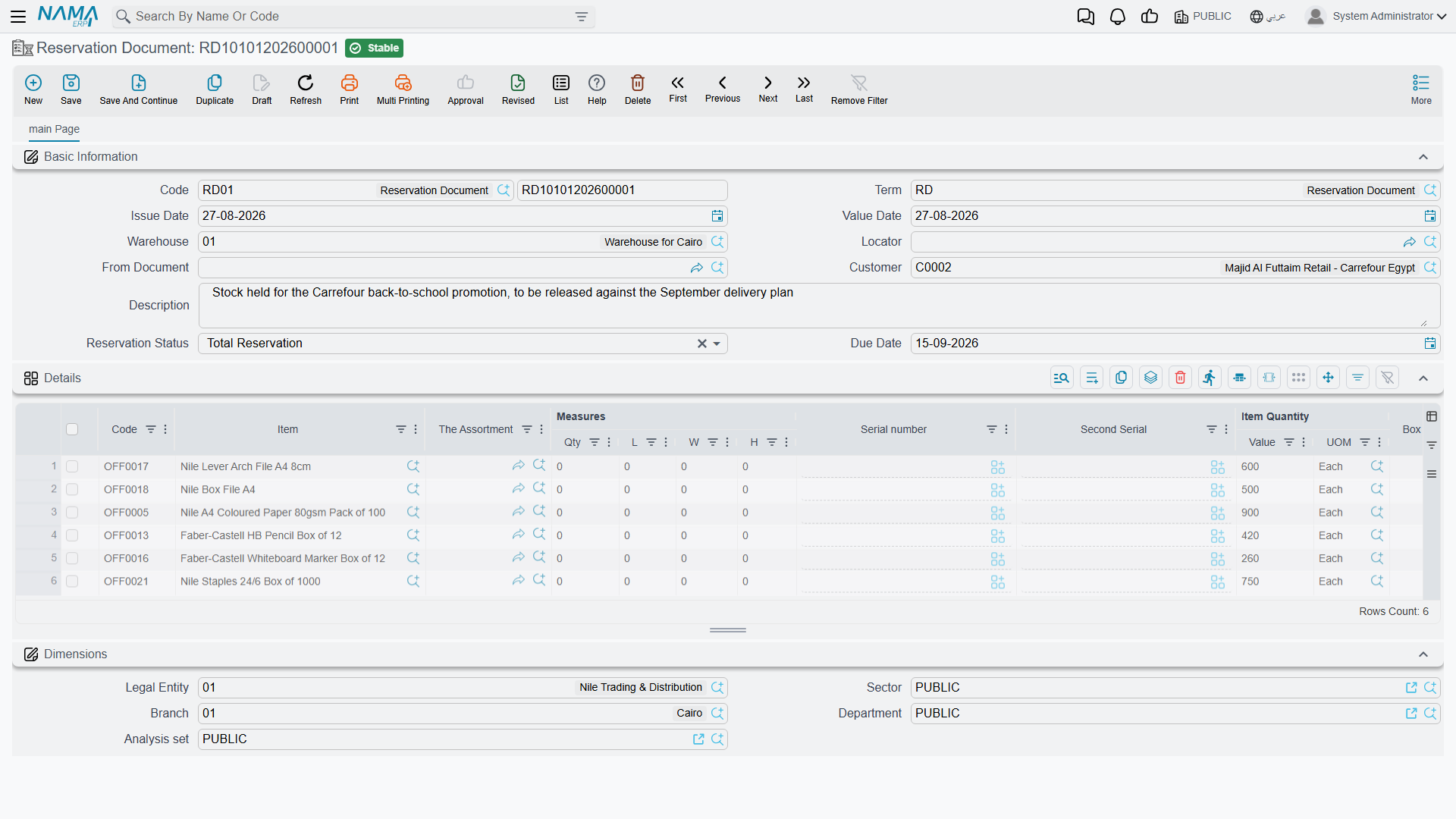
The Reservation Document
Most documents reserve as a side effect of being a sales order or a purchase order. The Reservation Document exists for the cases where you want to hold stock for a customer without any order yet, or to hold part of an order line by line. It is a sales-side document, so it reserves stock out.
Its header carries the usual Book, Code, Term, Issue Date and Value Date, plus:
- Warehouse and Locator: the default warehouse and locator for the lines.
- Customer: the customer the stock is held for.
- From Document: the document this reservation was created from, if any.
- Reservation Status: copied to every line that has no status of its own.
- Due Date: the date by which the reservation should be used. Nothing is released on its own when the date passes. To release overdue reservations automatically, schedule the EACancelReservationOfDocsByQuery entity flow with a query that selects them, for example reservation documents whose due date has passed.
The Details grid holds one line per item: the item, its quantity and unit, the dimension columns (warehouse, locator, lot, serial numbers, size, colour, box, revision), production and expiry dates, and the line's own Reservation Status and Reservation Date. A line's warehouse and locator can differ from the header's.
Reservation status
| On screen (English) | On screen (Arabic) | Meaning |
|---|---|---|
| Total Reservation | حجز كلي | The whole line quantity is reserved |
| Part Reservation | حجز جزئي | Only part of the line quantity is reserved |
| Post Reserved | حجز مؤجل | The reservation starts on a later date |
| Confirmed | مؤكد | The reservation has been confirmed |
| None | بدون | No reservation status |
On its own, the status does not decide whether a line is reserved: every line with a quantity is. To reserve only some lines, set Reservation Lines Criteria on the document term, for example to the lines whose status is Total Reservation. Only the lines that match are reserved.
On sales lines the status is partly filled in for you. The Reservation Date defaults to the document's value date, and a line whose reservation date is later than the value date becomes Post Reserved. When the line's Reserved Quantity is filled, the line becomes Part Reservation if it is less than the line quantity and Total Reservation if it equals it.
A Reservation Document whose term has Update Reservation Status In From Doc ticked writes each line's status back to the document it was created from, and from there to that document's own source.
Apply Reservation and Cancel Reservation
Two buttons in the More menu of a saved Reservation Document switch its reservation off and on without deleting the document:
- Cancel Reservation Of Related Docs («إلغاء الحجز») releases this document's own reservation. Despite the English label, it acts on the document you are looking at.
- Apply Reservation («تطبيق الحجز») puts the reservation back.
Deleting a reserving document also removes its reservation.
Satisfied quantities
A quotation that turns into several orders should not keep reserving what the orders already reserve. Quantity tracking records how much of each line later documents have taken (Satisfied Qty), how much is still open (Unsatisfied Qty) and any quantity marked as delivered by hand (Manually Satisfied Qty). With the right term settings, the reservation follows the open quantity.
For example, with Reserve and Reservation Satisfied Fields on the quotation's term, and quantity tracking against the quotation plus Update Reservation Of Related Docs on the order's term:
- Sales quotation for 100 pieces of Item A. It reserves 100 pieces out. Satisfied 0, unsatisfied 100.
- Sales order #1 for 50 pieces from the quotation. The quotation shows satisfied 50, unsatisfied 50, and its reservation drops to 50. The order reserves its own 50.
- Sales order #2 for 20 pieces from the same quotation. The quotation shows satisfied 70, unsatisfied 30, and its reservation drops to 30. The order reserves its own 20.
At every step the total reserved stays at 100: the quotation holds what is still open and the orders hold what they took.
Releasing and reducing a reservation
A reservation ends in one of these ways:
- A later document releases it. A document whose term has Cancel Reservation Of Related Docs ticked releases the reservation of the document it was created from when it is saved: invoicing an order frees the order's reservation, and a stock issue made from a sales order frees the order's. When the direct source does not reserve, the nearest reserving document further up the chain is released. By default the release goes on up the whole chain; Cancel Reservation Of Direct Parent Only When Using (Cancel Reservation Option) In Document Terms in the supply chain configuration limits it to the direct source. With Consider Origin Document In Lines With Cancel/Update Reservation on the term, the documents named on the lines are released or reduced too, not only the header's source.
- A later document reduces it. With Update Reservation Of Related Docs instead, the source keeps reserving what is still open, as in the quotation example above.
- Someone releases it by hand with the Cancel Reservation button, or a scheduled entity flow does it.
- The document is deleted.
A reserving document made from another reserving document must have one of the two options on its term, otherwise both would hold the same stock and the save is refused (see Combinations the system refuses).
When a reservation does not behave as expected
The source document still reserves the full quantity after a later document was saved. The later document's term has neither Cancel Reservation Of Related Docs nor Update Reservation Of Related Docs, or the later document was not created from the source (its From Document is empty). With the update option, also check that the source's term has Reservation Satisfied Fields set to the tracking quantity that the later documents fill, and that quantity tracking against the source is set up on the later document's term.
A reservation was released further up the chain than intended. Cancelling releases the whole chain above the document unless Cancel Reservation Of Direct Parent Only When Using (Cancel Reservation Option) In Document Terms is ticked in the supply chain configuration.
The line status on the order did not change when the Reservation Document changed. The Reservation Document's term needs Update Reservation Status In From Doc, and the document must have been created from the order.
A sales order is refused although the warehouse shows enough stock. The item has Include Reserved In Balance ticked and other documents already reserve that stock. Release or reduce the reservations that are no longer needed, or move stock from another warehouse; the Messages you may see table below gives the exact message.
Configuration Reference
Reservation is switched on and shaped in four places. The tables below list the settings that matter for reservation, with the label you see on screen; each group links to the page that explains it in full.
Document term
Open the document's term (Basic → Settings → Document Term). The full descriptions are on Reservation & Delivery System and Quantity Tracking. The terms of Stock Issue, Stock Receipt and the three stock-transfer documents do not offer the reserve fields, because those documents move real stock instead of reserving it.
| Setting | Arabic label | What it does |
|---|---|---|
Reserve reserve | حجز | The master switch: documents of this term reserve stock for their lines. |
Reserve From Reservation reserveFromReservationQty | حجز من كميات الحجز وليس من كمية المستند | Sales documents only: reserves the line's reserved quantity instead of its main quantity. |
Reservation Lines Criteria reservationCriteria | فلتر سطور الحجز | Reserves only the lines that match this criteria — for example by the line's reservation status. |
Reservation Warehouse Source reservationWarehouseSource | مصدر مخزن الحجز | Reserves against the line's normal warehouse, or against its separate reservation warehouse. |
Reservation Locator Source reservationLocatorSource | مصدر موقع الحجز | The same choice for the locator. |
Reservation Satisfied Fields reservationSatisfiedFields | حقول الكمية الملغي حجزها | Reserves only what is still open on the line: the quantity already satisfied by later documents (first or second tracking quantity) is taken off the reservation. |
Prevent Cancel Reservation preventCancelReservation | منع إلغاء الحجز | Refuses the Cancel Reservation Of Related Docs button (the manual cancel in the More menu) on documents of this term, and the scheduled cancel-by-query entity flow that does the same. |
Cancel Reservation Of Related Docs cancelReservationOfRelatedDocs | إلغاء حجز المستندات المرتبطة | Saving this document releases the reservation held by the document it was created from — invoicing an order frees the order's reservation. |
Update Reservation Of Related Docs updateReservationOfRelatedDocs | تحديث حجز المستندات المرتبطة | Instead of releasing it, recalculates the source document's reservation so it covers only what is still open. Cannot be on together with the cancel option. |
Check Reservation Sequentiality checkReservationSequentiality | التاكد من تسلسل الحجز | First reserved, first served: a document that delivers against a reservation is refused when the stock on hand, after setting aside the reservations made before its source document, does not cover it. |
Check Reservation Sequentiality In First Save Only checkReservationSequentialityInFirstSaveOnly | التاكد من التسلسل في الحفظ اول مرة فقط | Runs that check on the document's first save only. |
Check Available Quantities Before Save checkAvailableQties | التاكد من الكميات المتاحة قبل الحفظ | Checks that the quantities are available when the document is saved, even when the document does not reserve them itself. |
Force Do Not Include Reserved With Qty Validation forceDoNotIncludeReserved | عدم اعتبار المحجوز عند التأكد من الكميات | For this document, other documents' reservations are left out of the availability check, even for items set to count them. |
Update Reservation Status In From Doc updateReservationStatusInFromDoc | تحديث حالة الحجز في المستند المرتبط | Reservation Document terms only: writes each line's reservation status back to the document it was created from. |
Reserve Using Delivery System Table useDelivSysEntriesForReserv | الحجز بأستخدام جدول التوصيل النظامي | Reserves from the delivery system table instead of the document lines. |
Reserve From Delivery System Table Quantity reserveFromDeliveryEntryQty | حجز من كمية جدول التوصيل النظامي | Which quantity column of the delivery system table is reserved. |
Item Configurations
The item's Item Configurations record (Inventory → Settings → Item Configurations).
| Setting | Arabic label | What it does |
|---|---|---|
Include Reserved In Balance includeReservedInBalance | خصم المحجوز من المتاح للبيع | The availability check counts other documents' reservations: reserved-out quantities reduce what is available, reserved-in quantities add to it. |
Allow Overdraft In Reservation allowOverdraftInReservation | السماح بالسحب على المكشوف في الحجز | Lets the item go below zero in every document except Stock Issue, Stock Receipt and the three stock-transfer documents. |
Supply Chain Configurations
Inventory → Settings → Supply Chain Configurations. Each setting is explained in full on Overdraft & Quantity Checking.
| Setting | Arabic label | What it does |
|---|---|---|
Check Quantities In Reservation Documents checkQtiesInReservationDocs | التأكد من الكميات في المستندات التي تقوم بالحجز | Whether reserving documents are checked for available quantity at all. |
Cancel Reservation Of Direct Parent Only When Using (Cancel Reservation Option) In Document Terms cancelReservationOfDirectParentsOnly | إلغاء حجز المستند الأعلى فقط عند استعمال خيار إلغاء الحجز بالتوجيه | Cancelling releases only the direct source document's reservation, not the whole chain above it. |
Transfer Request Reserve Quantity Out Only transReqReserveQtyOutOnly | طلب التحويل يقوم بحجز الكميات للخارج فقط | A transfer request reserves only the outgoing side; off, it also reserves the incoming side at the destination. |
Update Reservation Quantity With Prime Quantity Change updateReservationQtyWithPrimeQtyChange | تحديث كمية الحجز مع تغيير كمية المستند | Editing a sales line's quantity updates its reserved quantity to match. |
Over Draft Policy overDraftPolicy | إمكانية السحب على المكشوف | The company-wide fallback when the item and its section inherit. |
Dimensions With Allowed Over Draft dimensionsWithAllowedOverdraft | محددات تسمح بالسحب على المكشوف | Allows or refuses overdraft for lines in matching warehouses, locators and dimensions. |
Include Reservation In Check Overdraft By Date includeReservationInCheckOverdraftByDate | تضمين الحجز عند التأكد من السحب على المكشوف بالتاريخ | The by-date check also counts reservations as of the document date. |
Do Not Check Overdraft By Date For Reservation doNotCheckOverdraftByDateForReservation | عدم التاكد من السحب على المكشوف بالتاريخ في الحجز | Reserving documents skip the by-date check. |
Check Overdraft By Date Only With Reservation checkQtyByDateOnlyWithReservation | التأكد من الكميات بالتاريخ فقط مع الحجز (تسمح بتجاهل المخازن مثلا) | The by-date-only choice for reserving documents, separate from the one for real stock movements. |
Ignore Settings With Reservation reservationSettings | إعدادات التجاهل مع الحجز | Whether reservations ignore the same dimensions as real movements, or a set of their own. |
Do Not Consider Dimensions In Overdraft By Date With Reservation doNotConsiderDimensionsInOverdraftByDateWithReservation | تجاهل المحددات التالية عند التأكد من الكميات بالتاريخ مع الحجز | That separate set of dimensions for reservations. |
Item section
The item section's Over Draft Policy (إمكانية السحب على المكشوف) applies when the item's own policy is Inherited.
Which setting wins
Whether a line may take an item below zero is decided in a fixed order: the item's Allow Overdraft In Reservation, then the matching Dimensions With Allowed Overdraft row, the item's policy, the item section's policy and finally the company-wide policy. Prevent Overdraft on the document term can only make the check stricter, never looser. Overdraft & Quantity Checking walks through the order step by step.
Combinations the system refuses
- Cancel Reservation Of Related Docs and Update Reservation Of Related Docs on the same term. Saving a document of that term is refused with You have selected two conflicting options in the term {0} for document {1}: update reservation and cancel reservation, please uncheck one of them — «لقد قمت بالتعليم علي اختيارين متعارضين في التوجيه {0} للمستند {1}: تحديث الحجز و الغاء الحجز. يرجي ازالة العلامة من أحدهما»
- A reserving document created from another reserving document when its term has neither option on, so both would hold the same stock. It is refused with Cannot create reserve document based on other reserve document — «لا يمكن إنشاء مستند يقوم بالحجز بناءا على مستند حجز اخر»
Messages you may see
| Message | Why | What to do |
|---|---|---|
| Insufficient quantity for item {0} {1},Available Quantity is {2}, Reserved quantity is {3} — «الكمية من الصنف {0} {1} لا تكفي. الكمية المتاحه {2} . الكميه المحجوزه {3}» | The line needs more than is available for that item and dimension combination. The last number is the reservation of other documents that the check counted against you, which happens when the item has Include Reserved In Balance ticked. Overdraft is not allowed for the item at any level. | Check the stock in the line's warehouse, locator and lot. If other reservations hold the stock, release the ones that are no longer needed or move stock from elsewhere. If the business accepts negative stock for this item, allow overdraft at the level that fits (see Which setting wins). |
| This line will lead to overdraft resevation. The net quantity is {0} and the reservation queue is {1} and you are trying to deliver {2} | The term has Check Reservation Sequentiality. The document delivers against a reservation, and the stock on hand, after setting aside the reservations made before its source document, does not cover it. This message has no Arabic translation and appears in English on Arabic screens too. | Deliver the older reservations first, or release the older ones that are no longer needed. Tick Check Reservation Sequentiality In First Save Only if documents should be checked only when they are first saved. |
| Can not cancel reservation for this document because prevent cancel reservation option in the document term is selected — «لا يمكن إلغاء الحجز للمستند لانه تم تحديد اختيار منع الغاء الحجز فى توجيه المستند» | Cancel Reservation Of Related Docs was pressed on a document whose term has Prevent Cancel Reservation ticked. | Leave the reservation in place, or untick the option on the term if this kind of document may be released by hand. |
| This document reservation is cancelled before — «الحجز لهذا المستند تم إلغاؤة من قبل» | The document's reservation is already released. | Nothing to do. Use Apply Reservation to reserve again. |
| This document reservation is applied before — «الحجز لهذا المستند تم تطبيقة من قبل» | Apply Reservation was pressed on a document that already reserves. | Nothing to do. |
| This document is not saved yet — «لم يتم حفظ المستند من قبل» | One of the two buttons was pressed on a document that has never been saved. | Save the document first. |