
Understanding Inventory Items
Let's talk about Items - the building blocks of the entire supply chain system.
What Is an Item, Really?
In NaMa ERP, an "item" represents anything you track in your business. It could be:
- A physical product you sell (laptop, chair, juice bottle)
- A raw material you buy (steel, fabric, flour)
- A spare part for maintenance (bearing, filter)
- A service you provide (consulting hours, installation service)
- A consumable you use internally (office supplies, cleaning materials)
The beauty of the item master is that it's flexible enough to handle all these scenarios while capturing exactly the information you need for each type.
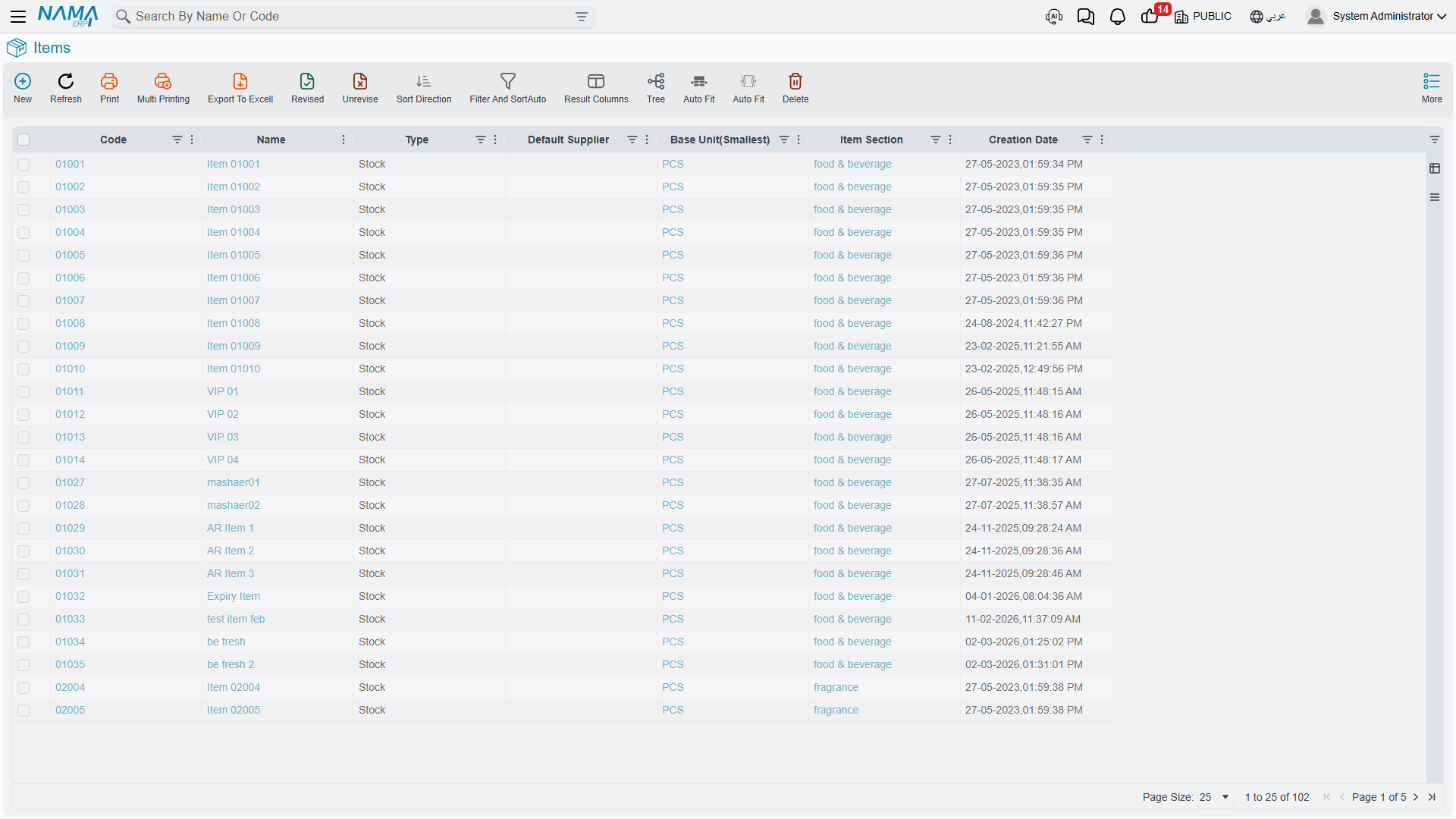
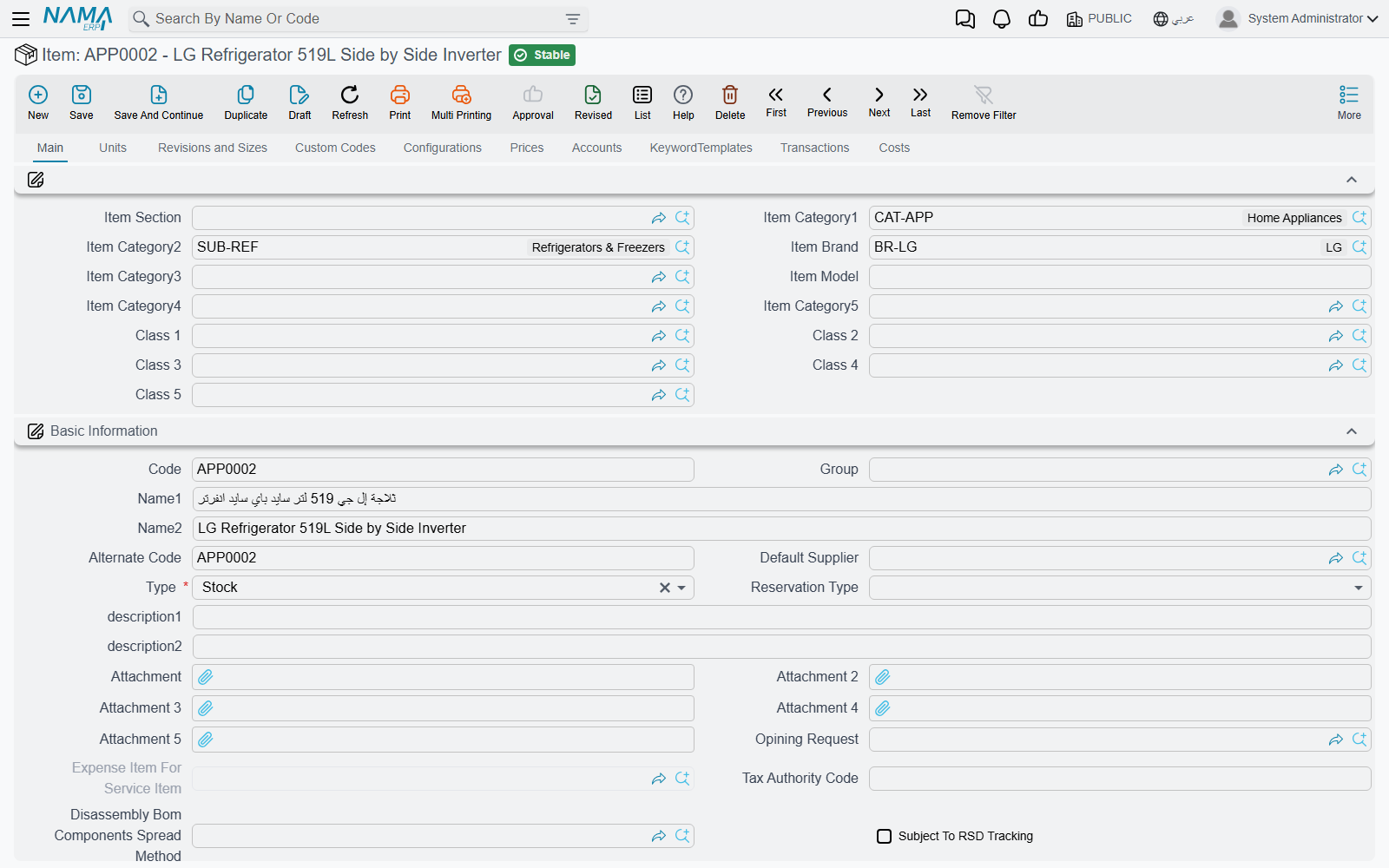
The Item Code: Your Item's Identity
Every item needs a unique identifier - we call it the item code. Think of it as a person's ID number.
You have two options for how codes are assigned:
- Auto-numbering: The system generates codes for you (like IT-00001, IT-00002, and so on)
- Manual entry: You type your own codes (like "LAPTOP-DELL-5540" or "STEEL-REBAR-12MM")
Many organizations use manual codes because they carry meaning - you can look at "DESK-WOOD-120" and immediately know it's a wooden desk 120 cm wide. But auto-numbering guarantees you never create duplicates.
Beyond the primary code, an item can have:
- Alternative codes for legacy systems or different departments
- Supplier codes (what the supplier calls this item)
- Customer codes (what customers call this item)
- Barcodes - multiple barcodes per item when needed
- Tax authority codes for compliance
Names and Descriptions: Communicating About Items
The item code is precise but not friendly. So each item has an Arabic name and an English name, plus several long-form description fields for specifications or different explanations.
Why all these descriptions? Because different people need different information. Purchasing may need technical specs, the sales team needs marketing language, and the warehouse needs handling instructions - and all of that can live in separate description fields on the same item.
Organizing Your Items: Categories and Classifications
Imagine you have 10,000 items in your system. How do you make sense of it all? Through classification!
Hierarchical Categories
NaMa ERP gives you five levels of categories that work hierarchically:
Category 1: Electronics
  Category 2: Computers
    Category 3: Laptops
      Category 4: Business Laptops
        Category 5: Dell Business Laptops
This hierarchy lets you:
- Run reports at any level ("show me all Electronics sales")
- Apply rules to entire categories ("all Business Laptops require serial numbers")
- Search efficiently ("find items in the Computers category")
Additional Classification Dimensions
Sometimes hierarchical categories aren't enough. What if you also need to classify by:
- Brand (Dell, HP, Lenovo)
- Product line (Budget, Premium, Enterprise)
- Supplier source (local, imported)
- Department that uses it (IT, Admin, Production)
This is where the ten item classifications come in. These are independent dimensions you define however you need: you might use the first for brand, the second for product line, the third for price range, and so on.
Alongside these, the system offers ready-made classifications such as Brand, Section, and Assortment that you can use directly without extra setup.
Classification Strategy
Start simple! Don't try to define all ten classifications from day one. Set up the two or three you need most, and add more as your needs evolve. You can always reclassify items later.
The Unit of Measure Dilemma
Here's where things get interesting. Imagine you sell juice:
- You buy it by the carton (24 bottles per carton)
- You store it as bottles, however it arrives
- You sell it by the bottle
- You report on it by the liter for analysis
How does the system handle this? Through the sophisticated Unit of Measure (UOM) system.
The Primary UOM System
Every item has a base unit - the fundamental unit for tracking inventory. In the juice example, it might be "bottle."
Then you define conversion factors:
- 1 carton = 24 bottles
- 1 bottle = 0.5 liters
Every unit must reach the base unit directly
Conversion rates are never chained. A pallet holding 50 cartons still needs its own row saying 1 pallet = 1,200 bottles — defining it as 1 pallet = 50 cartons and trusting the system to multiply through the carton row does not work, and the item refuses to save with Could not find conversion between base unit and unit. Units of Measure covers unit groups, shared conversions and the rest of the subject in full.
Now you can:
- Create a purchase order in cartons
- Receive 10 cartons (the system records 240 bottles in inventory)
- Sell 50 bottles (the system issues 50 bottles, i.e. 2.08 cartons)
- Run reports in liters (the system shows 125 liters sold)
All conversion happens automatically behind the scenes! For each item you can specify a default purchase unit, a default sales unit, and reporting units - so the system picks the right unit in each document.
The Secondary UOM System: When You Need Two Measures
Some items need dual measurement. A classic example is meat:
- Tracked primarily by weight (kilograms)
- But also by count (how many pieces)
You might buy "10 kg chicken (5 pieces)" and need to track both numbers independently. When you enable the second unit on the item, the system captures both measures in every transaction.
Why This Matters
Getting units of measure right is critical because:
- Wrong conversions mean wrong inventory counts
- Wrong inventory counts mean wrong financial statements
- Wrong financial statements mean... well, you know the rest!
Take the time to set up conversions accurately, and test them with trial transactions before going live.
Tracking Special Attributes
Different items need different tracking methods:
Serial Numbers
For items where each unit is unique and traceable (laptops, vehicles, high-value equipment), you can enable serial number tracking.
Now every time you receive or issue this item, the system asks for serial numbers. You can track:
- Where did serial #12345 come from?
- Who owns it now?
- What's the warranty status?
- Has it been serviced?
Some items need two serial numbers - imagine an air conditioner with separate serials for the indoor and outdoor units.
Batch/Lot Numbers
For items produced or purchased in batches (medicines, food products, chemicals), you can enable lot tracking. Each batch gets a unique lot number, so when there's a quality issue you know exactly which batch is affected and can trace every item from that batch.
Expiration Dates
For perishable items, the system tracks expiry dates and can:
- Warn you about items nearing expiry
- Use FEFO (First Expiry First Out) to select lots automatically
- Prevent issuing expired items
Warranty Tracking
For items with warranty coverage, the system tracks warranty periods and can alert you as they approach expiry.
Physical Properties
The system can track physical attributes that affect storage, shipping, and handling:
- Dimensions: length, width, height, area, volume
- Weight: the item's weight (critical for shipping calculations)
- Density: for liquids and bulk materials
Why track this? Because:
- Your warehouse needs to know whether an item fits a standard shelf
- Carriers charge based on volumetric weight
- Production needs to know how much space materials occupy
- Capacity planning depends on physical constraints
Colors, Sizes, and Variants
Fashion retail and many other industries need to track items in multiple variants. A T-shirt might come in:
- 5 sizes (S, M, L, XL, XXL)
- 8 colors (red, blue, green, yellow, black, white, gray, pink)
Do you create 40 separate items? No! You create a single item with size and color tracking enabled, then define the size/color matrix. Now you can:
- Buy "100 shirts (20 of each size, mixed colors)"
- Track inventory separately for "red-large" vs. "blue-small"
- Report at the style level ("total shirt sales") or the variant level ("red-large sales")
Item Types: What Can You Do with This Item?
Every item has flags that determine how it can be used:
- Purchasable: this item can be bought from suppliers; otherwise the system prevents creating purchase orders for it.
- Sellable: this item can be sold to customers; otherwise the system prevents adding it to sales invoices.
- Manufacturable: this item can be produced, so the system allows creating production orders for it.
- Returnable: customers can return it after purchase; otherwise the system prevents sales returns.
- Replaceable: replacement is allowed - useful for warranty swaps or size exchanges.
These flags give you precise control. You might have:
- Raw materials (purchasable but not sellable)
- Finished products (sellable and manufacturable but not purchasable)
- Service items (sellable but not stockable)
- Consumables (purchasable but not sellable or returnable)
Inventory Control: How Does Stock Behave?
Safety Stock and Reorder Points
Each item can have a safety stock level - the minimum quantity you want to keep on hand. Dropping below it triggers a system alert.
You can set:
- Safety stock quantity: "never let laptop stock drop below 10 units"
- Reorder point: "when you reach 10 units, automatically suggest creating a purchase order"
The system also helps you identify slow-moving items via a slow-moving period: if an item hasn't moved in 180 days, maybe it's time to discount it or stop stocking it.
Overdraft Policy: What Happens When You Run Out?
Reality isn't perfect. Sometimes you need to issue more than you have - perhaps an urgent customer order arrived before your scheduled delivery. The overdraft policy determines what happens:
- Prevent: never allow negative stock under any circumstances
- Warn: show a warning but allow the transaction
- Allow: go ahead, we'll track the negative balance
Different items need different policies. Critical medical supplies might prevent overdraft, while office supplies might just warn.
Reservation: Holding Stock for Specific Purposes
The system can reserve items for a specific purpose:
- Can stock be reserved for a sales order? (ensures it isn't sold to someone else)
- Can it be reserved for a production order? (ensures materials are available when production starts)
- At which stage does reservation happen? (order entry, order approval, just before delivery?)
Reservations are powerful because they ensure commitments are met without physically moving stock until the last moment. For full details, see the Comprehensive Reservation System Guide.
Pricing: What Does It Cost? What Do We Charge?
Cost Management
Every item has a standard cost (what you expect it to cost on average). The actual cost of what you issue and sell is calculated by the company's costing method: either First In First Out (FIFO) or moving average. That one choice, the Issue Cost Policy in Costing Configuration, applies to every item.
Sales Pricing
An item can have prices in multiple price lists (retail, wholesale, VIP customers, special promotions). When you create a sales invoice, you choose the appropriate price list and the system fills prices automatically. You can also enable automatic pricing with profit margins (default margin, minimum, and maximum), so the system recalculates sales prices when costs change while respecting your margin policy. You'll find the details in Pricing, Offers & Coupons.
You can also set a minimum price to prevent salespeople from over-discounting; the system warns or prevents selling below it.
Some items are never charged for — carrier bags, samples, a gift that goes with every order. Tick Always Free on the item and every line of it in a sales document or at the point of sale is marked as a free line automatically, so nobody has to remember to do it.
Purchase Configuration
For items you buy, you can configure:
- Lead time: how long it takes from order to receipt; this affects the timing of purchase requests, dates promised to customers, and production scheduling.
- Preferred supplier: who you usually buy from, so the system suggests them automatically when creating purchase orders.
- Order quantities: the minimum order (supplier minimums), the maximum per order, and whether the system should suggest reordering automatically when stock is low.
Accounting Integration
This is where the magic happens. Each item can carry its own accounting setup (a main inventory asset account, plus specialized accounts for different scenarios, branches, or cost centers).
When you receive purchases, the system automatically:
- Debits the inventory account
- Credits payables
- Records input taxes
When you make a sale:
- Debits cost of goods sold
- Credits inventory
- Debits receivables
- Credits sales revenue
- Records output taxes
You'll never have to create manual journal entries - the system handles all of it based on how you configured the item.
Tax Configuration
Items can be taxable or tax-exempt, at different rates depending on the tax plan. You can even set specific exemptions if an item is exempt from certain taxes but not others.
Manufacturing and Quality Configuration
For manufactured items you can set the production lead time, the expected yield per input unit, quality specifications, required quality checklists, and the method for disassembly into components. The Manufacturing module uses these settings to schedule production, calculate material requirements, and ensure quality standards.
On the quality side, items can have a checklist on receipt, ongoing quality-assurance requirements, and a re-test period (important for chemicals and medicines). When these are configured, the system won't allow items to move from receipt into available stock until quality checks are complete. For more, see Quality Control.
Custom Fields and Attachments
Every business is different. So items have custom fields (numbers, true/false flags, dates, and references to other entities) that you use however you need - maybe "shelf life in days" or "requires refrigeration." The system stores and retrieves these values for use in reports, workflows, and business rules.
Each item can also carry several attachments: product images, technical specs, safety data sheets, supplier catalogs, and usage instructions - stored with the item definition and always available when needed.
Revisions
When a product changes design but the old version is still in stock, switch Has Revisions on. The item then gets a revisions grid with one row per revision id, and no id may repeat. From then on every stock line for the item carries a revision next to its colour, size and batch, so the old and new versions are counted apart. A revision that already has stock movements cannot be deleted from the grid unless the supply chain option Allow Delete From Item Revisions After Transactions is on.
Actions on these screens
On the Item screen itself:
- Add Item To Sales Price List, Add Item To Purchase Price List, Add Item To Item Voting File and Add Item To Price Voting File — each asks which list or file to add to, then puts this item on it. They save the round trip of opening the price list and hunting for the item.
- Reverse Delete Case — on the keywords grid, flips the delete flag on every keyword line, so a whole set can be marked for removal or spared in one press. Keywords and the templates that fill them are explained in Keywords and Keyword Templates.
On the Item Update document: Copy To Item — writes the changes the document carries onto the items it targets. Nothing moves onto the items until this is run.
On the Multi Item Creator: Generate Items — creates the actual items from the combinations defined on the document.
On the Item Size Color Collection: Generate Item Color Size — builds the matrix from the colour lines and the size lines, giving every colour-and-size combination rather than typing them out.
On the Item Assortment: Create Assortment From Lines Data — the label spells out what it does: it creates the assortment from every combination of the data entered in the lines.
Putting It All Together
Setting up items seems like a lot of work - and it is! But here's the thing: you do it once per item, and from that point on, hundreds of transactions flow through the system using that configuration.
A well-configured item definition means:
- Purchasing flows smoothly (the system knows the supplier, units, and accounts)
- Sales flow smoothly (the system knows the price, units, and accounts)
- Inventory is tracked accurately (the system knows serials, batches, and locations)
- Accounting is automatic (the system knows which accounts to record each amount on)
- Reports are meaningful (the system knows categories and classifications)
Start Simple
Don't try to configure everything perfectly on your first item. Start with the basics:
- Code and name
- Primary unit of measure
- Category
- Whether it's purchasable/sellable
- Basic accounting accounts
You can always come back later to add serial tracking, quality checklists, or automatic pricing. Get items into the system and start using them - you'll quickly learn what additional configuration you need.
Messages you may see
The item card refuses a save when its switches and its grids disagree. Unit-related refusals — rates, base units, deleted units — are on Units of Measure.
| Message | Why | What to do |
|---|---|---|
| You can not reuse item opining request {0} as it is used with item {1} — «لايمكن اعادة استعمال طلب اضافة الصنف {0} حيث انه تم استعمالة فى الصنف {1}» | The opening request named on this item was already consumed by the other item the message names. One request produces one item. | Clear the field, or raise a new opening request for this item. |
| Color is not enabled — «الألوان غير مفعلة» | A row in the item's dimensions grid carries a colour while Has Color is off on the item. | Either switch Has Color on, or clear the colour from that row. |
| Size is not enabled — «المقاسات غير مفعلة» | A row in the dimensions grid carries a size while Has Size is off. | Switch Has Size on, or clear the size from the row. |
| Lot is not enabled — «الشحنات غير مفعلة» | A row in the dimensions grid carries a batch while Has Lot is off. | Switch Has Lot on, or clear the batch from the row. |
| Revision is not enabled — «الإصدارات غير مفعلة» | A row in the dimensions grid carries a revision while Has Revisions is off. | Switch Has Revisions on, or clear the revision from the row. |
| Active Percentage is not enabled — «النسبة ابفعالة غير مفعلة» | A row in the dimensions grid carries an active percentage while Has Active Percentage is off. The Arabic text carries a typo of its own. | Switch the option on, or clear the percentage from the row. |
| Inactive Percentage is not enabled — «النسبة الغير فعالة غير مفعلة» | A row in the dimensions grid carries an inactive percentage while Has Inactive Percentage is off. | Switch the option on, or clear the percentage from the row. |
| Sub Item is not enabled — «الصنف الفرعي غير مفعل» | A row in the dimensions grid names a sub-item while Has Sub Item is off. | Switch the option on, or clear the sub-item from the row. |
| Dimensions repeated — «ألمحددات مكررة مع سطر آخر» | Two rows of the dimensions grid describe exactly the same combination — same warehouse, locator, colour, size, batch, box, revision, percentages, sub-item and analysis dimensions. The message is raised on both rows. | Merge the two rows, or make one of them different. If duplicates are genuinely wanted, the supply chain option Allow Duplicate Item Details removes the check. |
| Min quantity must be less than or equal to max quantity — «أقل كمية يجب أن تكون أقل من أو تساوي أقصى كمية» | A dimensions row has a minimum quantity above its maximum. Rows where either figure is left empty or zero are not checked. | Correct one of the two figures. |
| Revisions should be empty if has revisions is not enabled — «الإصدارات يجب أن تكون فارغة في حالة عدم تفعيلها» | The revisions grid has rows while Has Revisions is off. Switching the option off does not empty the grid for you. | Delete the revision rows, or switch Has Revisions back on. |
| Revision id repeated — «معرف الإضدارة مكرر» | Two rows of the revisions grid share the same revision id. The message is raised on both rows. | Give each revision its own id. |
| Has lot must be enabled in order to enable has expiry — «يجب تفعيل الشحنات لتتمكن من تفعيل تاريخ الصلاحية» | Has Expiry was switched on while Has Lot is off. An expiry date belongs to a batch, so there is nowhere to record it without batches. | Switch Has Lot on first, then Has Expiry. |
| Can not have sizes and colors lines if both has size and has color are disabled — «لا يمكن تحديد ألوان أو مقاسات إذا لم يكونوا مفعلين» | The sizes-and-colours grid has rows while both Has Size and Has Color are off. | Switch at least one of the two on, or empty the grid. |
| Can not have size if has size is not enabled — «لا يمكن تحديد مقاس إذا لم تكن المقاسات مفعلة» | A row of the sizes-and-colours grid carries a size while Has Size is off — the item is colour-only. | Clear the size from the row, or switch Has Size on. |
| Can not have color if has color is not enabled — «لا يمكن تحديد لون إذا لم تكن الألوان مفعلة» | A row of the sizes-and-colours grid carries a colour while Has Color is off — the item is size-only. | Clear the colour from the row, or switch Has Color on. |
| You can not use not sellable, nor not purchasable in sizes and colors without enabling this feature in supply chain configurations — «لا يمكن استخدام لا يمكن بيعه ولا يمكن شراؤه في سطور المقاسات و الألوان بدون تفعيل هذه الخاصية في إعدادات المخازن» | A sizes-and-colours row is marked not sellable or not purchasable while the supply chain option Enable Not Sellable And Not Purchasable On Color And Size Lines is off. | Have the option enabled, or untick the marks on the rows. |
| Should have at least one color. — «يجب تحديد لون واحد على الأقل» | Has Color is on, but no row of the sizes-and-colours grid names a colour. | Add the item's colours, or switch Has Color off. |
| Should have at least one size. — «يجب تحديد مقاس واحد على الأقل» | Has Size is on, but no row of the sizes-and-colours grid names a size. | Add the item's sizes, or switch Has Size off. |
| You can not remove old lines for field {0} - {1}, because {2} transactions found — «لا يمكنك حذف السطور الخاصة بالحقل {0} - {1} لان له {2} حركات» | A colour, size or revision was deleted from the item after stock movements or price list lines were recorded against it. The message names the field, the value removed and how many records use it. | Put the row back. The supply chain options Allow Delete From Item Colors And Size After Transactions and Allow Delete From Item Revisions After Transactions lift the check if the history really is disposable. |
| You can not change item type from Service to Stock or vice-versa after using it in Stock Issue, Receipt, or Transfer — «لا يمكنك تغيير نوع الصنف من خدمة الى صرف او العكس بعد استخدامة فى سند الصرف , التوريد المخزني او التحويل المخزني» | The item's type was switched between Service and Stock after saved issues, receipts or transfers already carried it. A service item holds no quantity, so those documents would become meaningless. | Leave the type alone and create a second item of the right type. |
| You can not modify configuration after making transaction — «لا يمكنك تغيير الاعدادات بعد عمل حركة» | The item's Configurations profile — the one that decides what cost and quantity are tracked by — was changed after the item already had movements. | Keep the profile the item was used with, or have the supply chain option Allow Changing Cost And Qty Tracking After Usage enabled and accept that existing balances were tracked the old way. |
Next Steps
Now that you understand items, you're ready to learn where to store them and what to do with them:
- Warehouses & Locators - where your stock lives
- Receiving Stock - bringing items into your warehouse
- Issuing Stock - taking items out of your warehouse
- The Purchasing Journey - how items enter your system
- The Sales Journey - how items reach your customers