
Financial Budgets
A budget is a plan with teeth: you decide up front how much each account may spend (or should earn) over a period, and then — if you want — the system holds your documents to that plan, warning or even blocking spending that would blow past it. Nama's financial budgets let you set those targets per account, per period, and per dimension, and then validate actual activity against them.
Required license
Financial budgets are part of the accounting-budget license, and live under the Budgets menu root.
Building a budget
The Financial Budget (BUDGETS > Budgets > Financial Budget) is the plan document. Each details line targets one account (within a chosen accounts chart) and carries a planned value for the year — and because budgeting is often multi-year, the line holds up to six years of values side by side, with optional change percentages to grow each year off the previous one automatically. The credit/debit split per year can be filled directly or calculated for you.
Every line is scoped by the dimensions that matter to you — legal entity, sector, branch, department, analysis set, subsidiary, even a record (entity dimension) — and by a fiscal year / period (a from–to period range). So "marketing department, branch Riyadh, this year: 500,000" is a single, precise budget line.
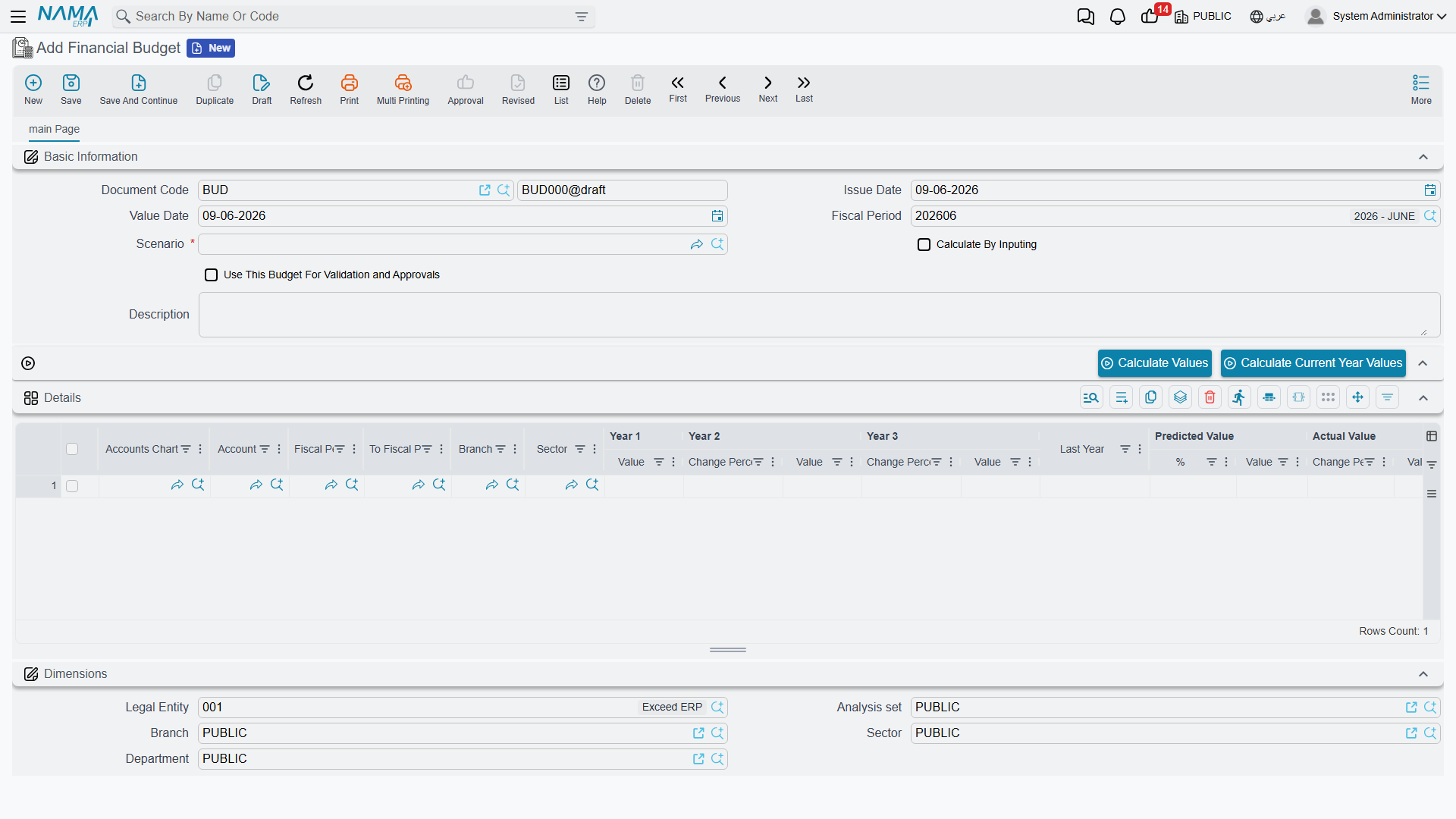
You can keep several budgets as scenarios (BUDGETS > Master Files > Budget Scenario) — an optimistic plan, a conservative one — and tag the budget with the scenario it belongs to.
Turning a budget into a control
A budget only constrains spending if you tell it to. The switch is "use this budget for validation" — set on the budget (and per line, with an optional validate-from / validate-to date window). Once a budget is marked for validation, the system checks documents that hit its accounts against the planned figure.
What "exceeding" means is configured centrally, in the accounting module's Budget Validation Options (see the Accounting configuration catalog). Two switches decide what happens when a document would push an account over its budget:
- Prevent saving when budgets are exceeded — the document is blocked outright.
- Enable approvals for budgets — instead of (or before) blocking, the over-budget document is routed for approval, so an authorized user can let it through.
If neither is on, the budget is informational only — it's tracked and reportable, but nothing stops the spend.
Matching the right budget line
When it validates, the system needs to know which budget line a document maps to. The Budget Validation Options include a set of "consider…" toggles — consider sector, branch, department, analysis set, subsidiary, record (entity dimension), references 1–3, and fiscal period — that define how precisely actuals are matched to budget lines. Turn on the dimensions you budget by; leave off the ones you don't, so the match isn't too narrow to find its line.
For Support
- "My budget isn't stopping anything" — three things must line up: the budget is marked use for validation, and at least one of prevent saving / enable approvals is on in the Budget Validation Options. Otherwise the budget is informational only.
- "A document was blocked / sent for approval unexpectedly" — it hit an account that has a validation budget and would exceed it; check the budget figure and the document's amount and dimensions.
- "The system can't find the matching budget line" — review the consider… toggles in the Budget Validation Options; if you budget by branch but "consider branch" is off (or vice-versa), the actual won't match the line.
- "I want to compare plans" — keep each plan as a separate Budget Scenario and tag its budget accordingly.