
Financial Commitments
A company carries many recurring obligations that aren't invoices yet but are very real: a yearly rent paid in quarterly installments, an insurance policy, a financing agreement with a fixed repayment schedule. The financial-commitments system is where you register these obligations, lay out their installment schedule, and track what's been paid against what's still due — a regulation-and-tracking layer that sits beside your ordinary vouchers.
Required license
Financial commitments are part of the accounting-financial-commitments-regulation license.
A tracking layer, not a posting document
The commitment and its payment document do not post to the general ledger themselves. They track the obligation and its settlement against the schedule; the actual money movement is recorded by your normal receipt/payment vouchers. Think of this system as the planner and watchdog over those obligations, not a replacement for the vouchers that move the cash.
The pieces
All screens are under the Accounting > Financial Commitment Management root:
- Financial Commitment Category — a master file for classifying commitments (rent, insurance, financing…), so you can group and report on them.
- Financial Commitment — the obligation itself: its total value, its category, a start date, a repayment period (every n months/…), and the resulting installment schedule.
- Financial Commitment Payment Document — records a payment against a specific installment, updating that installment's paid/remaining figures.
- Financial Commitment Reschedule — changes the schedule after the fact (add, edit or remove installments), keeping a before/after record of the change.
Setting up a commitment
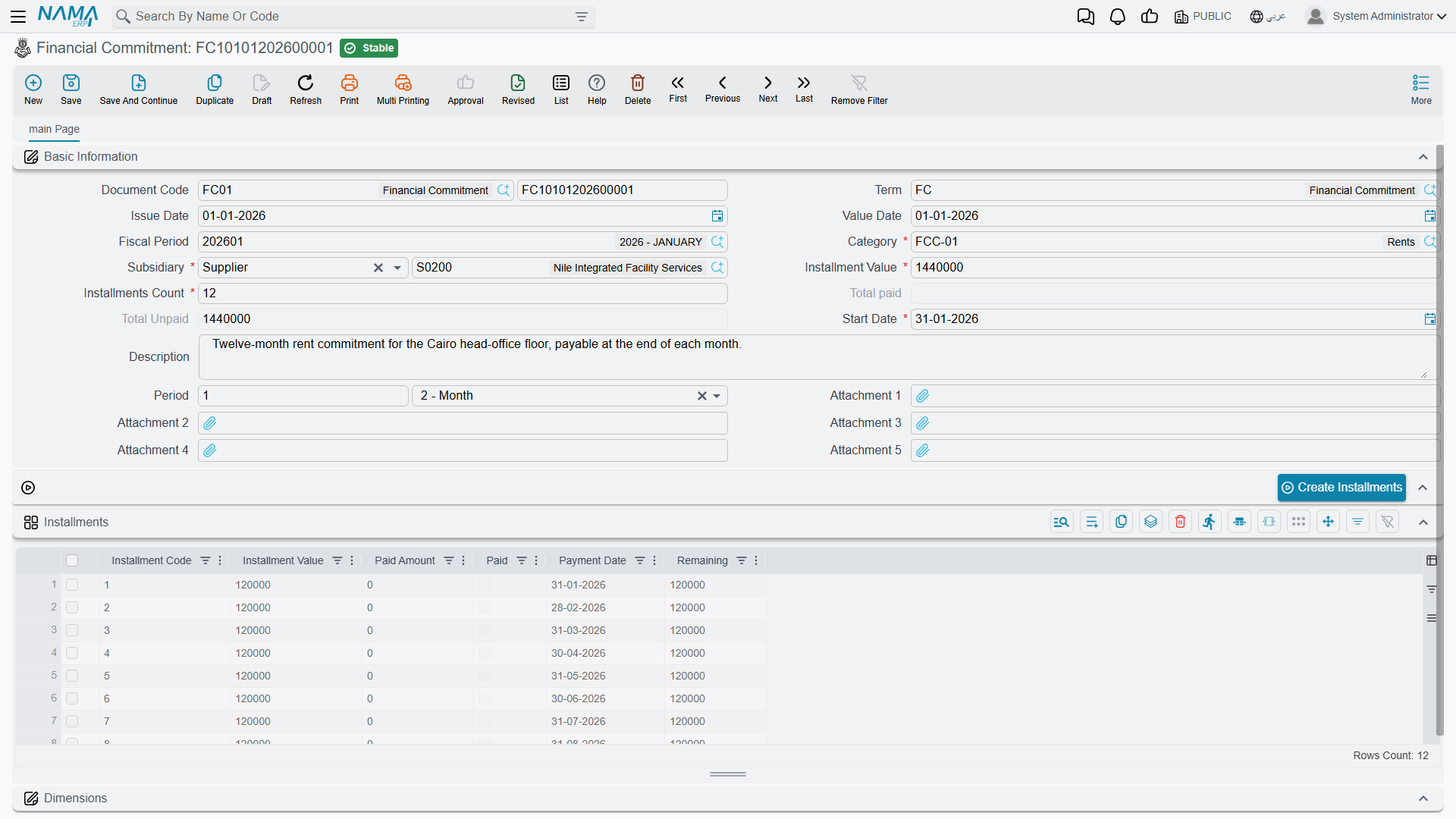
On the Financial Commitment (Accounting > Financial Commitment Management > Financial Commitment) you enter the obligation's category, its start date, the installments count and installments value, and the recurrence period (value + unit, e.g. every 1 month). From these the Installments grid is built — one line per installment carrying its installment code, value, payment date, and the running paid amount / remaining and a paid flag. The header keeps the rolling total paid and total unpaid so you can see at a glance where the obligation stands.
Paying an installment
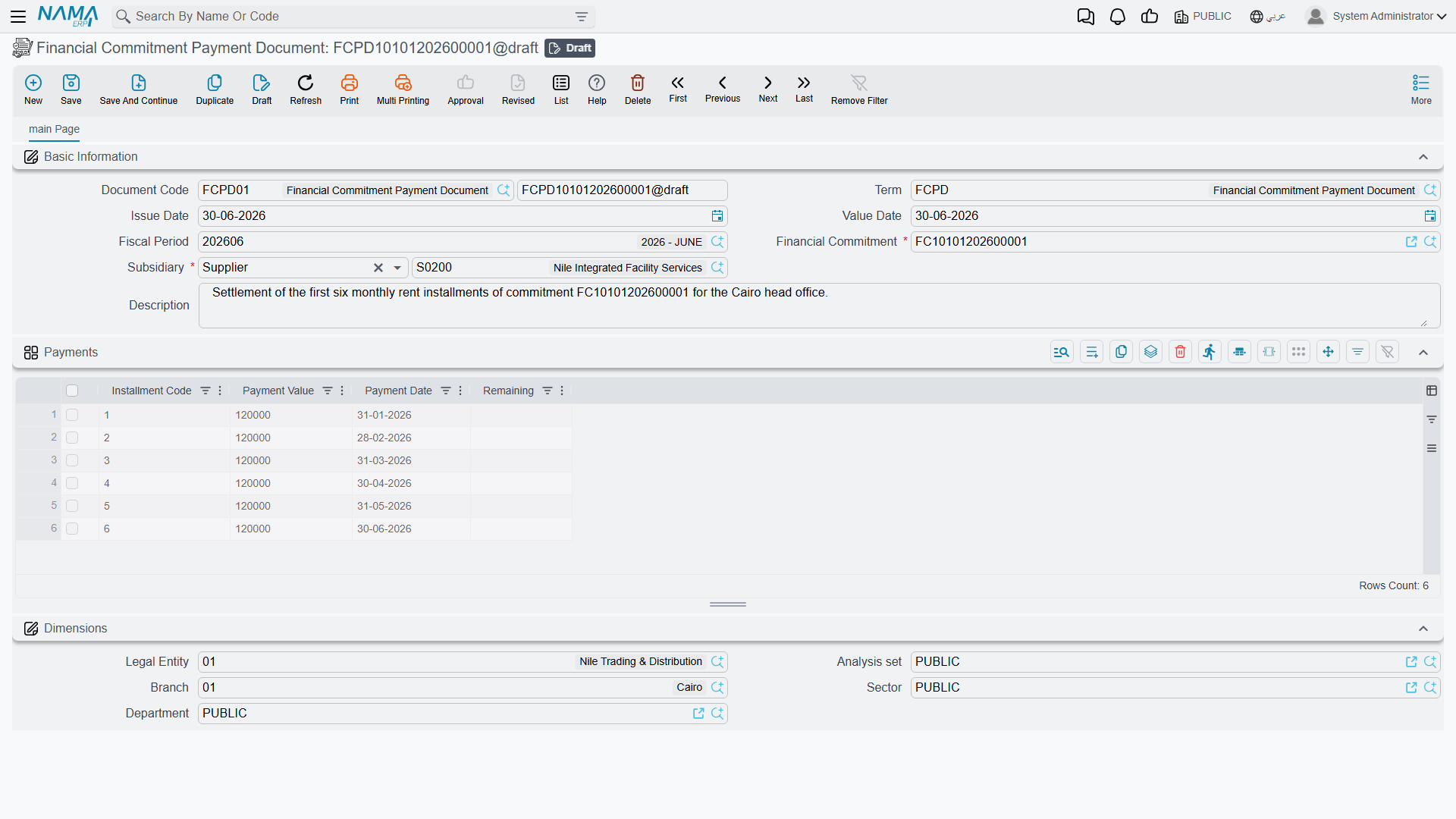
The Financial Commitment Payment Document (Accounting > Financial Commitment Management > Financial Commitment Payment Document) points at a financial commitment and records a payment against it. When committed, it updates the matching installment's paid amount and remaining, and flips the installment to paid once fully settled — so the commitment's totals always reflect reality.
Actions on this screen
The installment schedule is generated, not typed:
- Create Installments — builds the Installments grid from the installments value, the installments count, the start date and the recurrence period, dividing the value evenly and stepping the payment date forward by one period each time. All four fields are required; leave one blank and the button says which. It also refuses to run if any existing installment is already paid or carries a paid amount — regenerating would wipe settled history — so reschedule those with a Financial Commitment Reschedule instead.
- Create Installments For Selected Documents — the same generation, but from the commitments list view across every commitment you have selected. This is how you lay schedules onto a batch of commitments that were imported or entered without them.
Rescheduling
Plans change — an installment is deferred, the amounts are renegotiated. The Financial Commitment Reschedule (Accounting > Financial Commitment Management > Financial Commitment Reschedule) lets you add, edit or delete installment lines on an existing commitment. It keeps two grids — the details (the new schedule) and the details before edit (the schedule as it was) — so the change is auditable.
For Support
- "The commitment didn't create a journal entry" — that's expected; commitments and their payment documents don't post to the ledger. Record the actual cash movement with a normal receipt/payment voucher.
- "The paid/remaining figures look wrong" — they're driven by the payment documents linked to the commitment; check that each payment is committed and points at the right installment.
- "I need to change the schedule" — use a Reschedule document rather than editing the original commitment; it preserves the before/after history.
- "An installment still shows unpaid after I paid it" — confirm the payment document fully covered the installment value; partial payments leave a remaining balance until topped up.